SreeragApril 8, 2026
Managing customer communication across multiple platforms is messy, slow, and inefficient. Businesses today need a faster, centralized way to interact with customers—especially on platforms they already use daily.
That’s where WhatsApp integration with Odoo 19 comes in.
By connecting WhatsApp Business API to Odoo, you can send messages, automate notifications, and manage conversations directly within your ERP system—no switching between apps, no missed messages.
In this guide, you’ll learn exactly how to set up Odoo WhatsApp integration using the Cloud API, along with the key requirements and best practices.
Before jumping into setup, let’s be clear: this isn’t just a technical feature—it’s a business advantage.
With WhatsApp integrated into Odoo, you can:
If your business handles customer queries, sales follow-ups, or service updates, this integration directly impacts efficiency and revenue.
Before configuring WhatsApp in Odoo 19, make sure you have:
Without these, the integration will not work—so don’t skip this step.
Go to the Meta Developer Account and create a new app. This app will act as the bridge between WhatsApp and Odoo.
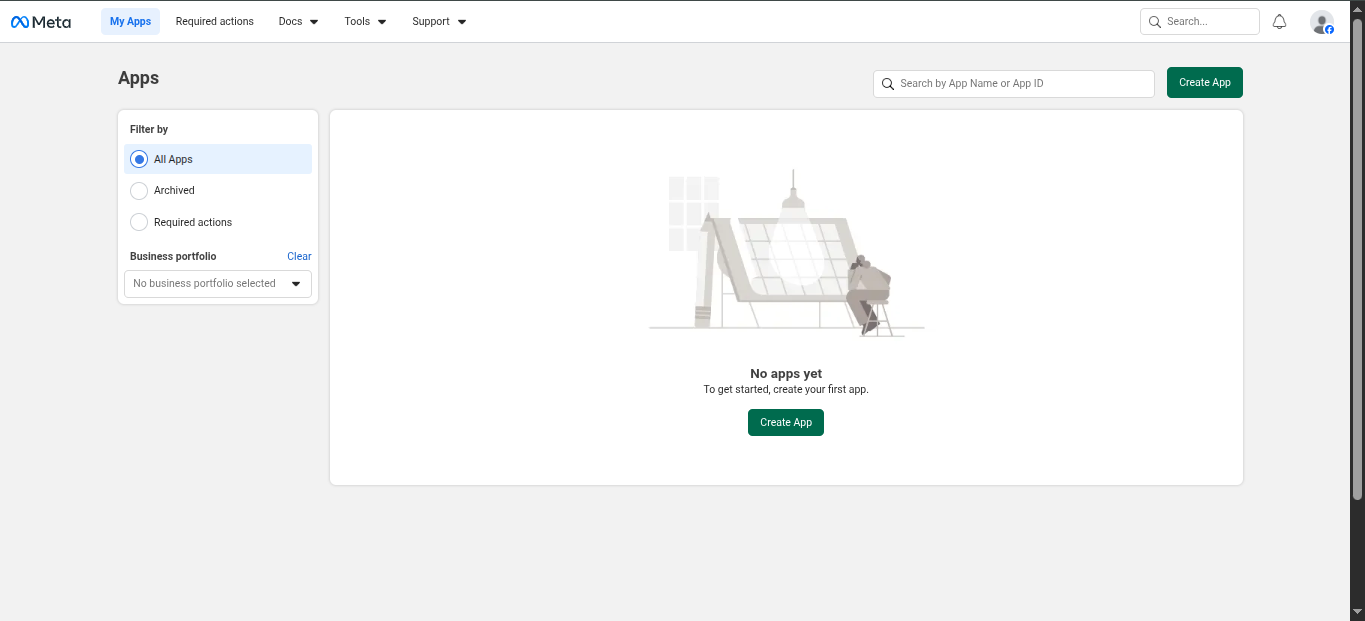
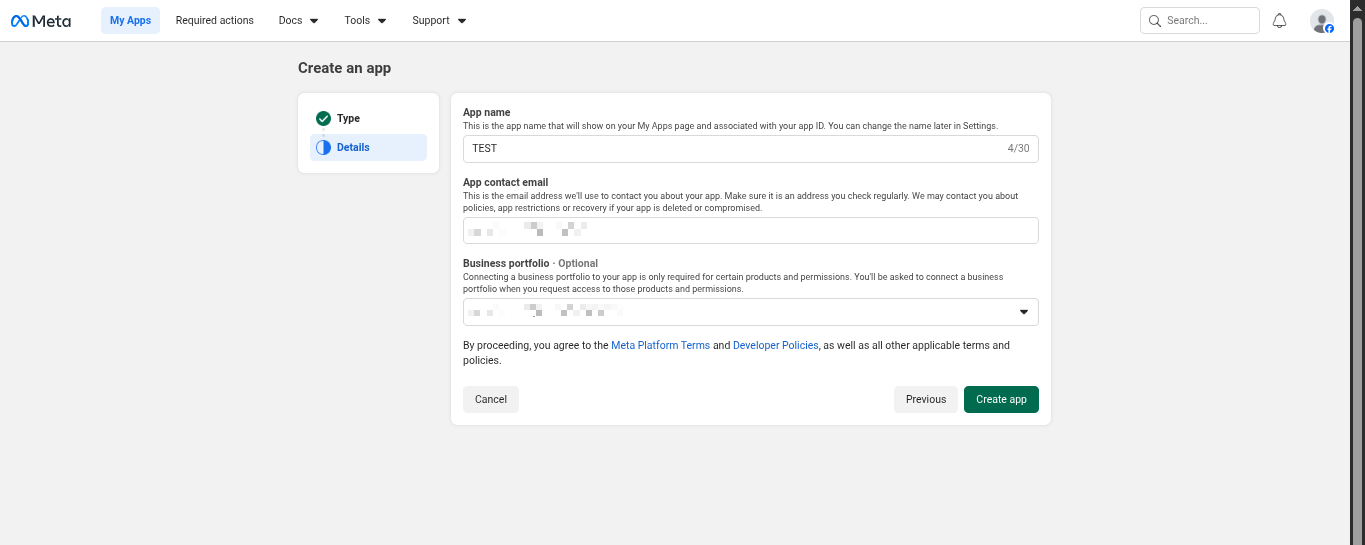
Inside your app dashboard:
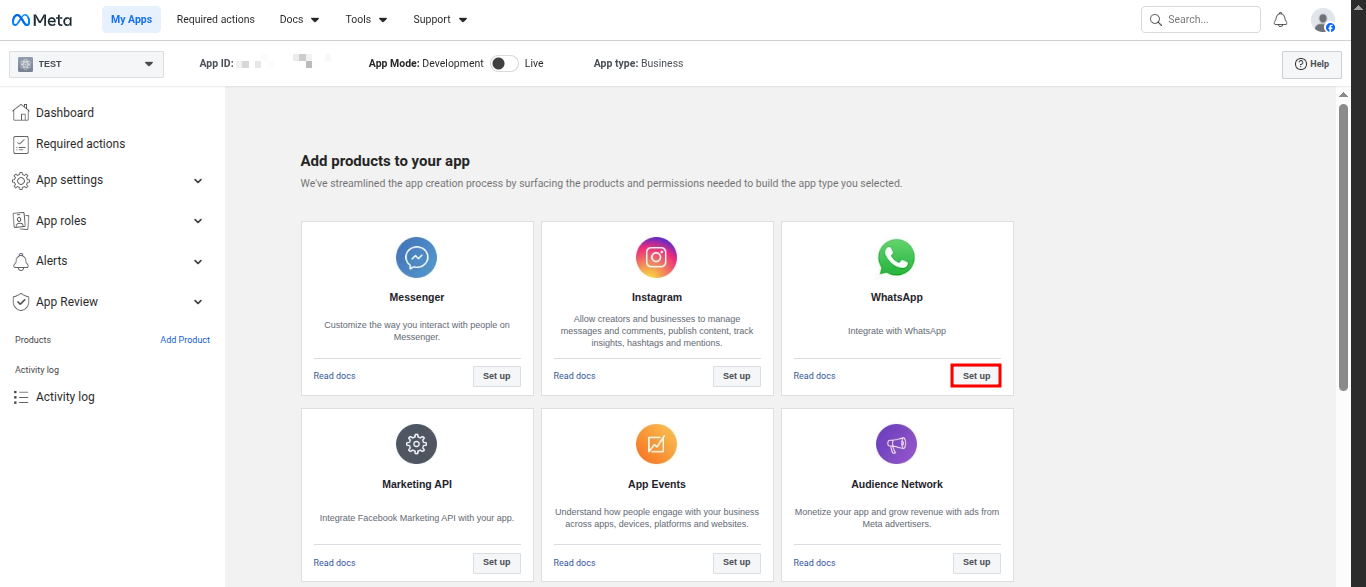
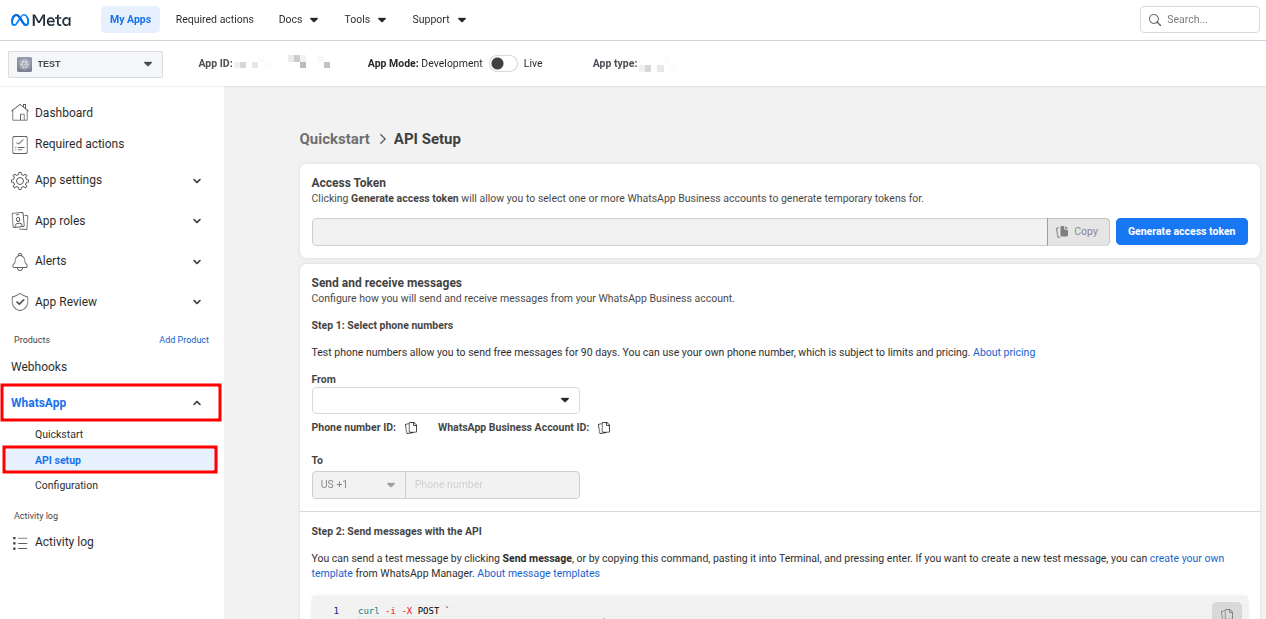
This is where you begin configuring messaging capabilities.
Register and verify your business phone number within the WhatsApp API setup.
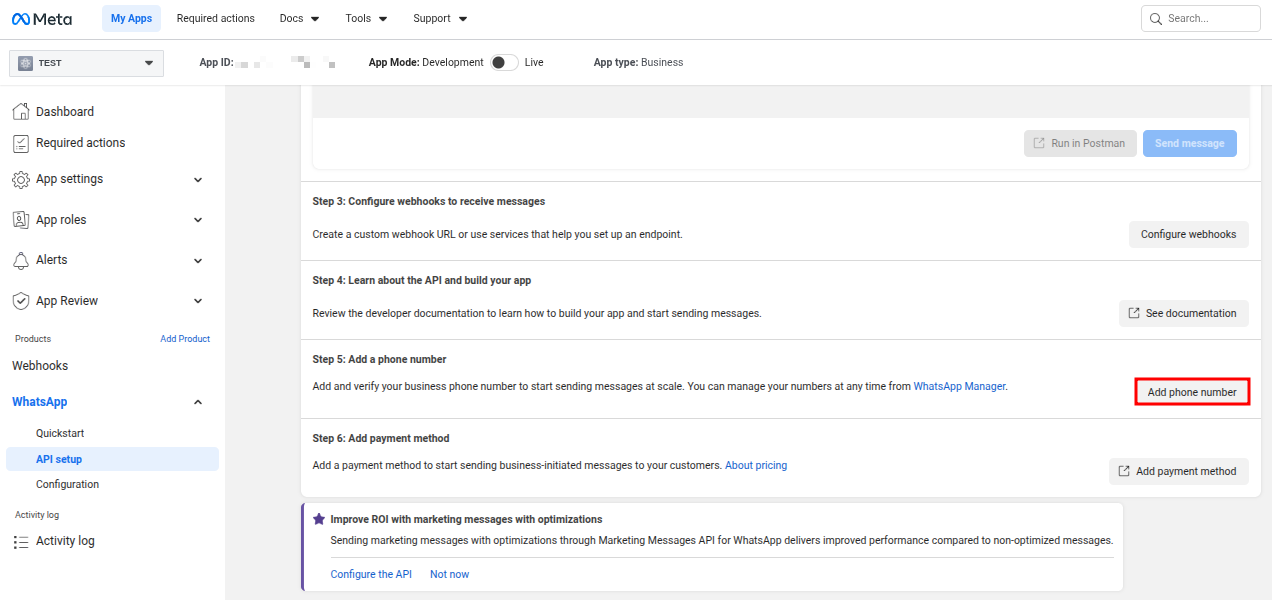
Make sure:
Meta requires billing setup for WhatsApp API usage.
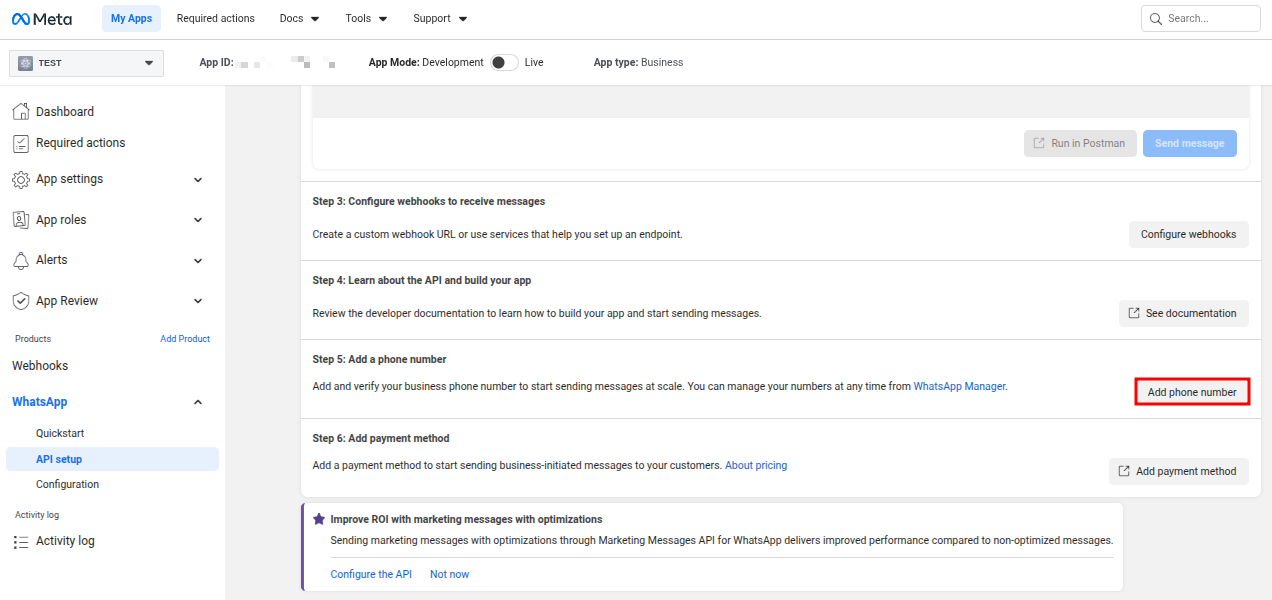
Without this, you won’t be able to send messages at scale.
Go to Meta Business Manager and complete business verification.
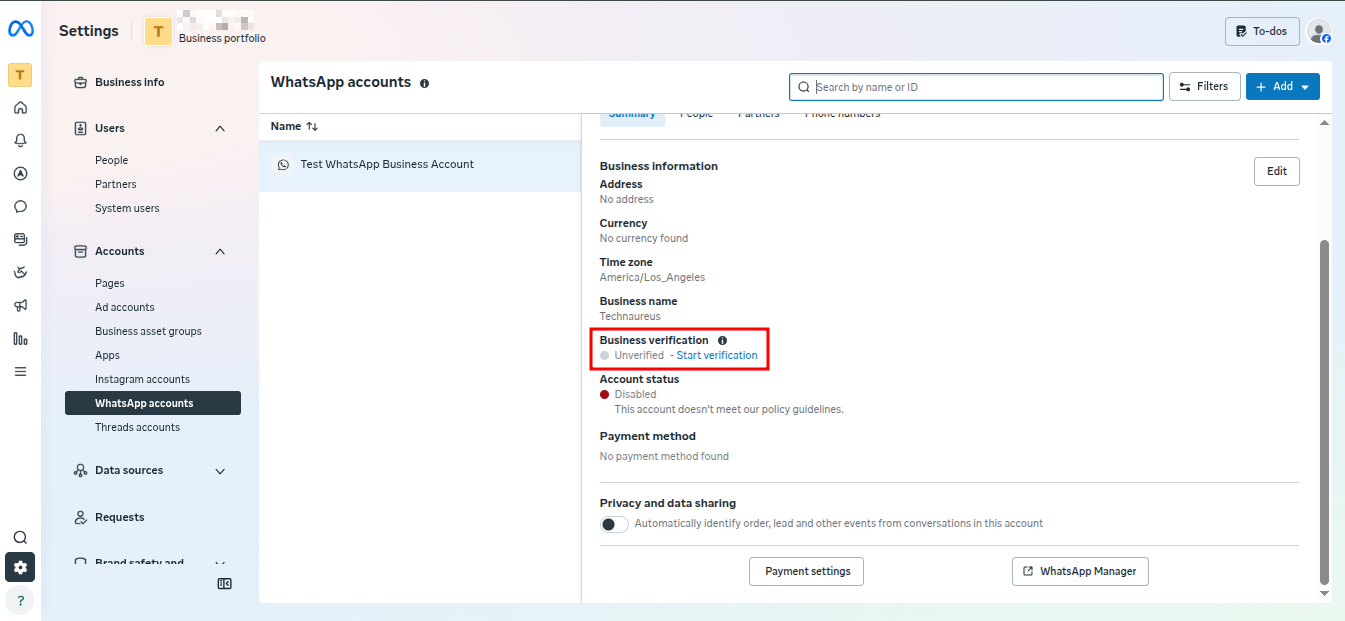
This step is mandatory.
Without verification:
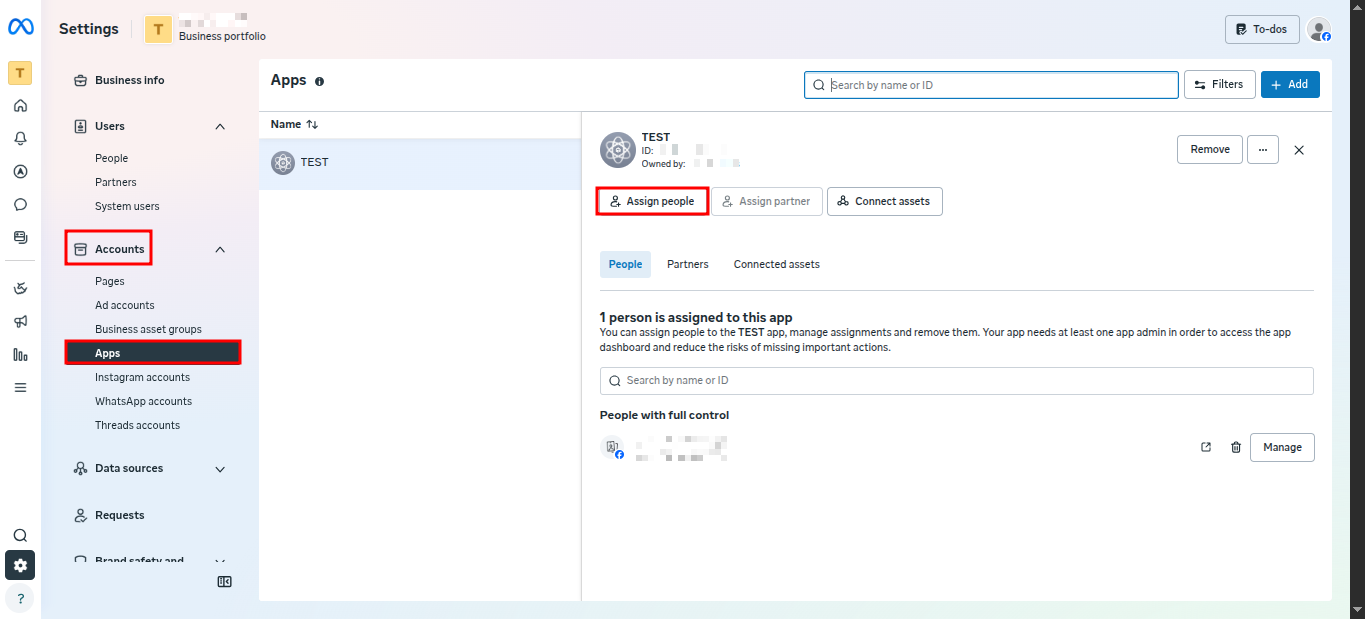
Go to Meta Business Suite of the Business Portfolio, Navigate to Settings and add a System User.
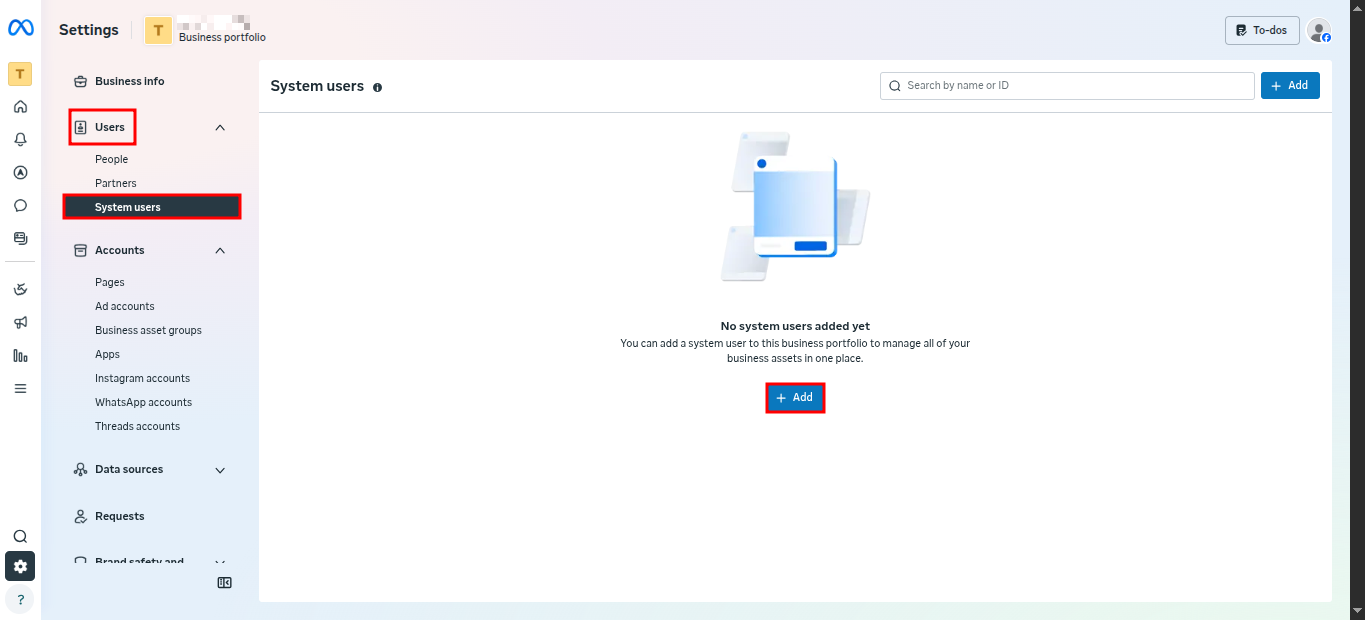
Then in the Apps assign the user that you created with the required access.
Navigate back to System users and Click on the Generate Token.
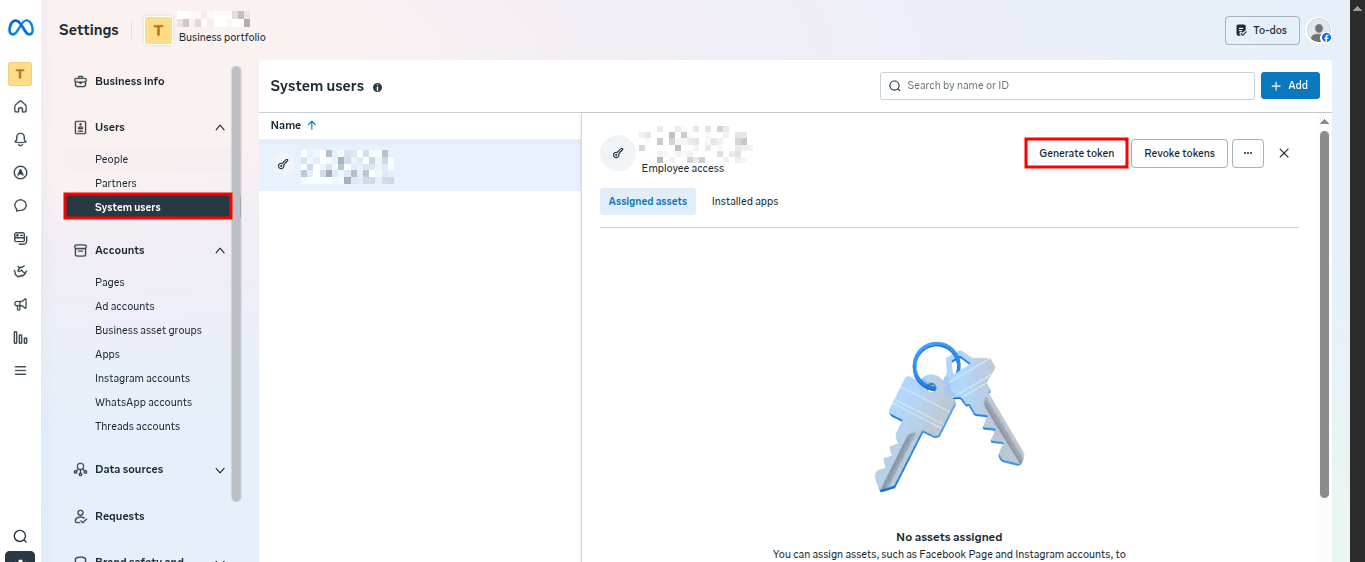
During token generation you can choose the token expiry either 60 days or Never depending on your business requirement.
Now switch to Odoo:
Navigate to:
WhatsApp → Configuration → WhatsApp Business Account → New
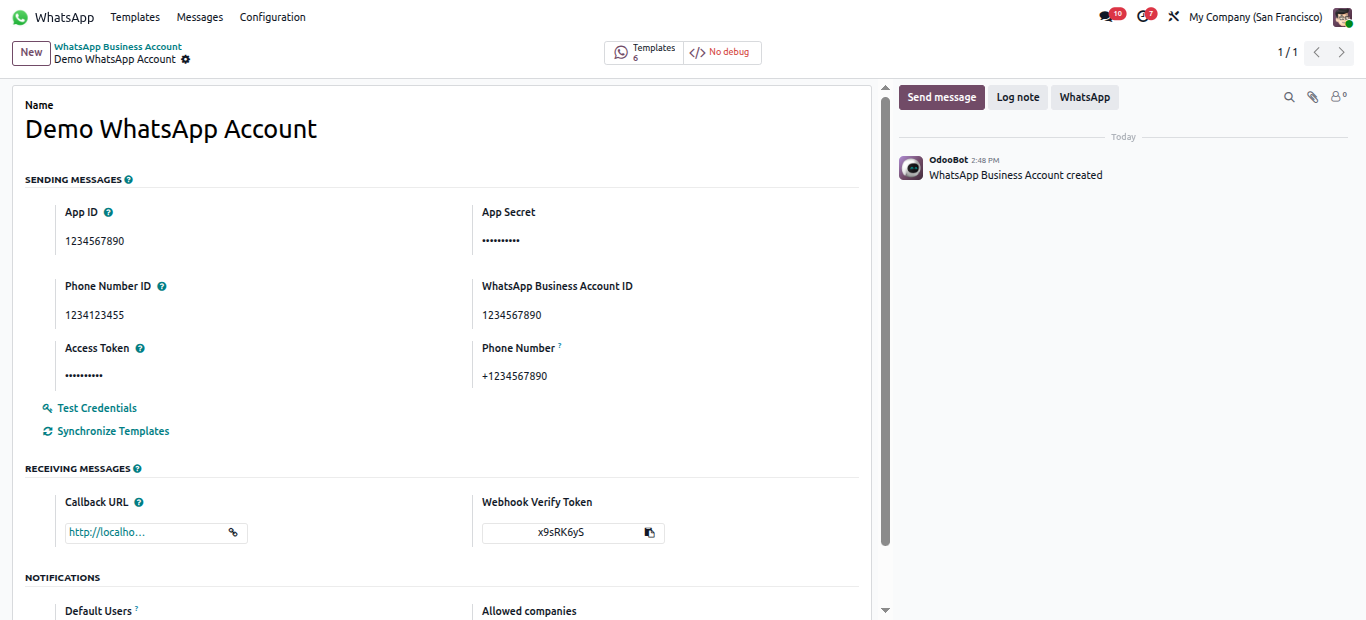
The credentials required can be obtained from the API Setup page in Meta developer Account.
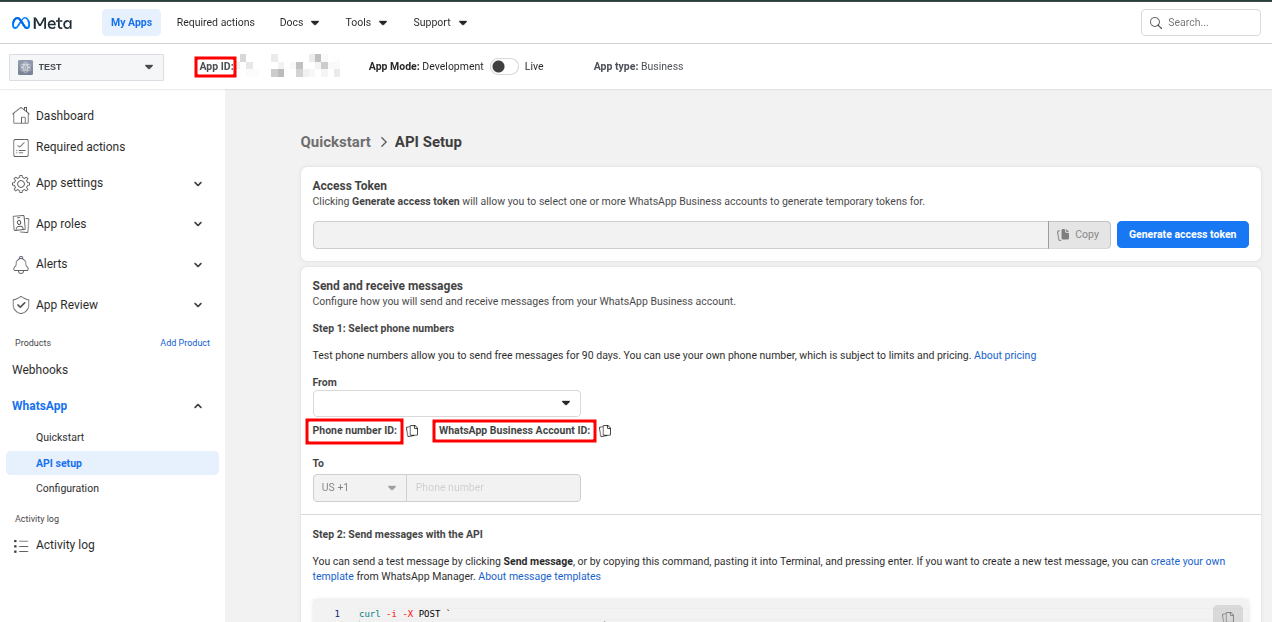
Access Token : The permanent access token that was generated in Step 6.
App Secret : Navigate to App Settings in the Meta Developer Account and in the Basic settings.
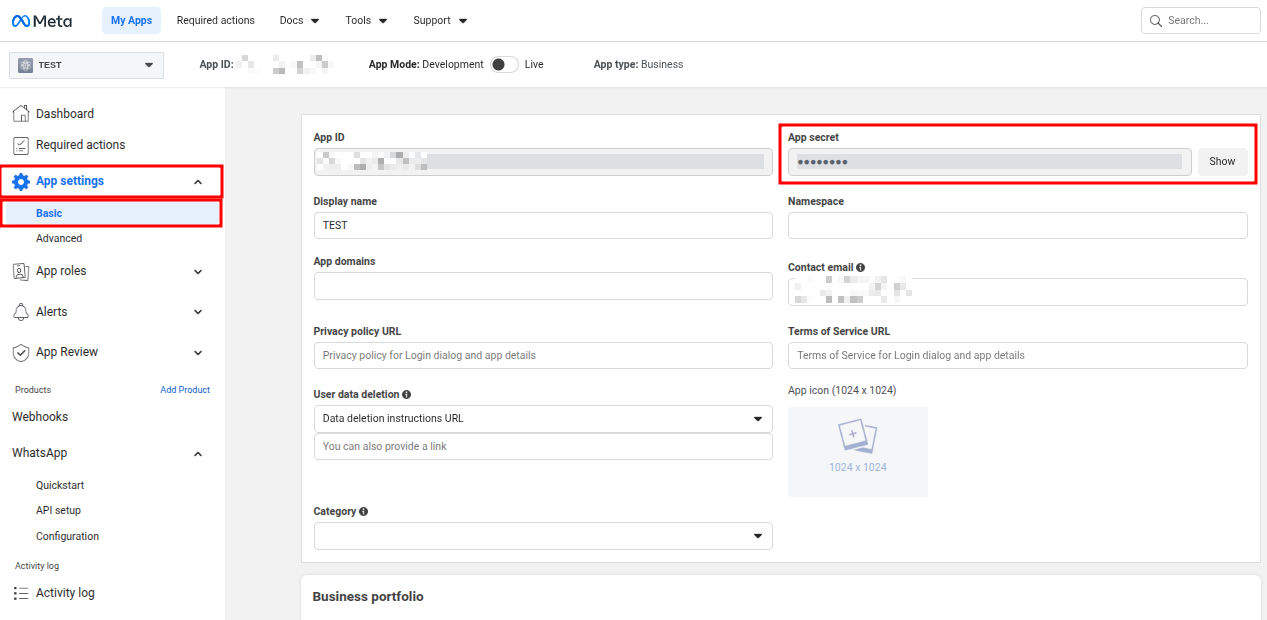
Set up webhooks to receive messages in Odoo.
This enables real-time communication between WhatsApp and Odoo.
Click “Test Credentials” inside Odoo.
If everything is configured correctly:
Most integration failures happen due to simple mistakes:
Fix these first before troubleshooting deeper issues.
Once integrated, you can use WhatsApp in Odoo for:
This is where the real ROI comes in—not just setup.
WhatsApp integration in Odoo 19 is not just a technical enhancement—it’s a powerful way to centralize communication, automate workflows, and improve customer experience.
If implemented correctly, it can significantly reduce response time and increase engagement across your business.
Setting this up can get complex—especially with API configurations, tokens, and verification steps.
If you want a smooth, error-free setup, our Odoo experts can help you integrate WhatsApp into your system quickly and efficiently.
Get in touch with us today to improve your customer communication with Odoo.





0