AkshayaApril 13, 2026
In many businesses, keeping large quantities of stock on hand is not always practical. Some products are purchased or manufactured only when a customer places an order. To support this workflow, Odoo 19 Purchase provides the Replenish on Order (MTO – Make to Order) route.
This feature helps businesses trigger procurement or production only after confirming a sales order, instead of relying on existing inventory. It is especially useful for companies that sell customized products, special-order items, or goods that are not regularly stocked.
In this blog, we will explore how Replenish on Order (MTO) works in Odoo 19 Purchase, how it automatically creates the required replenishment flow, and why it is valuable for demand-based operations.
The Make to Order (MTO) route is a procurement method where products are not fulfilled from available stock. Instead, once a customer order is confirmed, Odoo automatically generates the necessary replenishment action to satisfy that specific demand.
Depending on the product configuration, Odoo can create:
This means the system responds directly to actual customer demand, making inventory management more efficient and accurate.
Using the MTO route offers several practical advantages for businesses that want to avoid unnecessary stocking and improve order-driven procurement.
Products are replenished only when required, which helps avoid excess stock and minimizes warehouse storage costs.
Since products are not purchased in advance, businesses can avoid tying up money in unsold inventory.
Each replenishment is triggered directly by a confirmed sales order, ensuring that purchasing or production happens only when there is real demand.
Odoo links the sales order with the procurement or manufacturing process, making it easier to track product movement and fulfillment status.
The MTO route is particularly useful for businesses handling customized or low-frequency products.
When a product is configured with the Replenish on Order (MTO) route, Odoo does not attempt to fulfill the order using available stock alone. Instead, after a sales order is confirmed, the system creates a replenishment requirement for that exact quantity.
The next action depends on how the product is set up:
In short, the MTO route creates a direct connection between customer demand and replenishment activity, helping businesses maintain lean inventory while still fulfilling orders accurately.
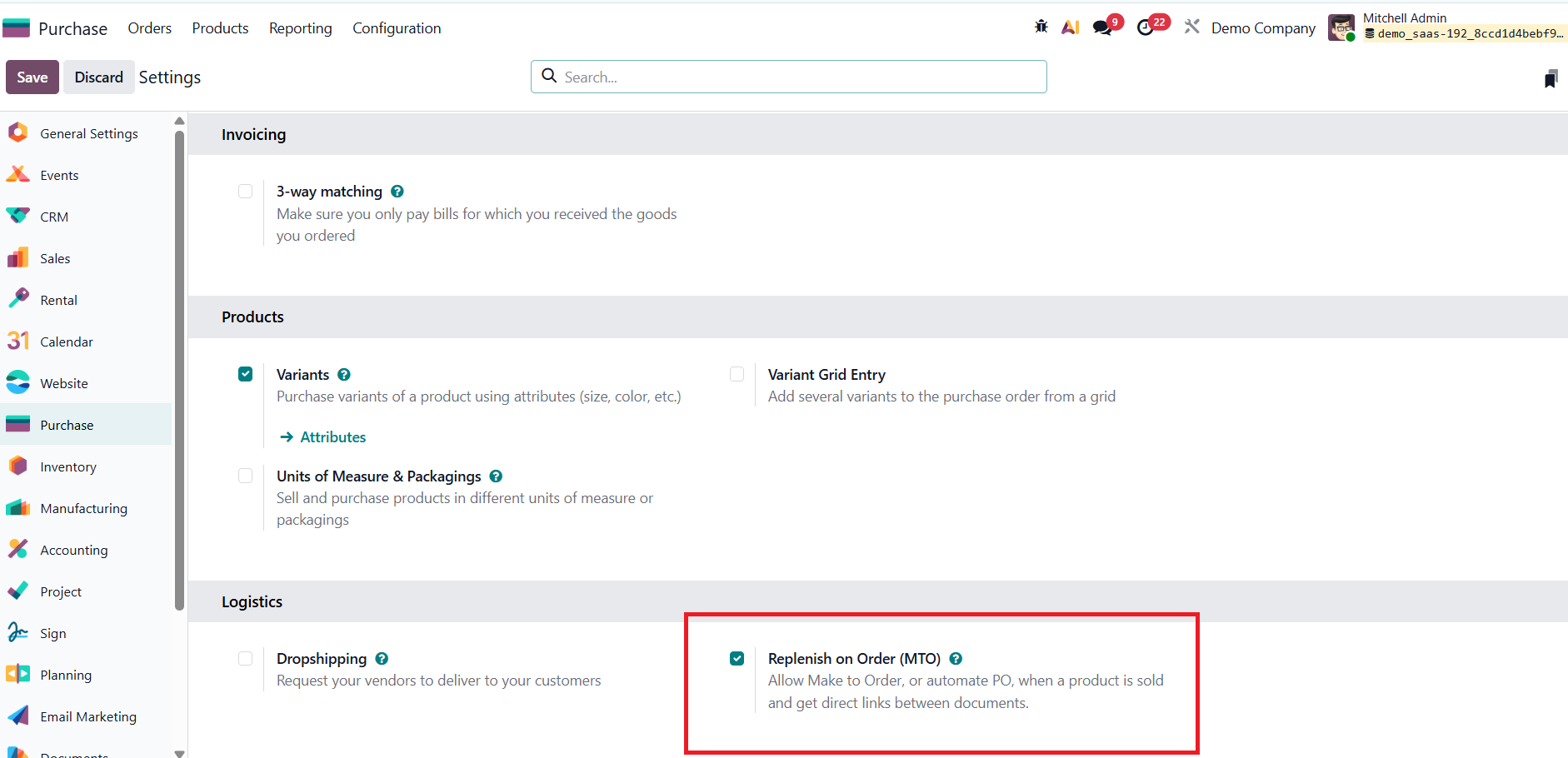
Before using this feature, you need to enable it in the Purchase settings:
Configuration → Settings → Replenish on Order (MTO) → Save
Once this option is enabled, the MTO route becomes available for product configuration.
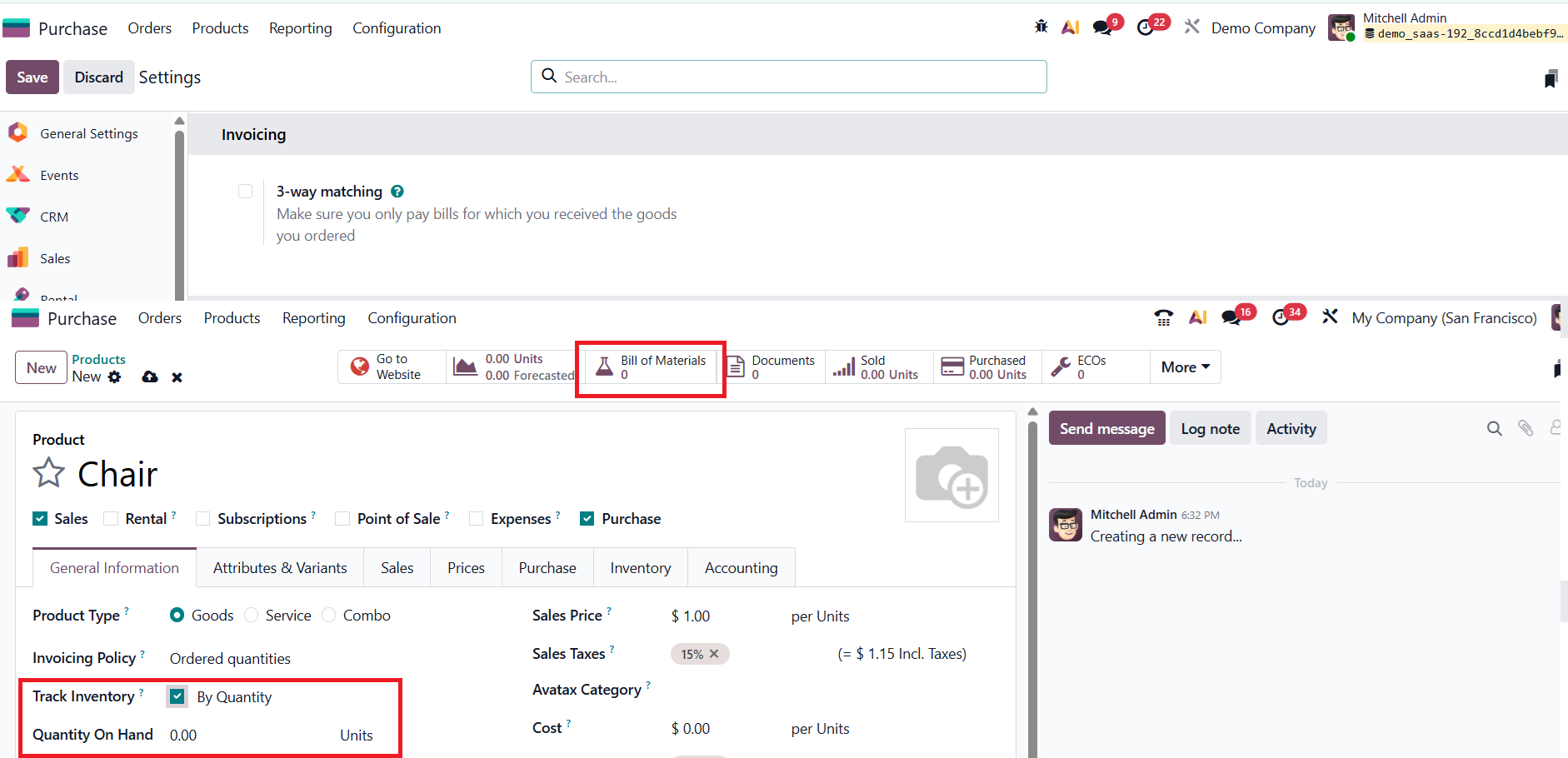
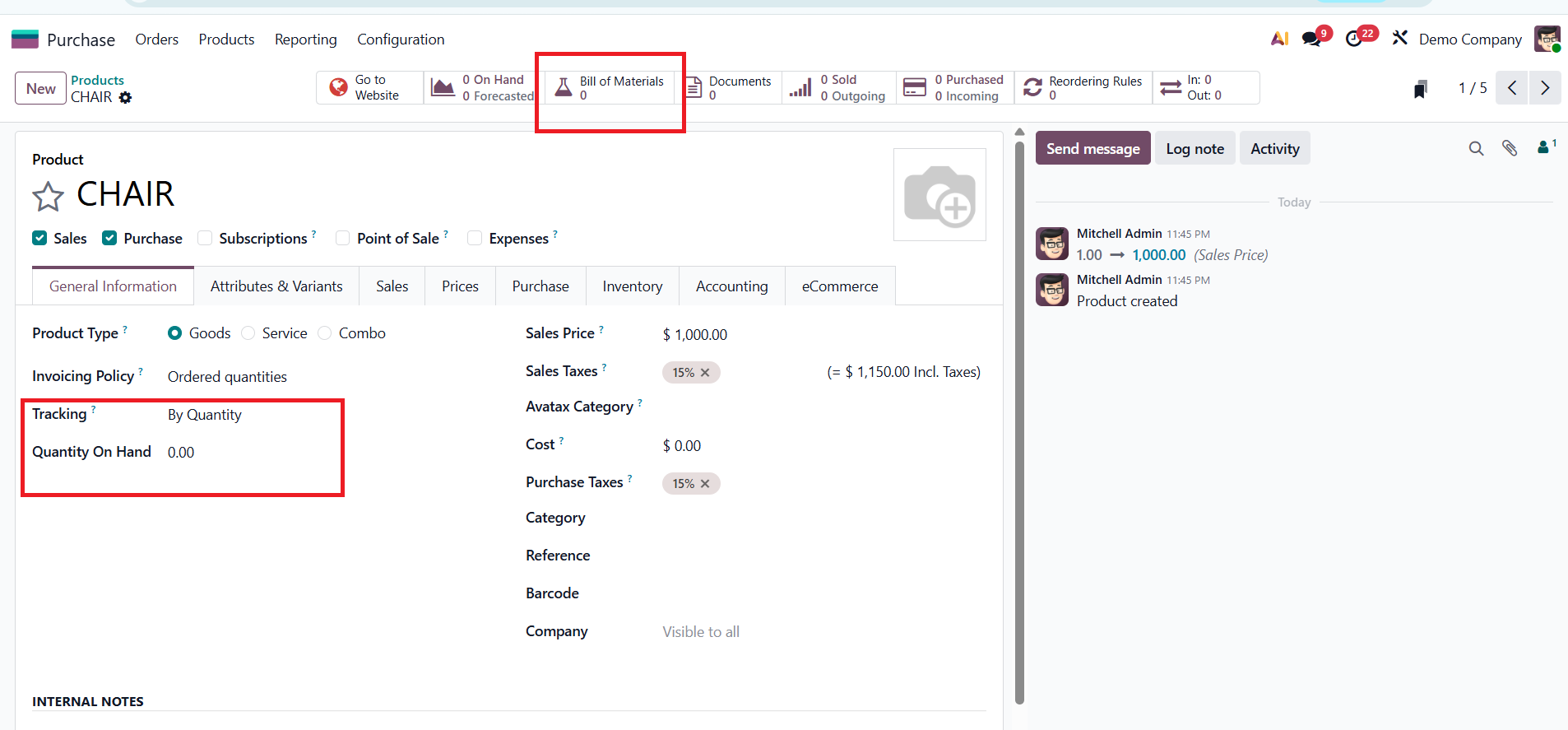
For this, let’s examine one product named CHAIR. Here, the product is not currently stocked in the inventory, which means there is no available quantity on hand. Also, when checking the smart buttons, it can be seen that no Bill of Materials (BoM) has been created for this product.
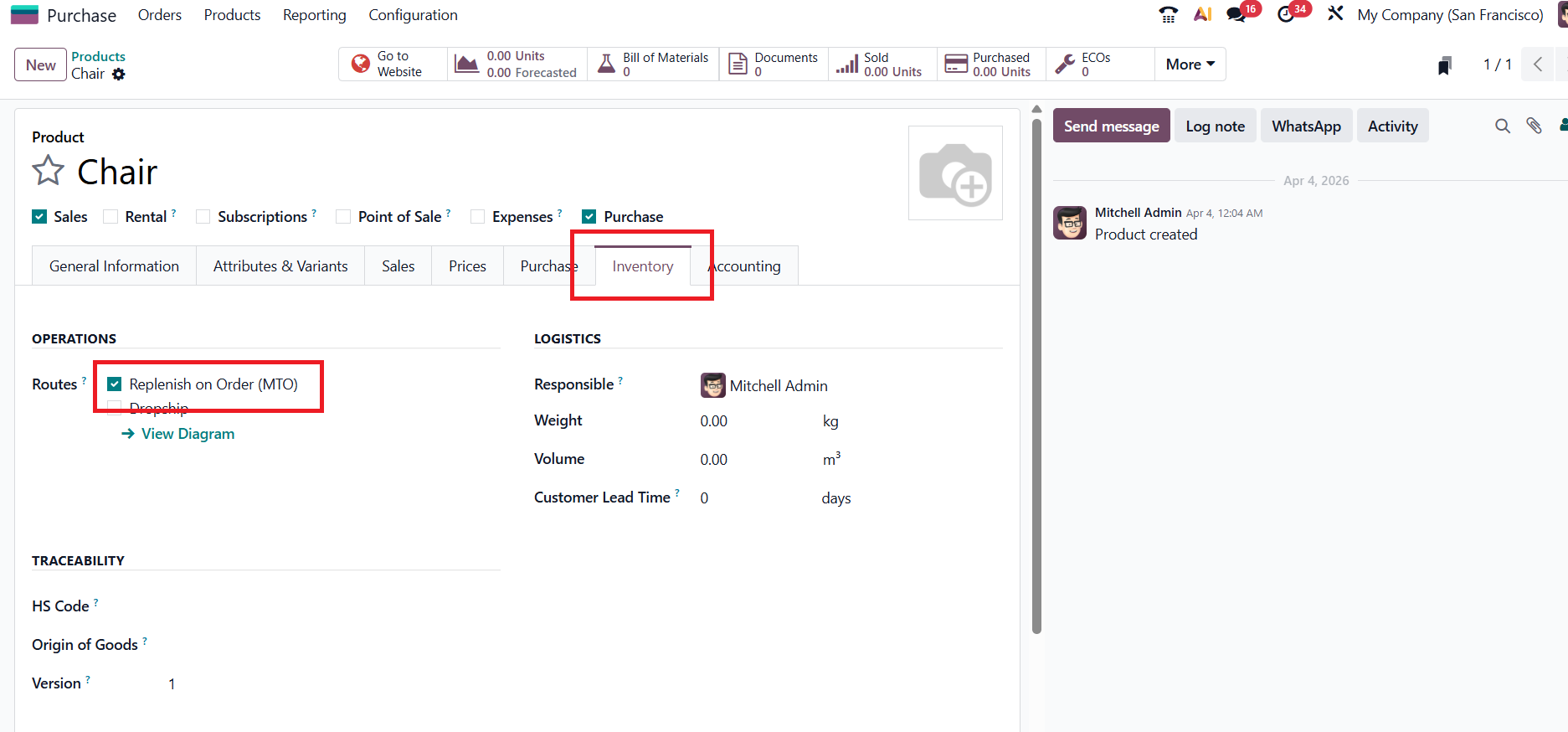
Next, inside the Inventory tab of the product, the route is configured as Replenish on Order (MTO).
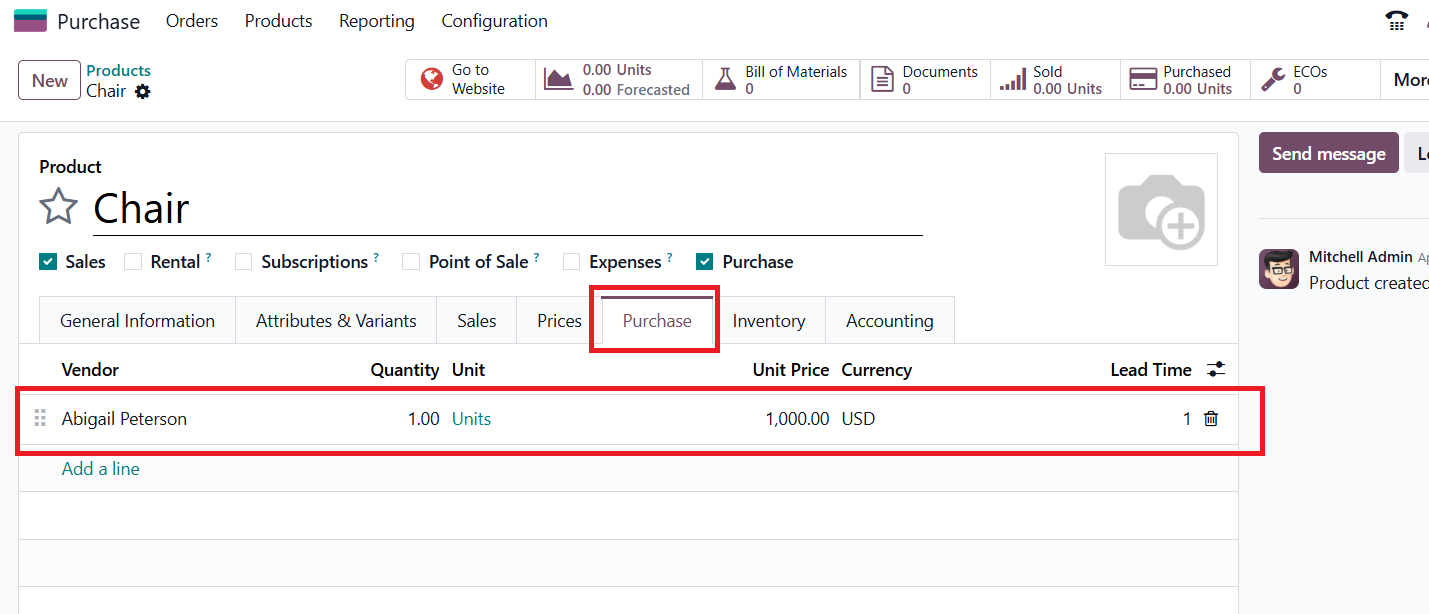
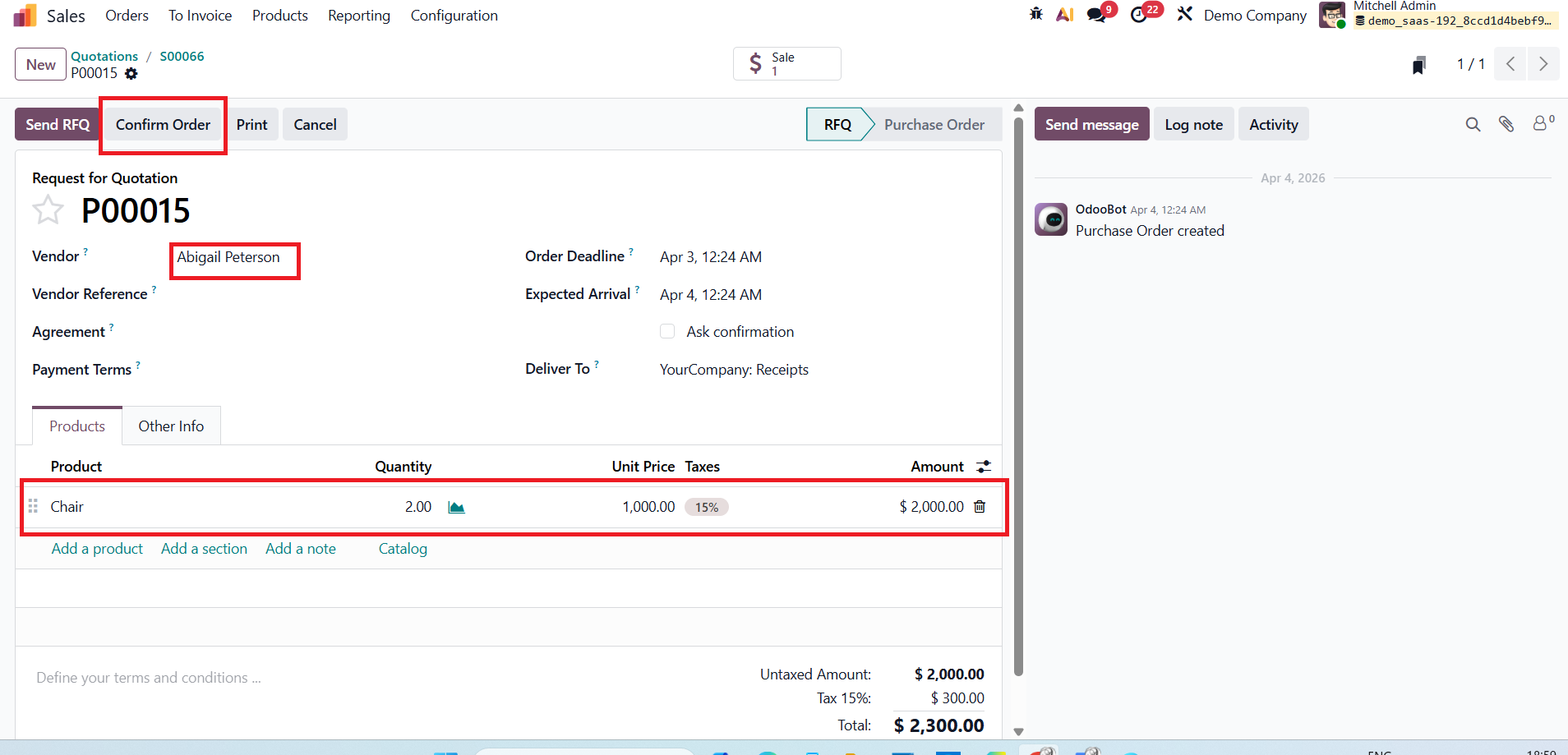
Vendor Configuration: In the Purchase tab, a vendor is assigned for this product. This is an important step because, when the sales order is confirmed, Odoo uses this vendor information to automatically generate the corresponding Request for Quotation or Purchase Order.
Save the product, then create a new sales order for the product. Move to the Sales module, then create a new quotation. Add the product inside the order line, then confirm the order.
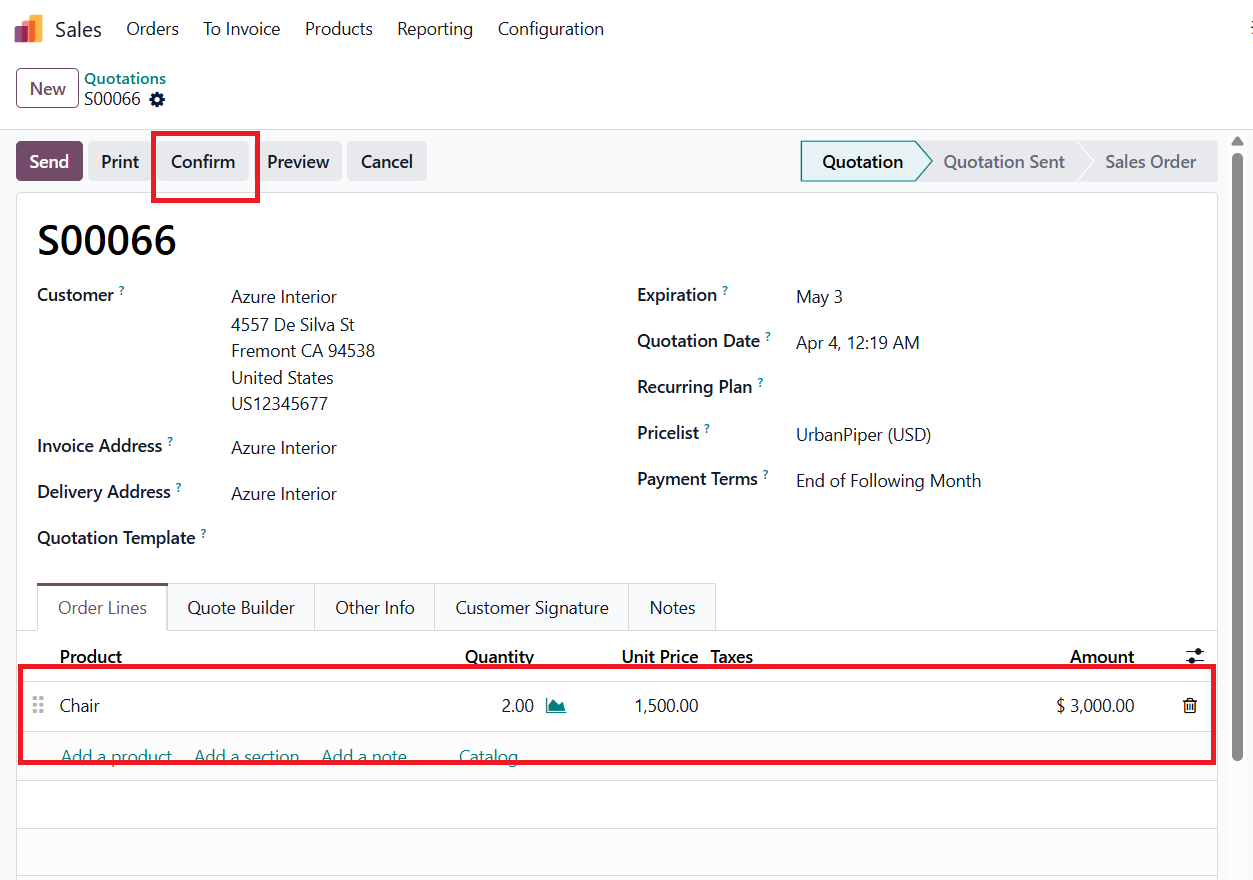
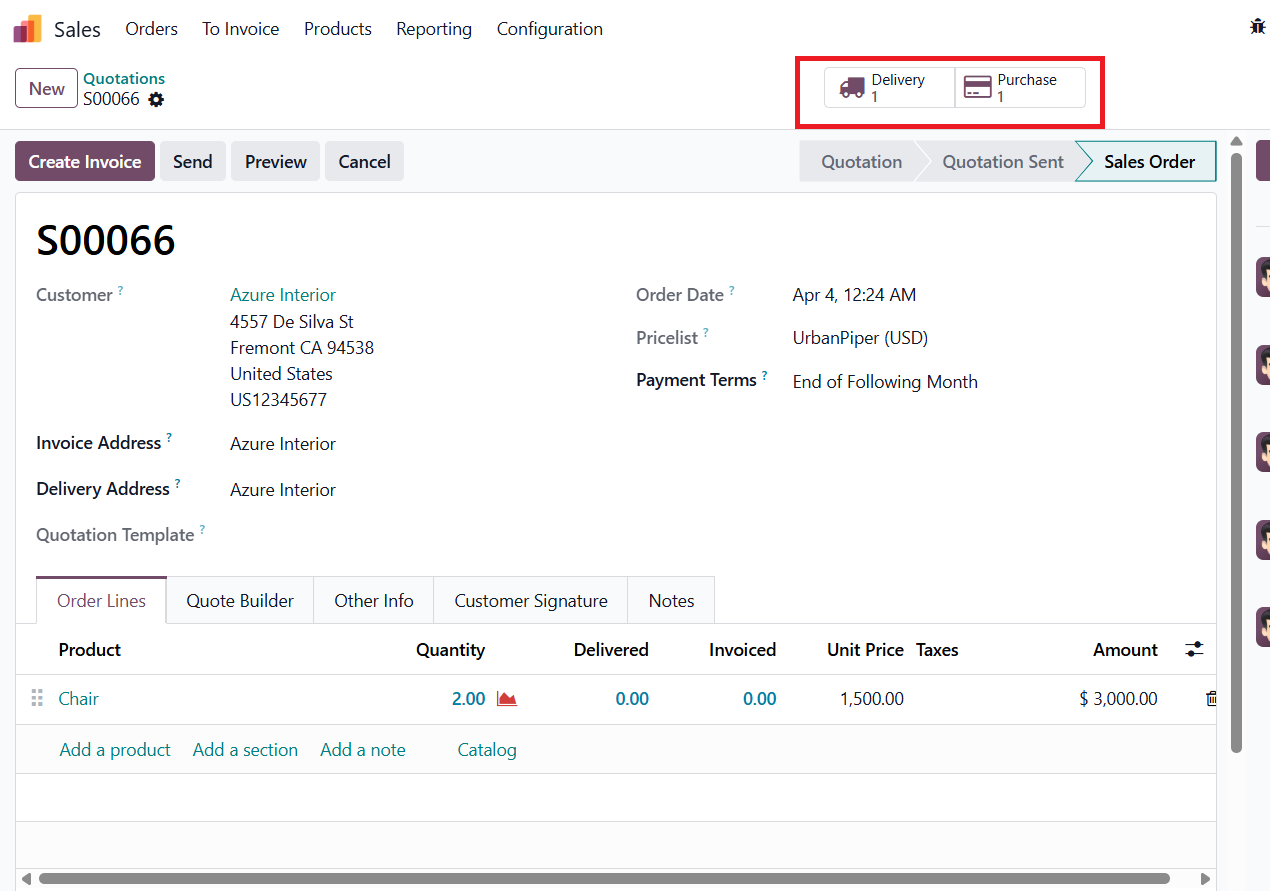
As the product is not available in stock, Odoo automatically triggers the replenishment process when the quotation is confirmed. At the top of the sales order, two smart buttons are displayed:
Open the Purchase tab and confirm the order.
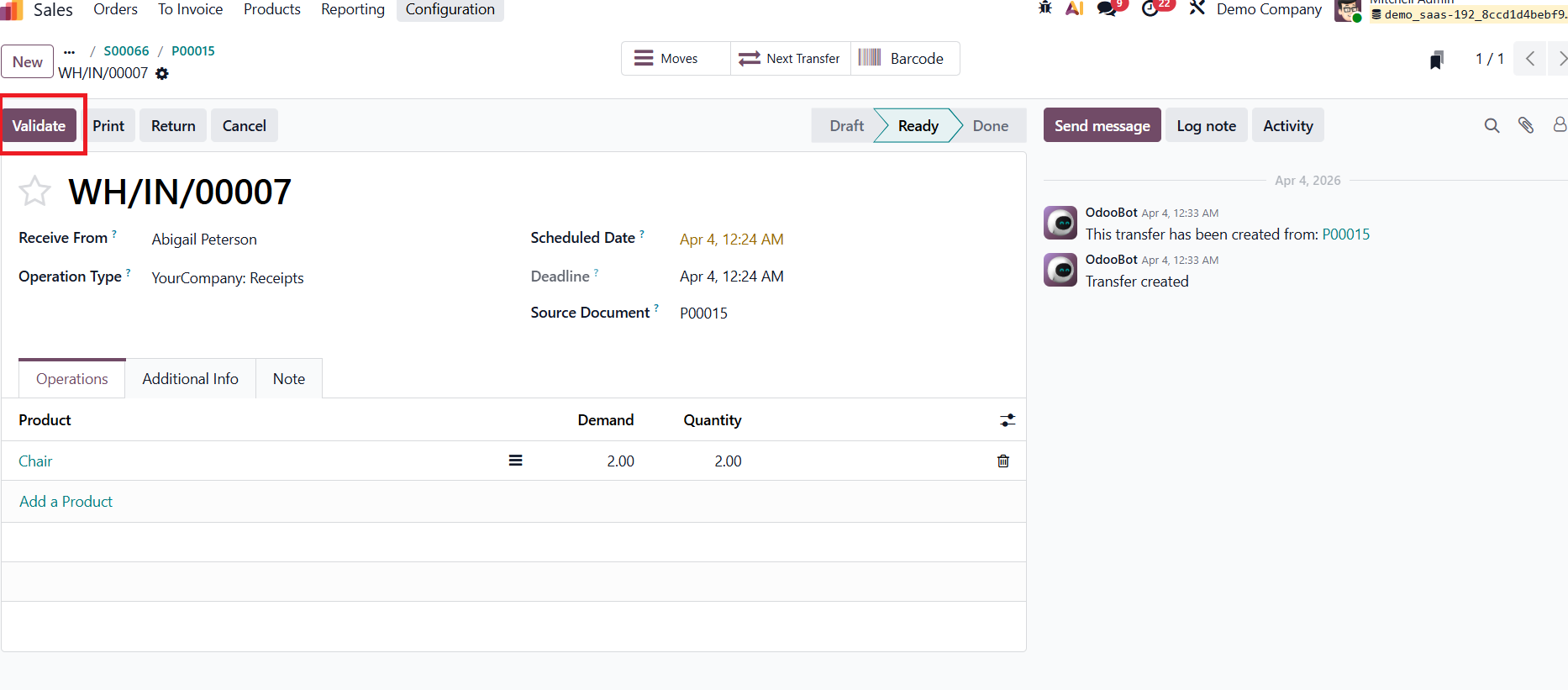
Then, complete the receipt by validating. Now the product has arrived in the stock.
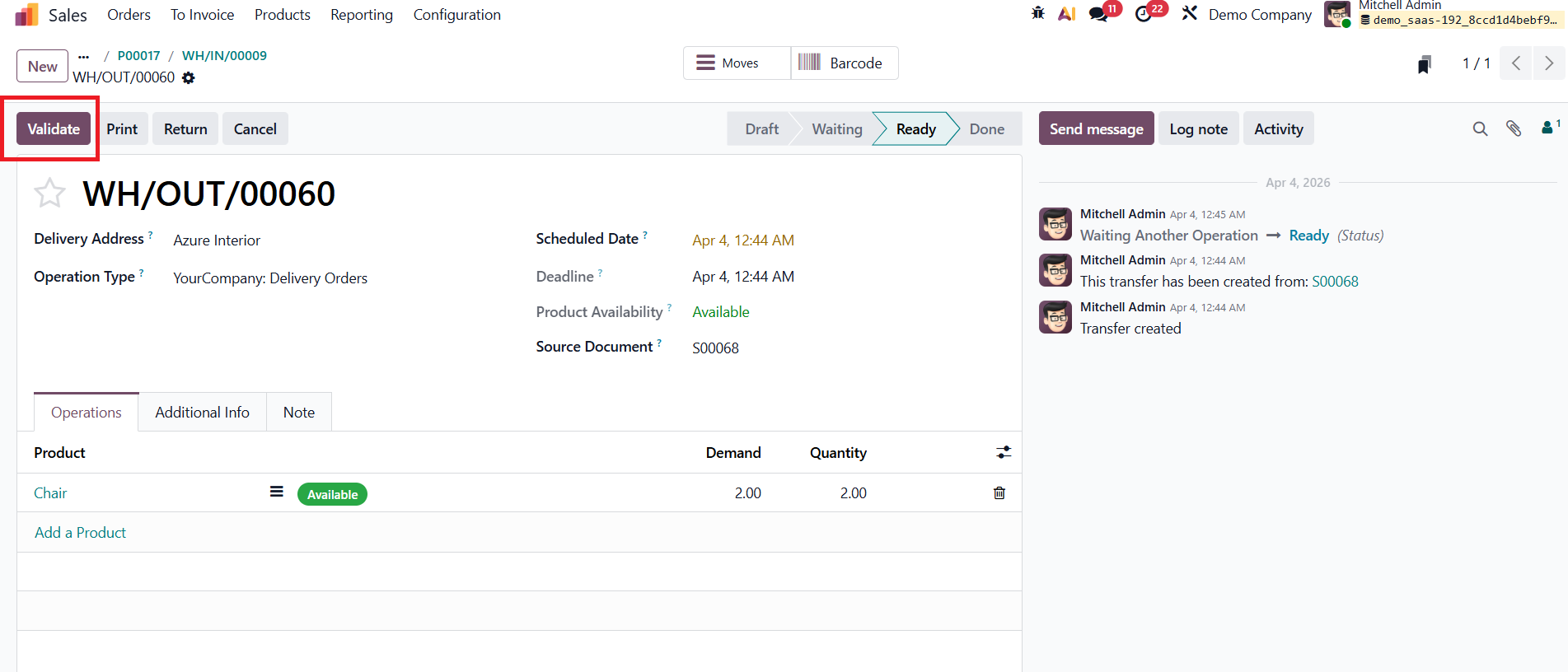
Next, open the Delivery smart button from the sales order or use Next Transfer to access the delivery. As the product is now available, complete the delivery by validating it.
The Replenish on Order (MTO) feature in Odoo 19 also supports manufacturing by creating a Manufacturing Order whenever a sales order is confirmed. This ensures that products are manufactured only when needed.
Now, open the same product, CHAIR. The On Hand Quantity is still 0, meaning the product is not available in stock. A smart button named Bill of Materials can be seen, which is used to configure manufacturing.
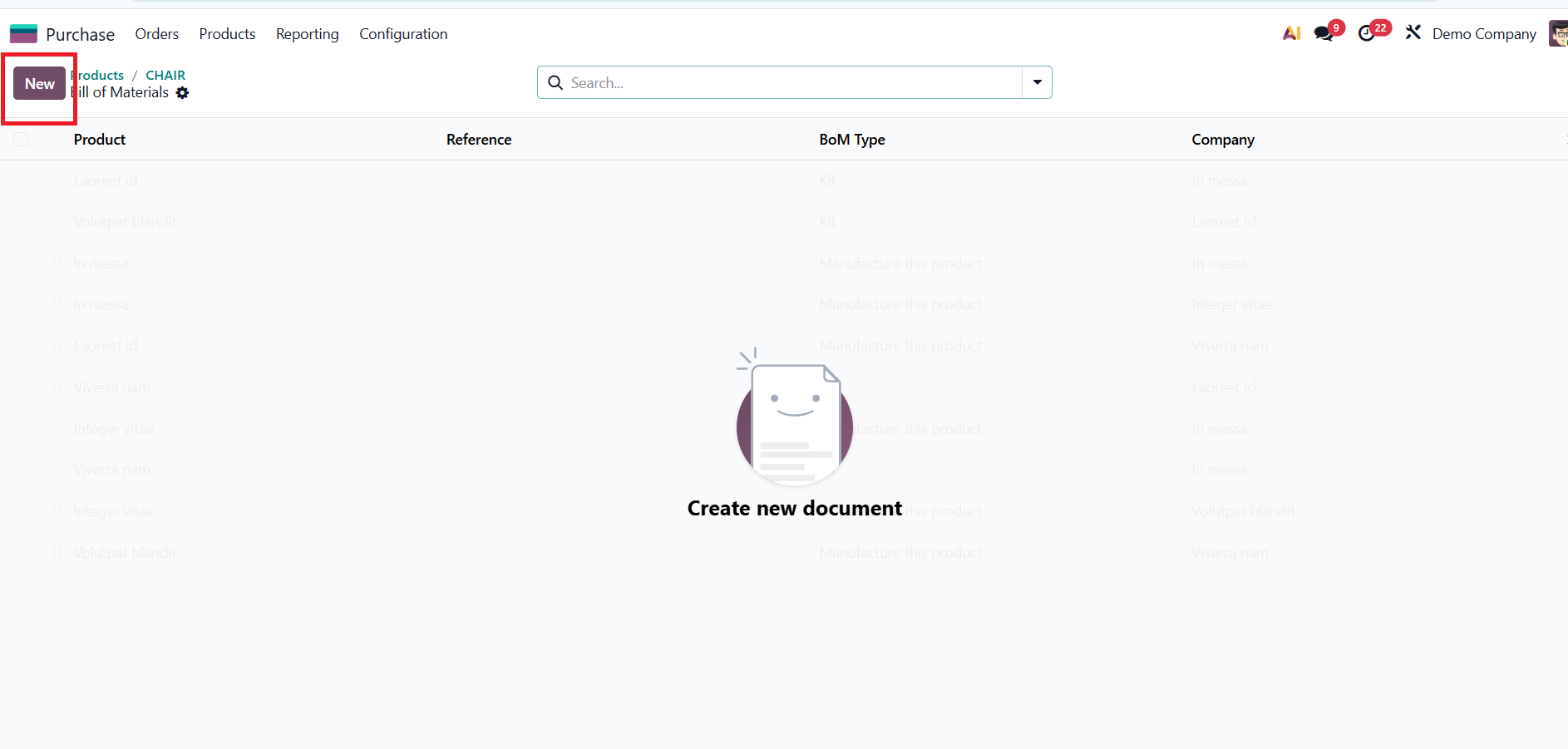
When checking the Bill of Materials smart button, it can be seen that no BoM has been created yet. Since a BoM is required, click New to create one.
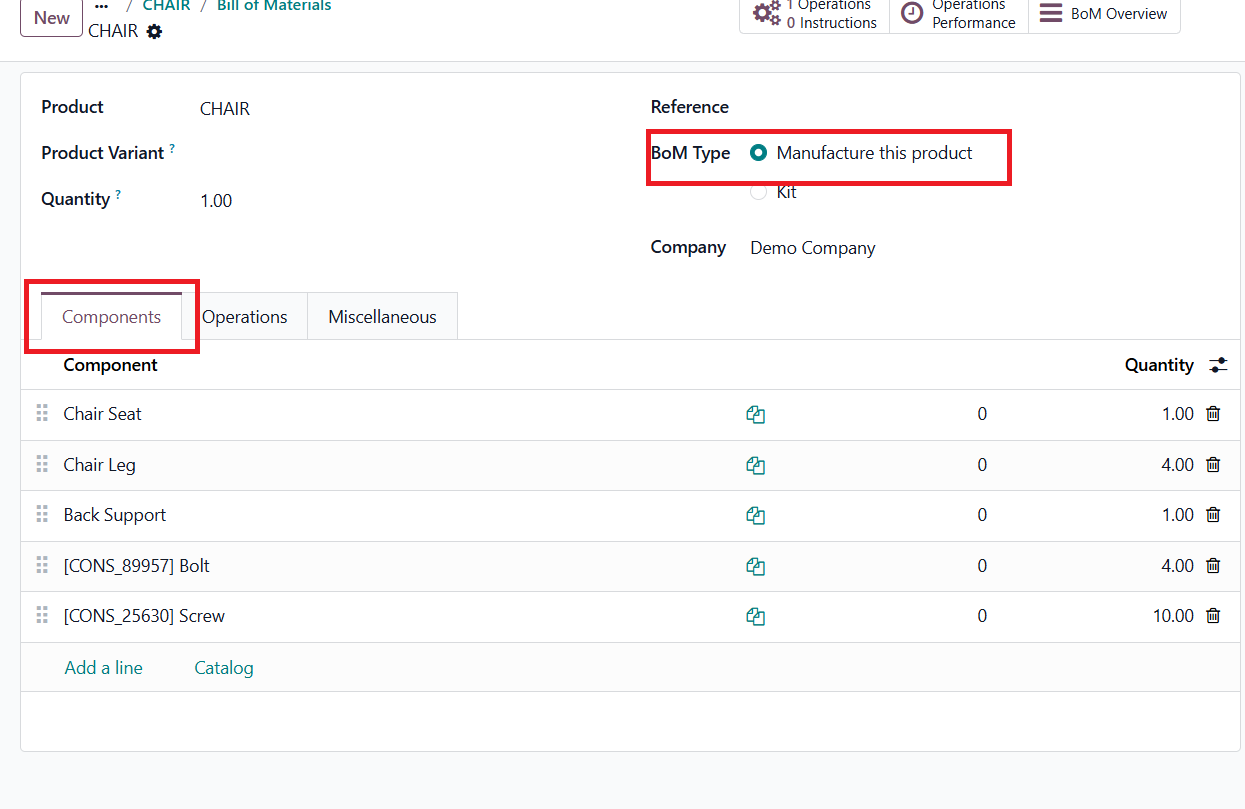
After clicking New, create a Bill of Materials for the product CHAIR. Set the BoM Type to Manufacture this product, which tells Odoo the product will be produced through manufacturing.
After clicking the New button, a window appears as shown in the image below.
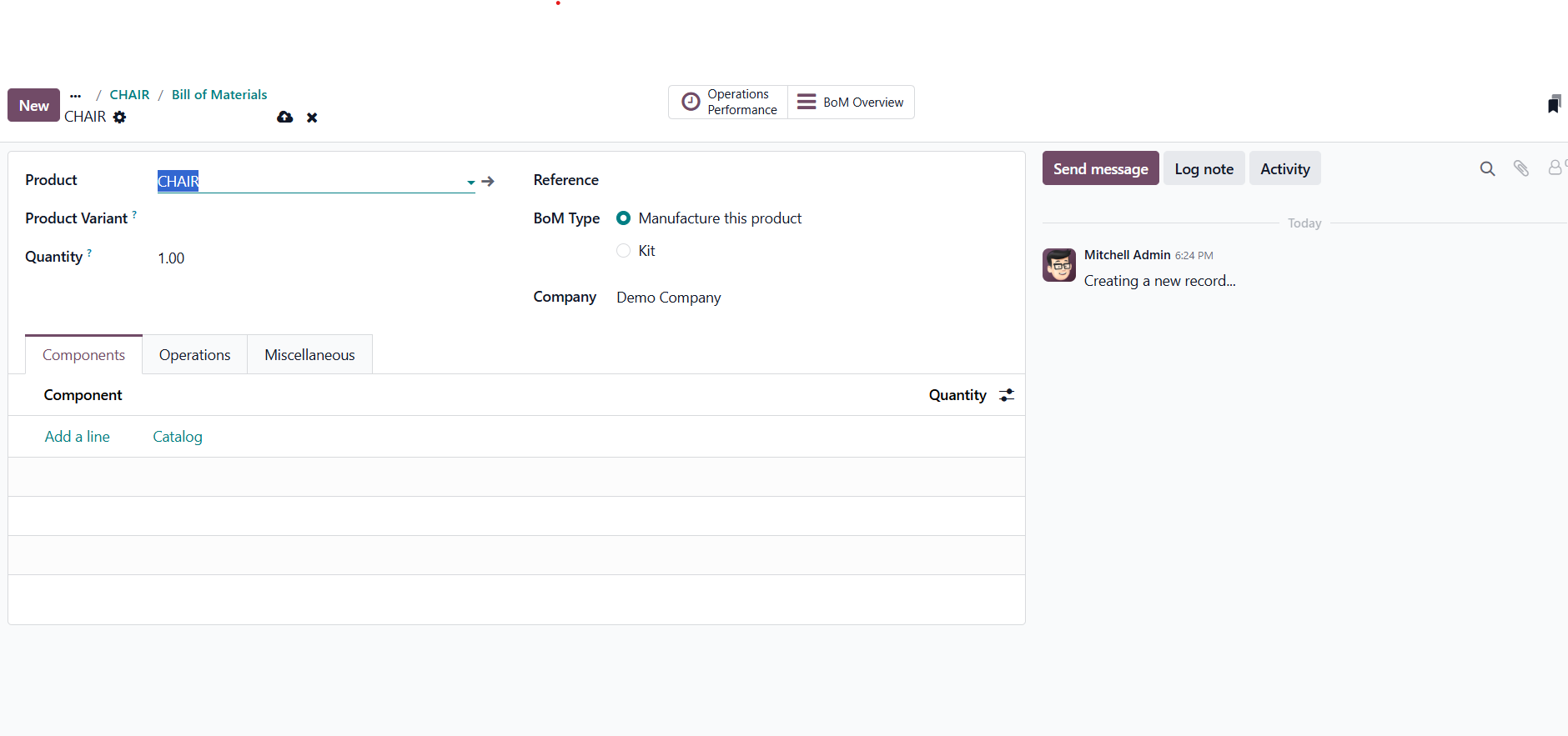
Here, the BoM Type should be set to Manufacture this product, which tells Odoo that the finished product will be produced through a manufacturing process.Inside the Components tab, add the required raw materials needed to manufacture the product. These components represent the materials that will be consumed during the production process.
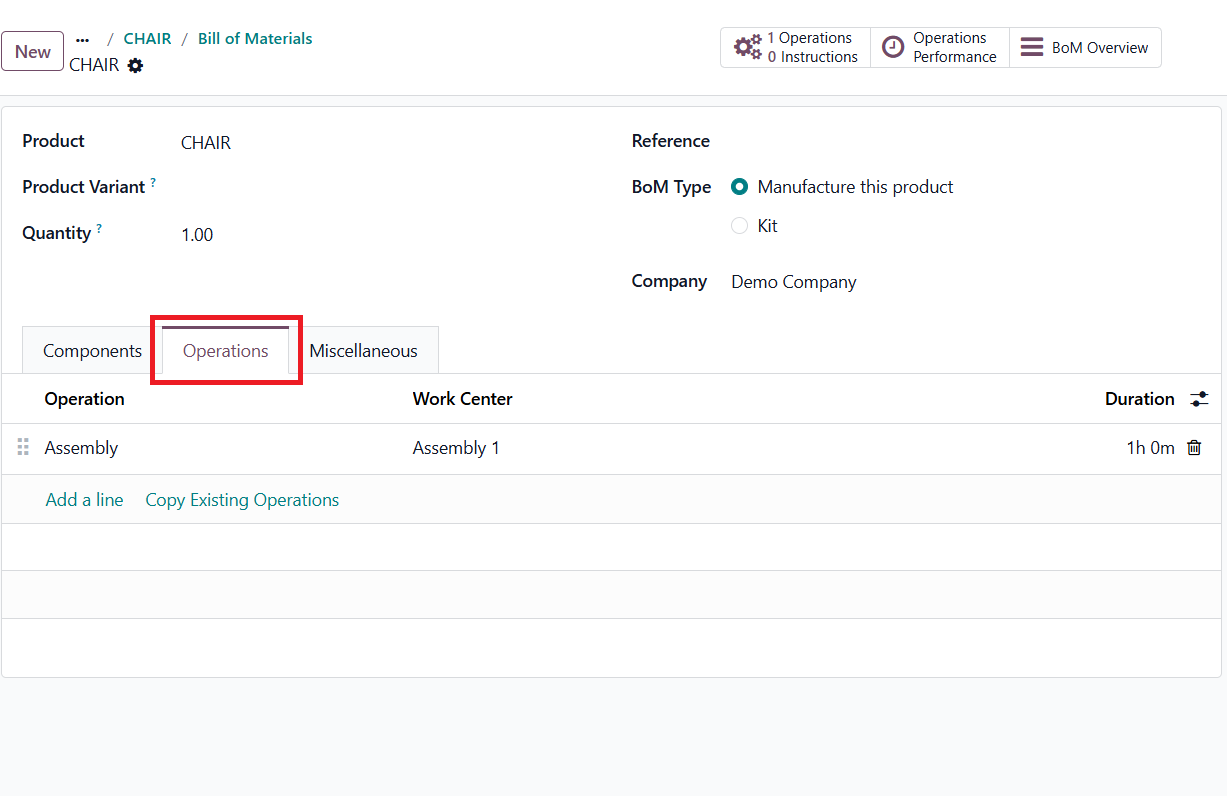
The Operations tab in the Bill of Materials is used to define the manufacturing steps required to produce the finished product. Each operation represents a specific task that needs to be performed during the production process.
Once all details are added, save the Bill of Materials.
Next, open the Inventory tab and set the route as Replenish on Order (MTO):
Product → Inventory Tab → Enable Replenish on Order (MTO)
Now, create a new quotation from the Sales module and add the product Chair. Enter customer details and quantity, save the quotation, and confirm it.
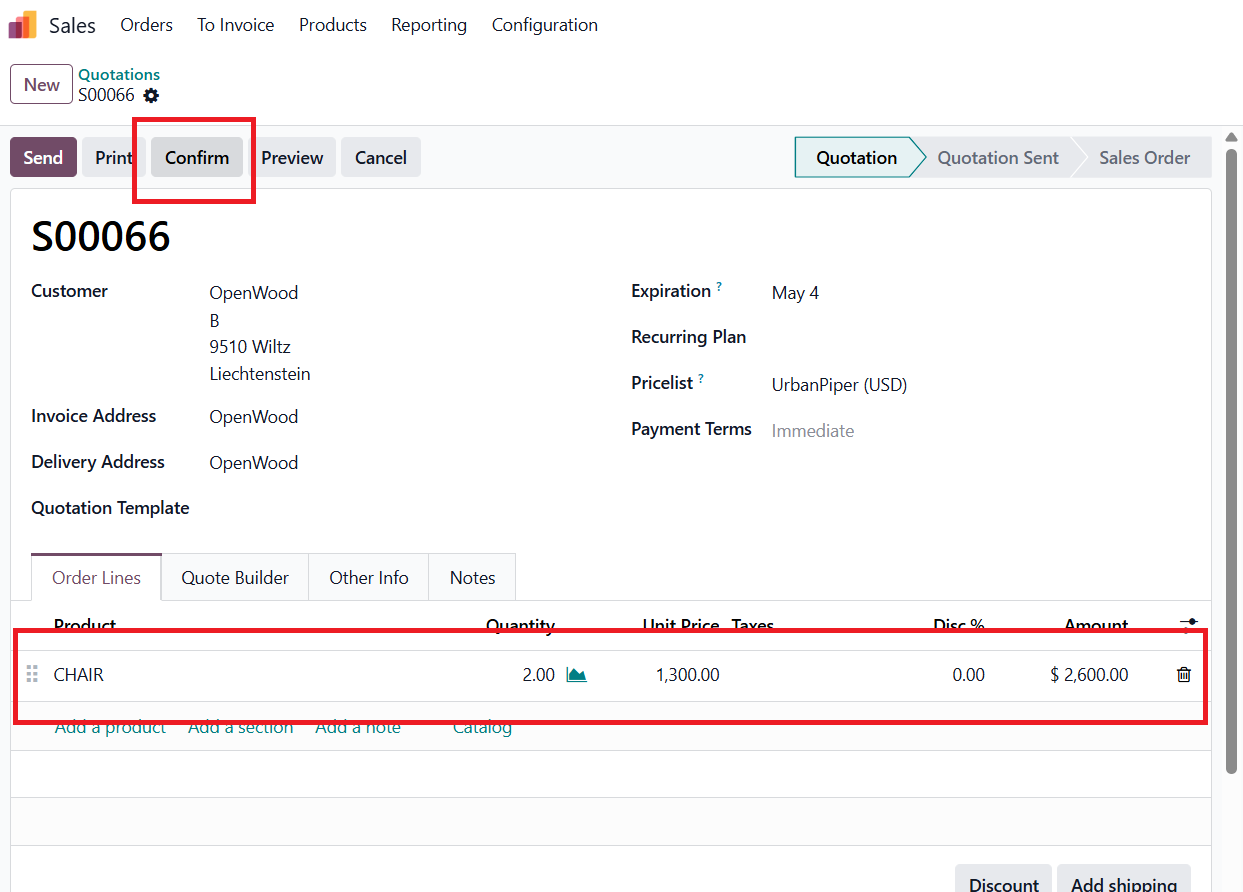
After confirming, smart buttons such as Delivery and Manufacturing appear. The Manufacturing button indicates the product must be produced before delivery.
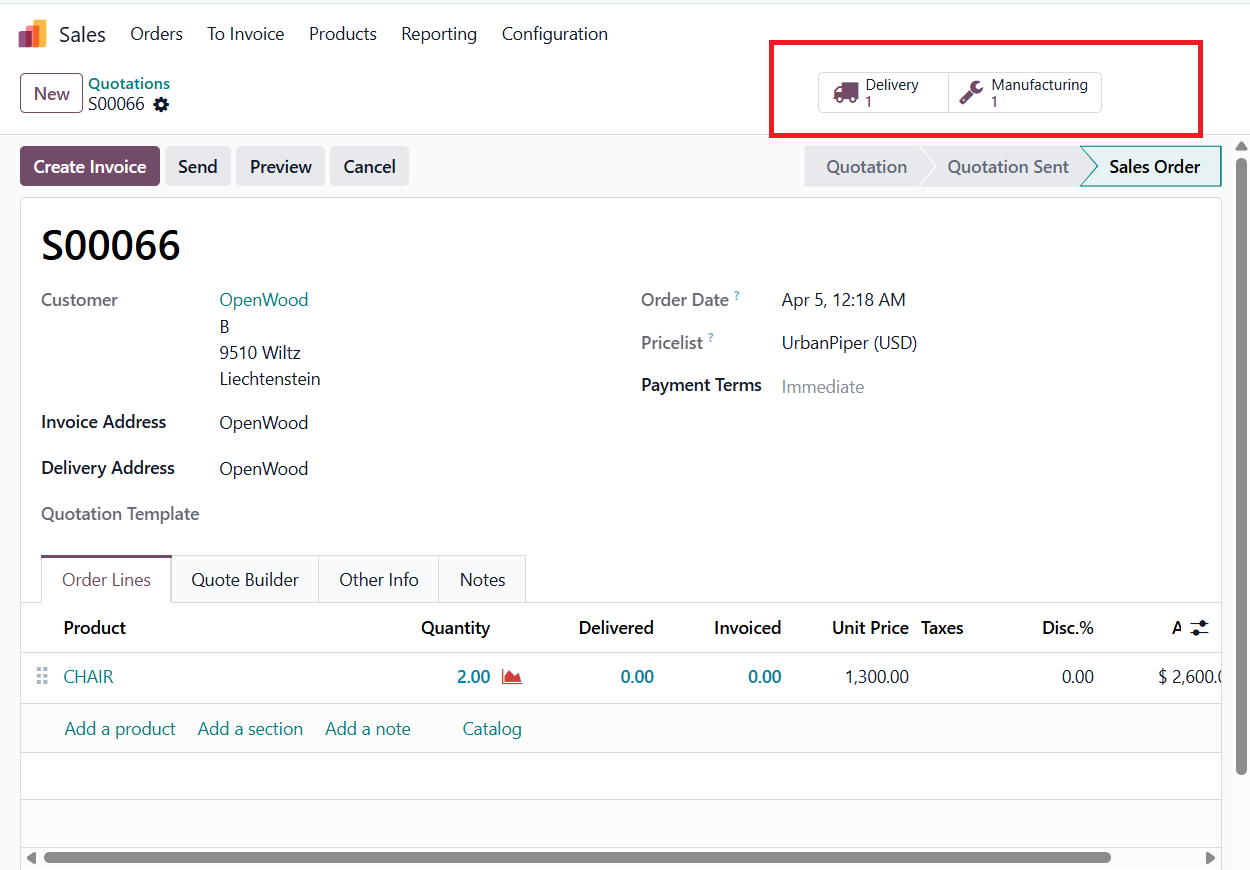
Click the Manufacturing smart button to open the automatically generated Manufacturing Order. The required components are displayed based on the BoM.
Plan the order and start the operation.
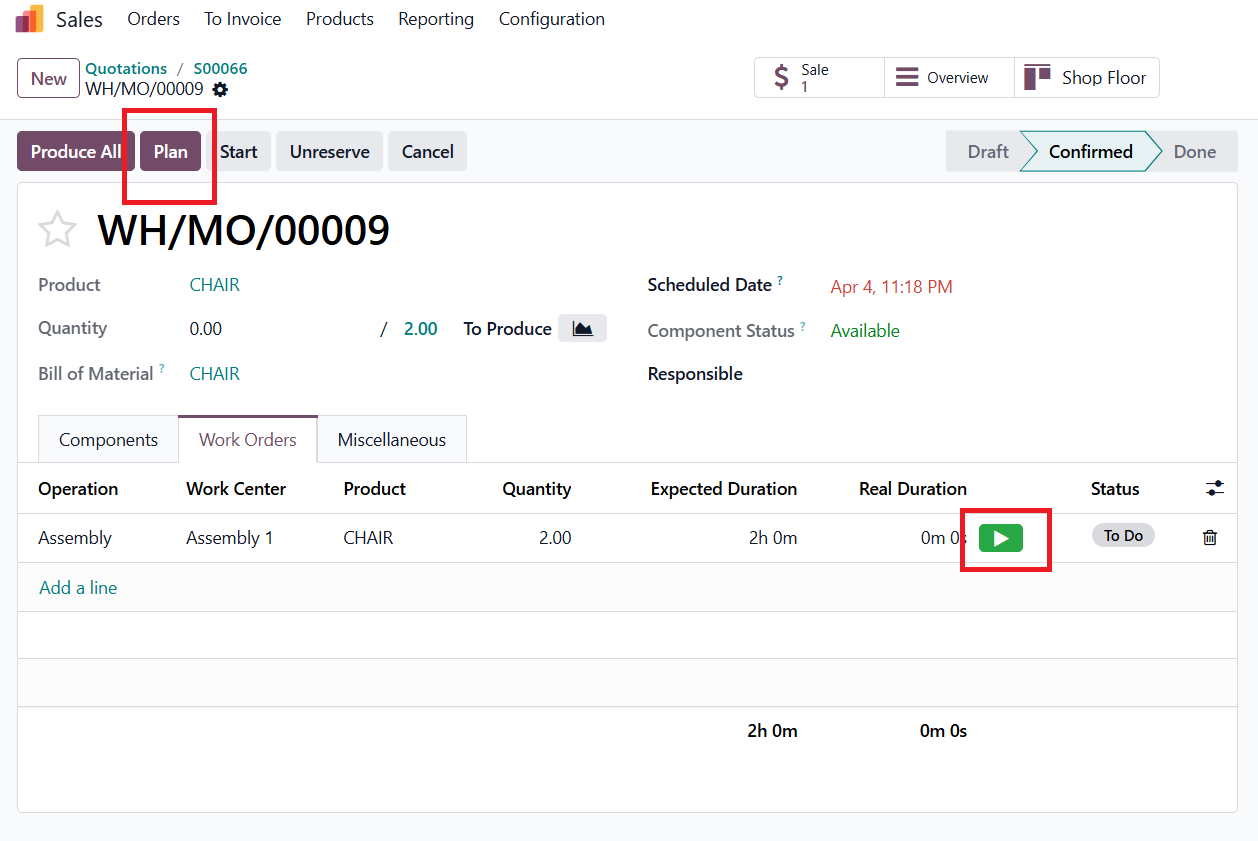
Click Produce All to complete production.
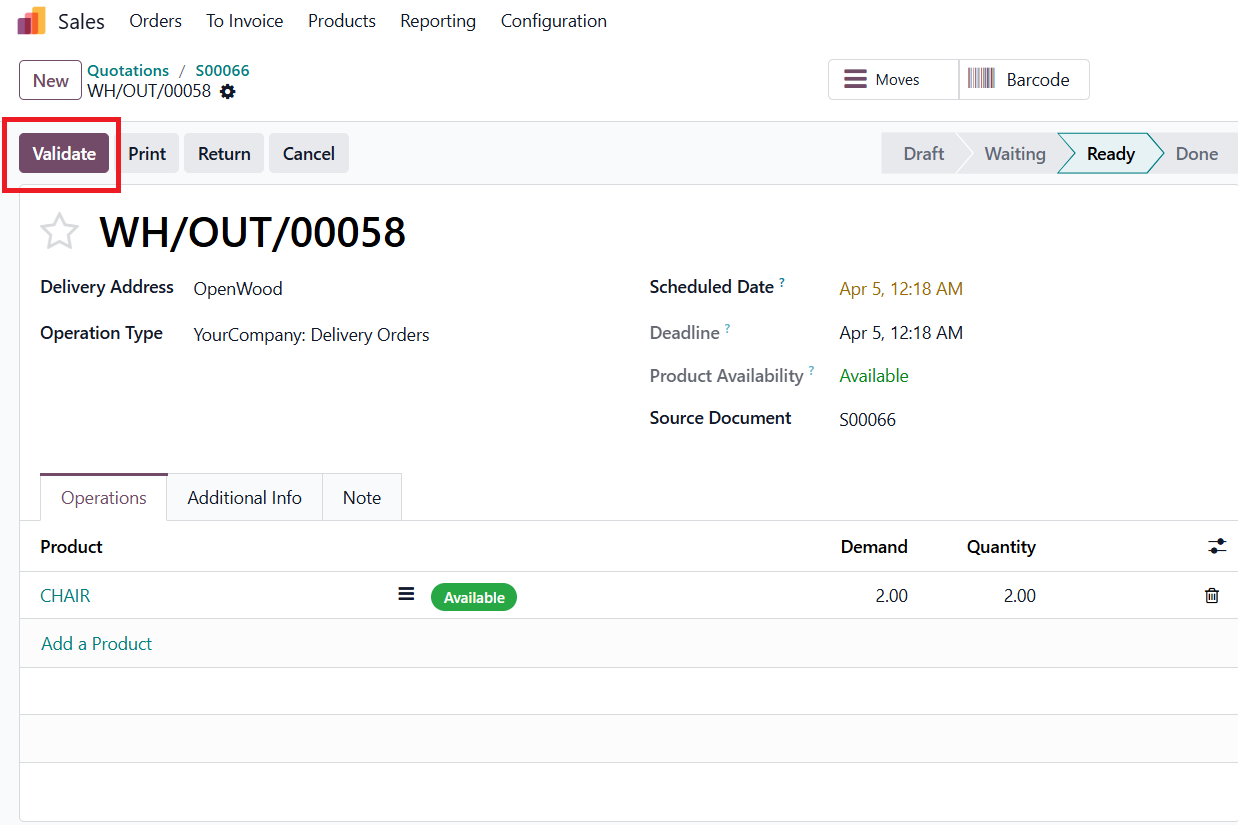
Then, open the Delivery smart button. Since the product is now in stock, complete delivery by clicking Validate.
The Replenish on Order (MTO) feature in Odoo 19 Purchase is a smart solution for businesses that want to align procurement or production with actual customer demand. Instead of maintaining unnecessary stock, companies can trigger replenishment only when a confirmed sales order requires it.
By automating the creation of purchase orders or manufacturing orders, Odoo helps businesses improve efficiency, maintain traceability, and reduce inventory-related costs.
If your business handles customized products, order-specific purchasing, or low-stock strategies, the MTO route in Odoo 19 can significantly improve your procurement workflow.





0