SagilJuly 20, 2026
Every sale made through the Odoo Point of Sale (POS) system affects your inventory. If products aren't picked from the correct stock location, it can lead to inaccurate inventory records and confusion during order fulfillment.
Odoo 19 solves this with the Product Picking feature. It automatically creates an inventory picking when a POS order is confirmed, making it easier to track stock movements and keep inventory up to date. This is especially useful for businesses that manage multiple warehouses or separate stock locations for their retail stores.
This article explains how Product Picking works in Odoo 19 POS, how to configure it, and how the entire picking process works after a sale is completed.
Product Picking is the process of moving products from a stock location after a sale is completed in Odoo Point of Sale (POS). Whenever a customer places an order and the payment is confirmed, Odoo automatically creates a picking record in the Inventory module.
This picking record shows where the products are taken from and where they are being moved. It also helps businesses track every inventory movement created through POS sales, making stock management more accurate.
Product Picking is especially helpful if your business:
Instead of updating stock manually, Odoo creates the inventory movement automatically. This saves time, reduces the chances of stock errors, and makes it easier to track products throughout the sales process.
Every POS transaction affects inventory. Without a proper picking workflow, businesses may experience inaccurate stock levels, inventory mismatches, and fulfillment delays.
With Product Picking enabled, Odoo automatically:
For businesses handling large volumes of daily sales, these automated inventory operations make warehouse management significantly more efficient.
Setting up Product Picking in Odoo 19 is straightforward. The configuration mainly involves defining the correct inventory operation for your Point of Sale.
Navigate to:
Point of Sale → Configuration → Settings → Inventory
Here you'll find several inventory-related options, including:
The Operation Type determines which inventory operation Odoo uses whenever a POS order is confirmed.
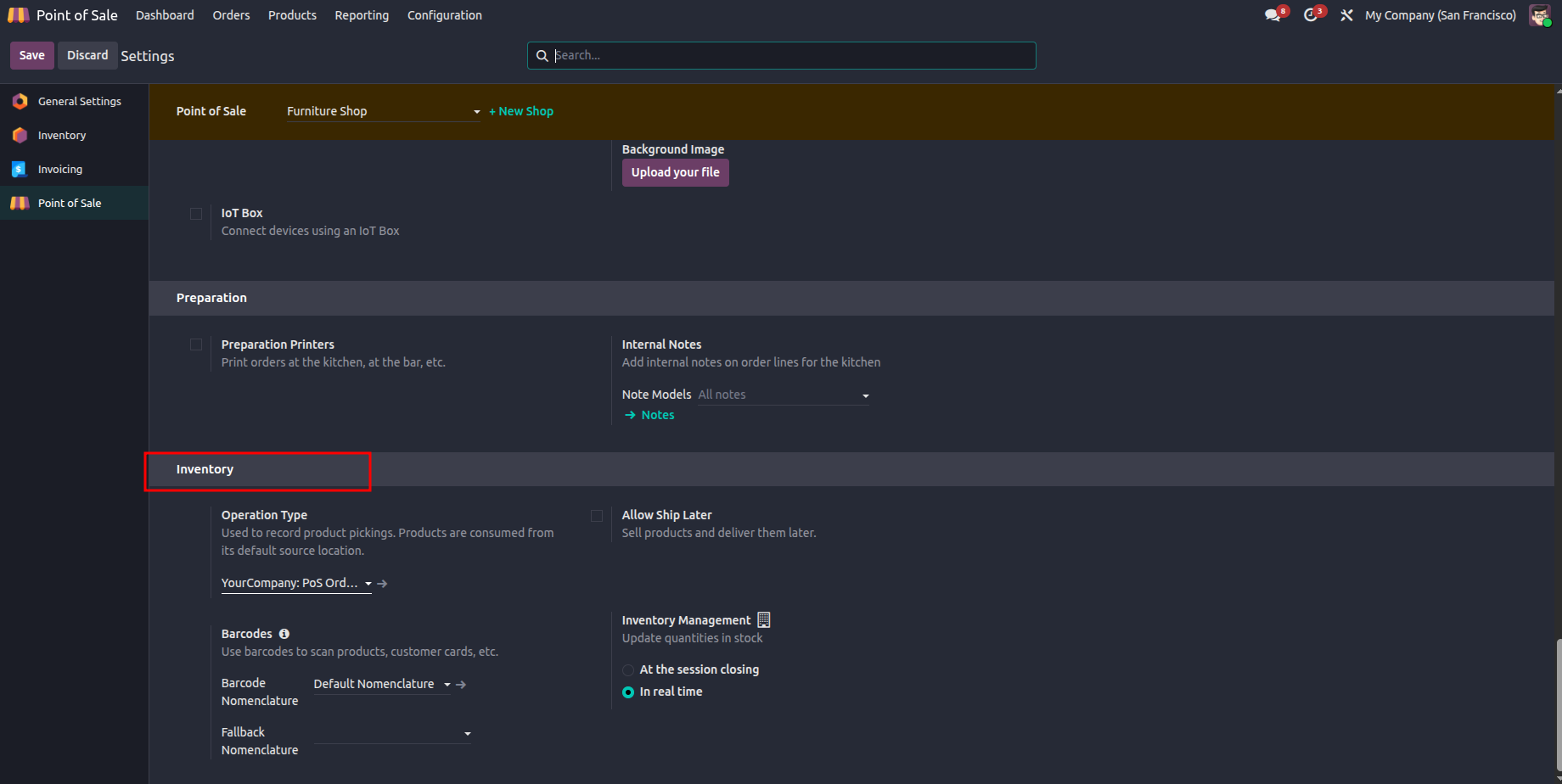
The Operation Type specifies the stock location from which products will be deducted when sales are completed.
For example, you can configure your POS to deduct inventory from:
If your business operates multiple stores or warehouses, assigning the correct operation type ensures that inventory is updated from the appropriate location instead of affecting unrelated stock.
This configuration keeps inventory records accurate and simplifies warehouse management.
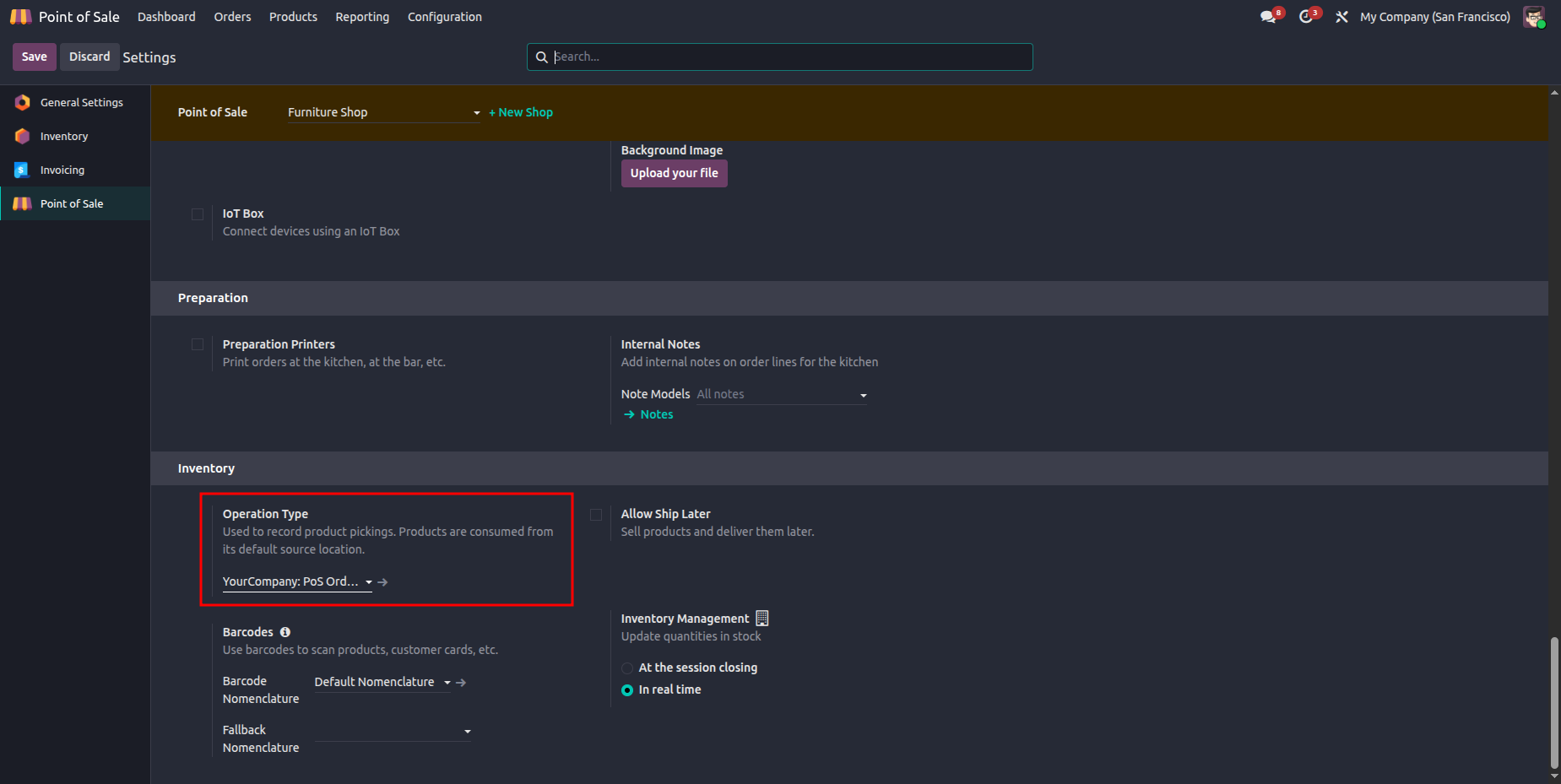
Selecting the correct Operation Type provides several operational advantages:
These capabilities help businesses maintain better control over inventory while reducing administrative effort.
Once the inventory settings are configured, the Product Picking process becomes fully automated.
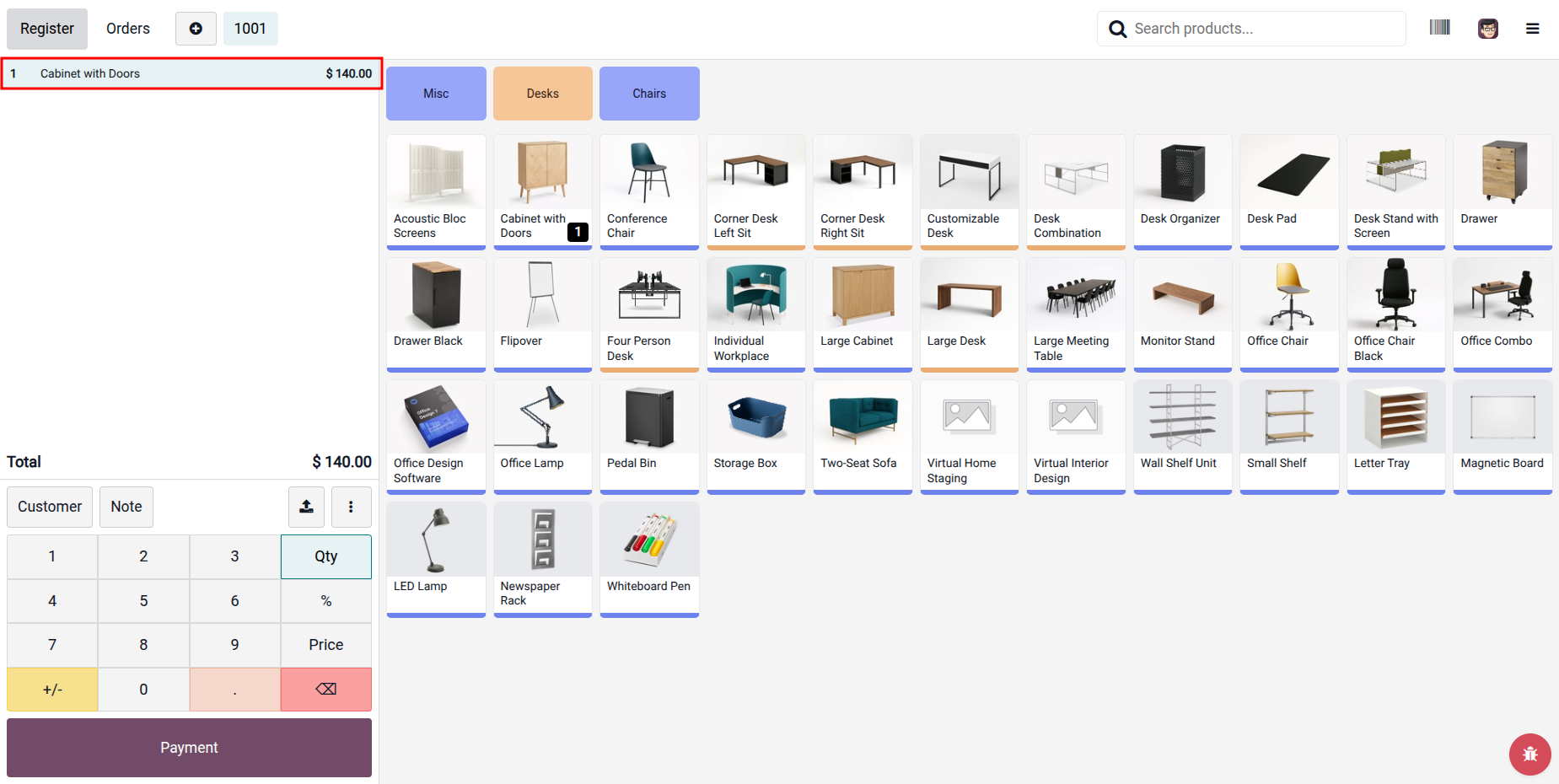
Create a sales order using the Point of Sale as you normally would.
After completing the payment and validating the order, Odoo automatically prepares the inventory movement based on the configured Operation Type.
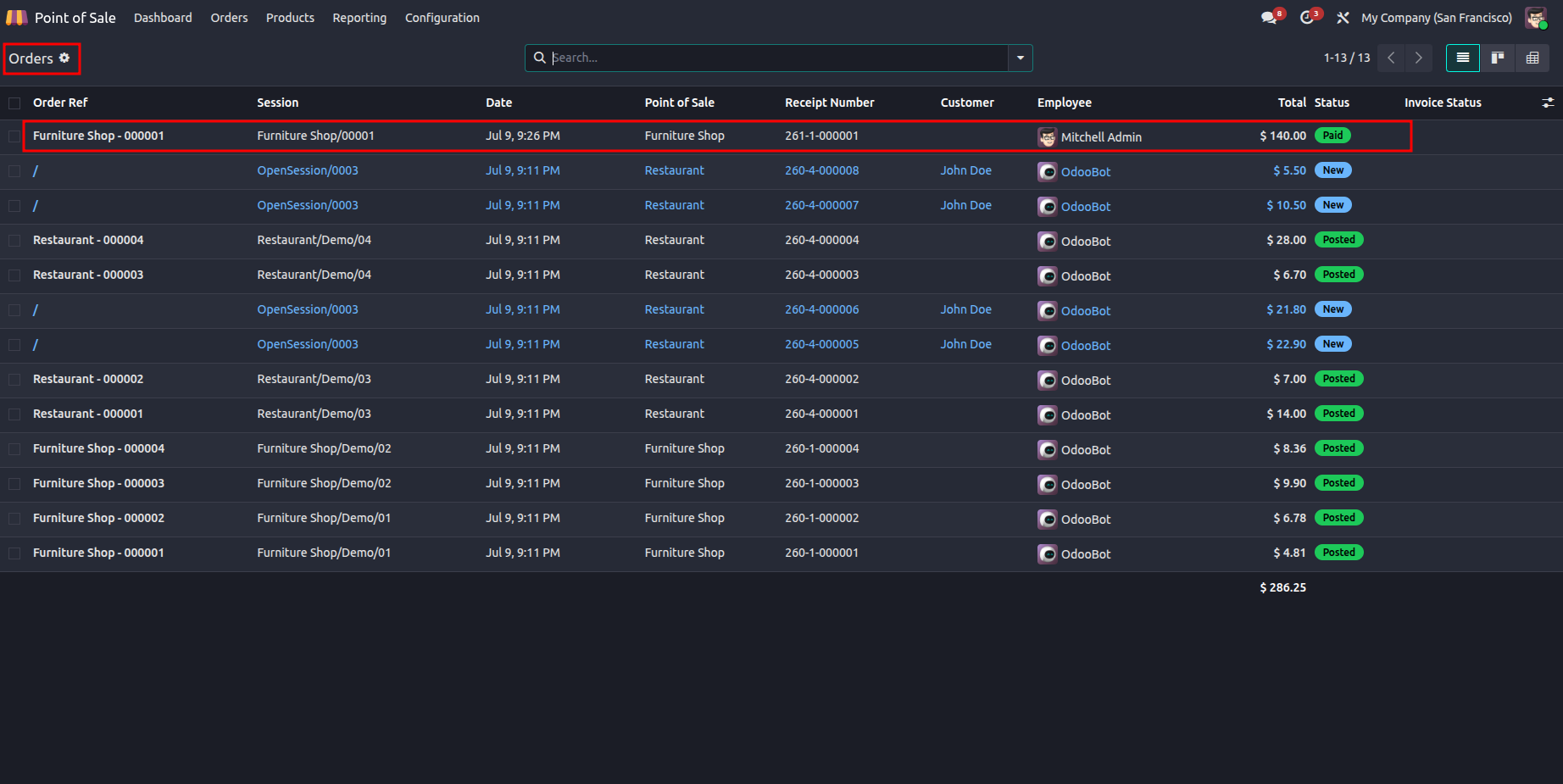
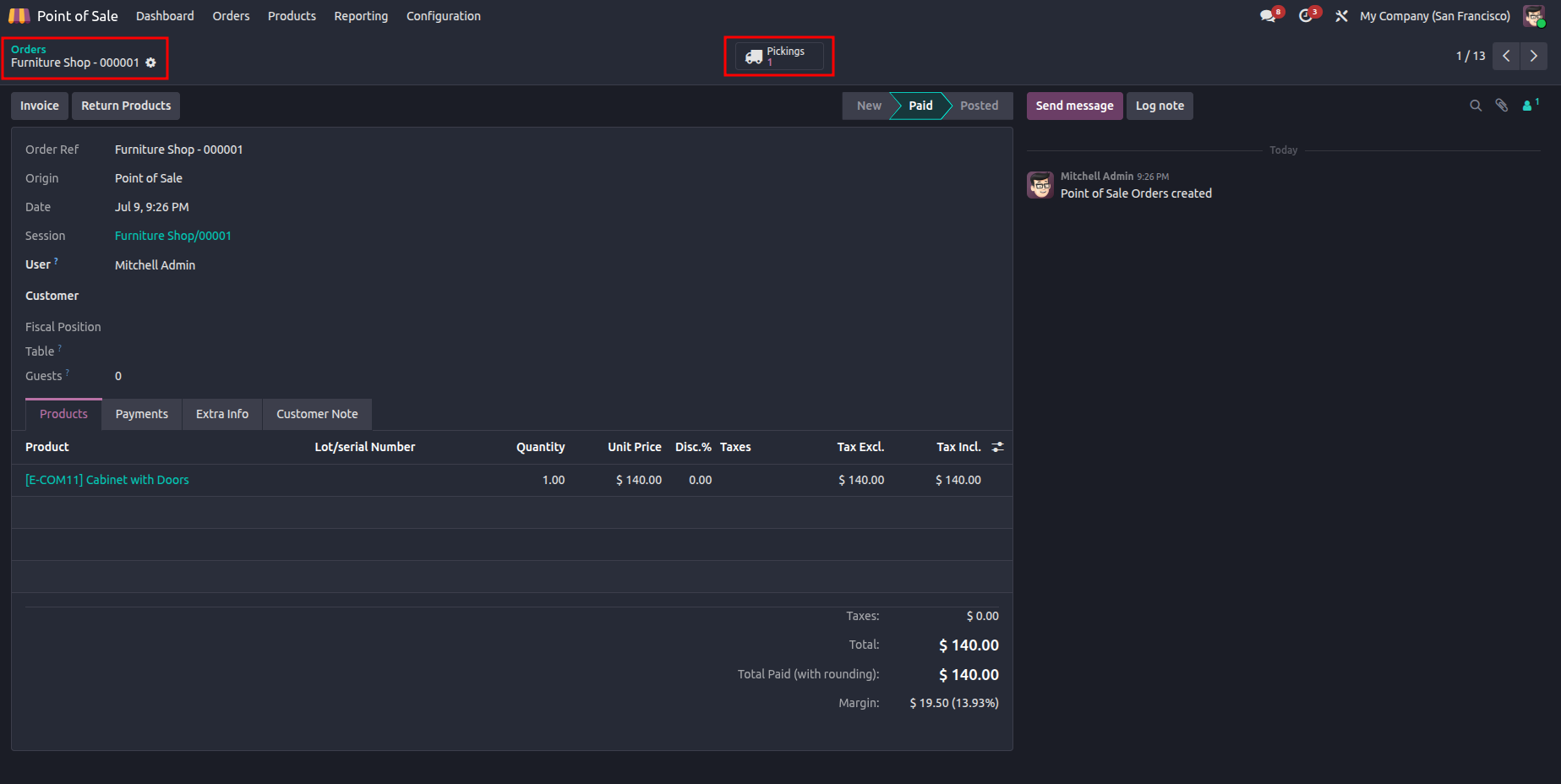
Navigate to the Orders menu to view completed POS transactions.
Each order includes important information such as:
This allows users to verify completed transactions before reviewing the associated inventory movement.
Open the completed POS order and click the Pickings smart button.
This provides direct access to the inventory operation generated for that sale.
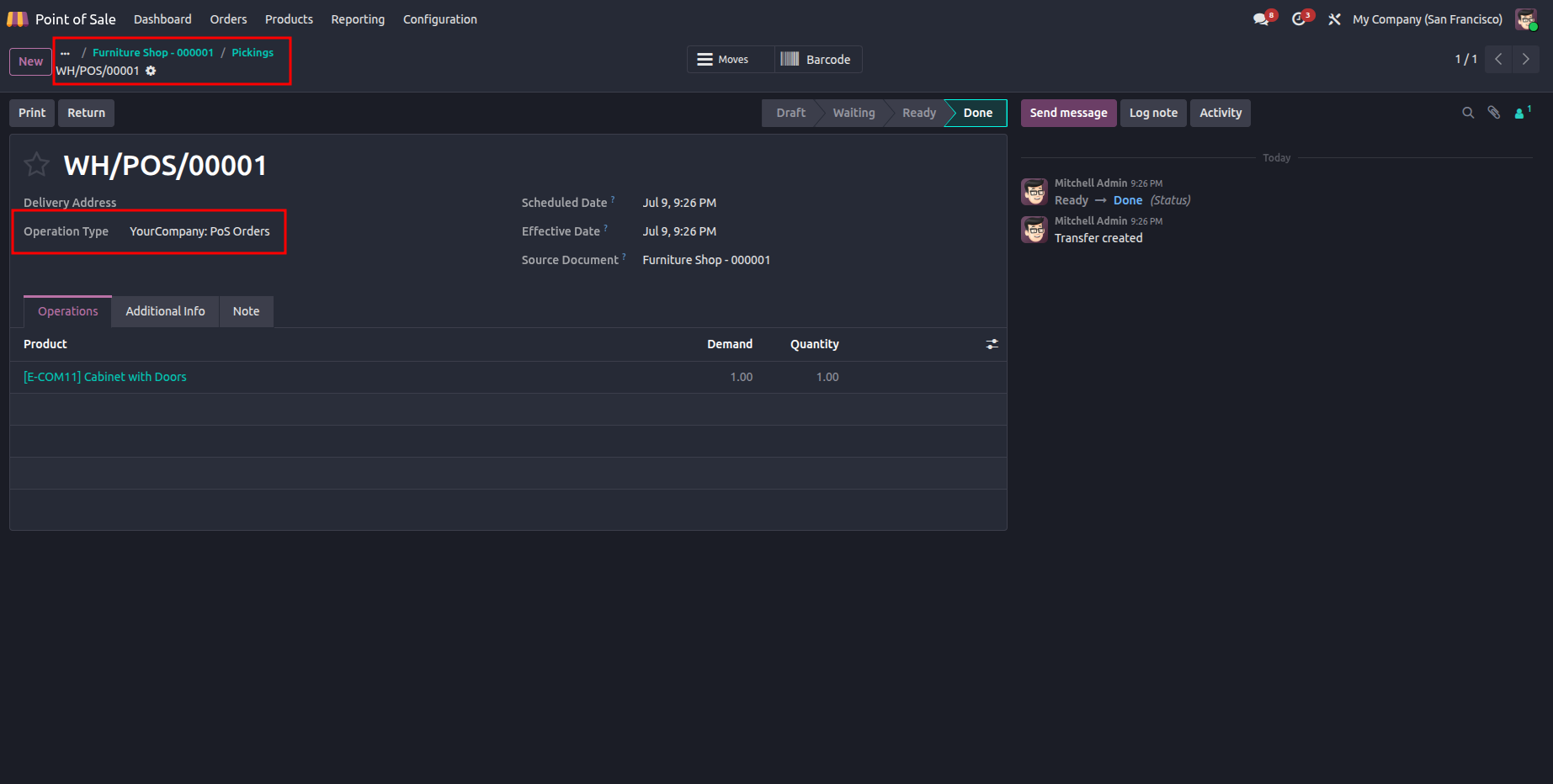
Within the picking record, you'll find details including:
This visibility helps warehouse and inventory teams monitor every stock movement associated with POS transactions.
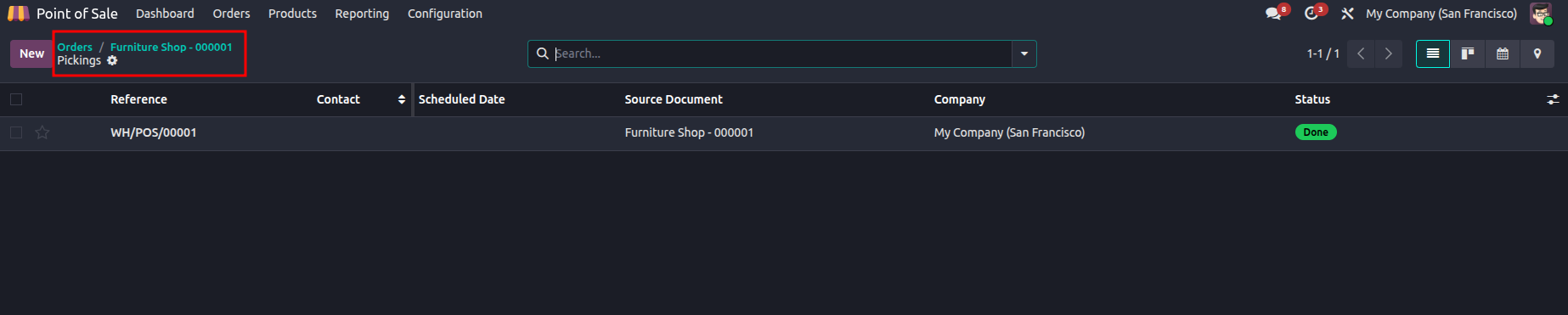
Open the picking record to confirm that the configured Operation Type has been applied correctly.
You'll be able to verify:
This final verification ensures that inventory has been updated exactly as configured during POS setup.
To get the most from Product Picking, consider these best practices:
Following these practices helps maintain accurate inventory records while reducing operational errors.
Yes. When Product Picking is properly configured, Odoo automatically generates a picking operation for completed POS orders based on the selected Operation Type.
Absolutely. Odoo 19 supports multiple warehouses and stock locations, allowing each Point of Sale to use its own inventory source.
The Operation Type determines where inventory is deducted from. Choosing the correct operation ensures accurate stock tracking and prevents inventory inconsistencies.
Yes. Every generated picking record can be accessed through the Pickings smart button within the completed POS order.
Product Picking in Odoo 19 POS helps businesses keep inventory records accurate by automatically creating a picking record for every completed POS order. Once the correct Operation Type is configured, Odoo handles the inventory movement in the background, reducing the need for manual stock updates.
If your business uses the Point of Sale module, enabling Product Picking can make it easier to track inventory movements, especially when managing multiple warehouses or dedicated POS stock locations. With the proper setup, you can maintain accurate inventory records and have better visibility into how products move after each sale.





0