ArchanaJune 17, 2026
Managing production efficiently involves more than simply manufacturing a product—it also requires ensuring that finished goods reach customers on time without unnecessary delays. In Odoo 19, allocation reports for manufacturing orders help businesses achieve this by providing a clear and structured view of how materials and finished products are distributed across production operations.
These reports allow users to track what is reserved, what has been consumed, and what is still pending fulfillment. This is especially useful for production managers who need real-time visibility into inventory availability and must respond quickly to shortages or delivery delays.
By connecting manufacturing with inventory and delivery operations, allocation reports help maintain a smooth workflow and improve customer satisfaction. Since the feature is fully integrated with both the Manufacturing and Inventory modules, all report data remains accurate and updated automatically.
Regardless of the size of the manufacturing process, allocation reports support better planning, improved stock control, and stronger coordination across departments. This blog explains how to generate allocation reports in Odoo 19 and how they help optimize production management.
Before using allocation reports, the feature must first be enabled from the system settings. Open the Manufacturing module, go to the Configuration section, and activate the option for allocation reports on manufacturing orders.
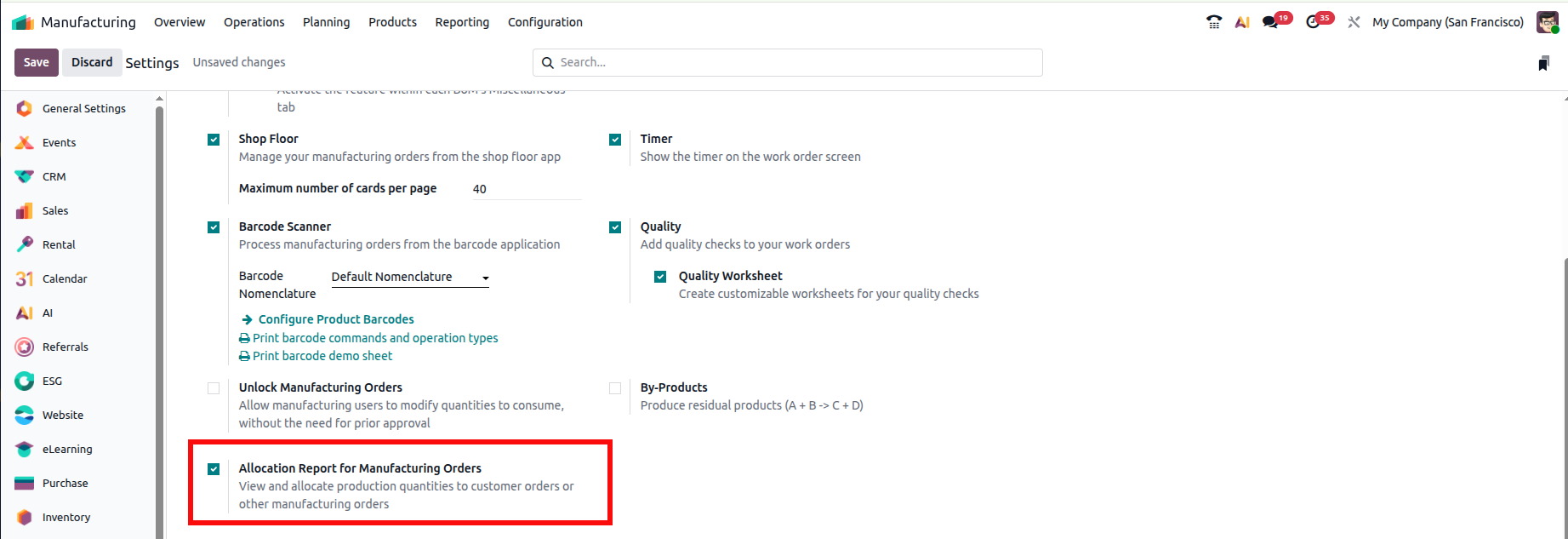
Once this setting is enabled and saved, the system becomes ready to generate allocation reports after manufacturing orders are completed.
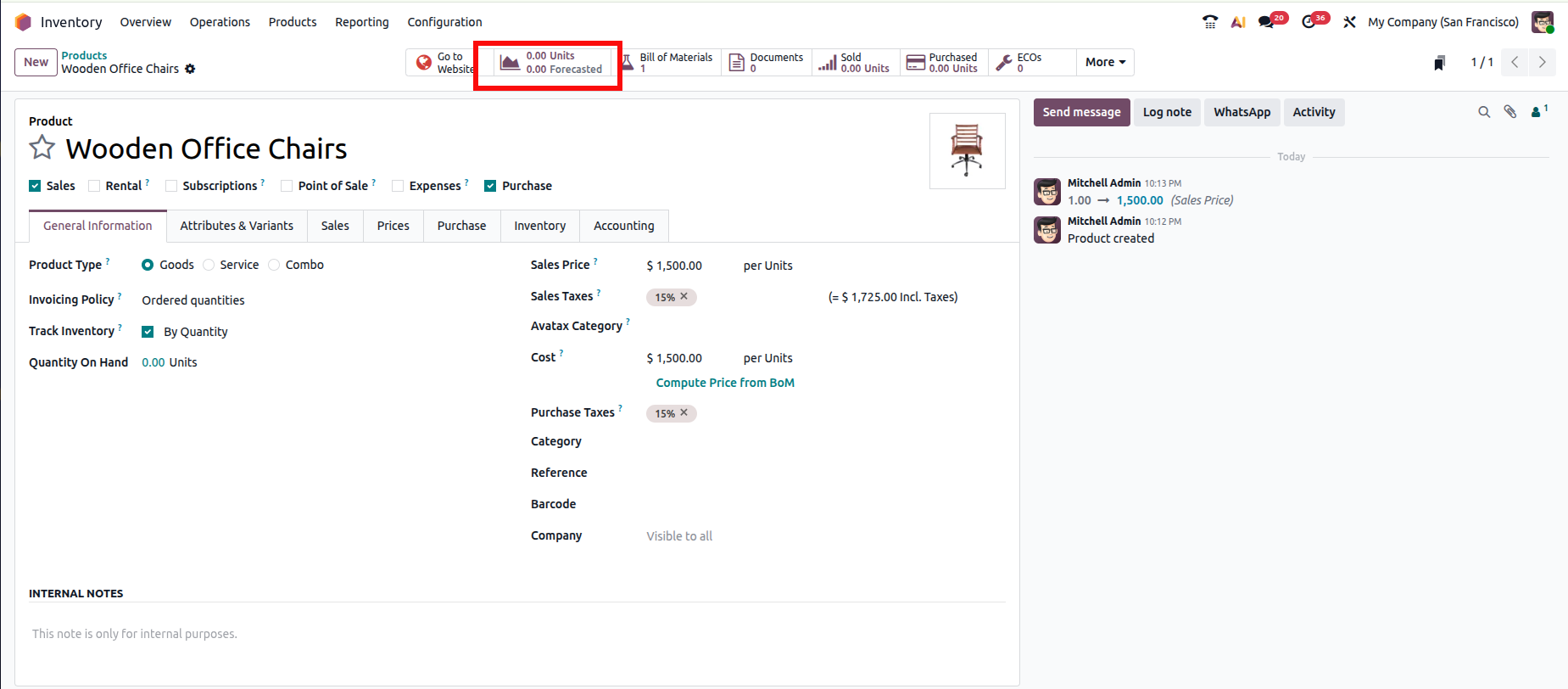
Consider a situation where a product has zero available inventory in the warehouse. Even though stock is unavailable, multiple customers have already placed confirmed sales orders for the same item. As a result, the related delivery orders remain in a waiting state with the status marked as Not Available, since no stock can be reserved for dispatch.
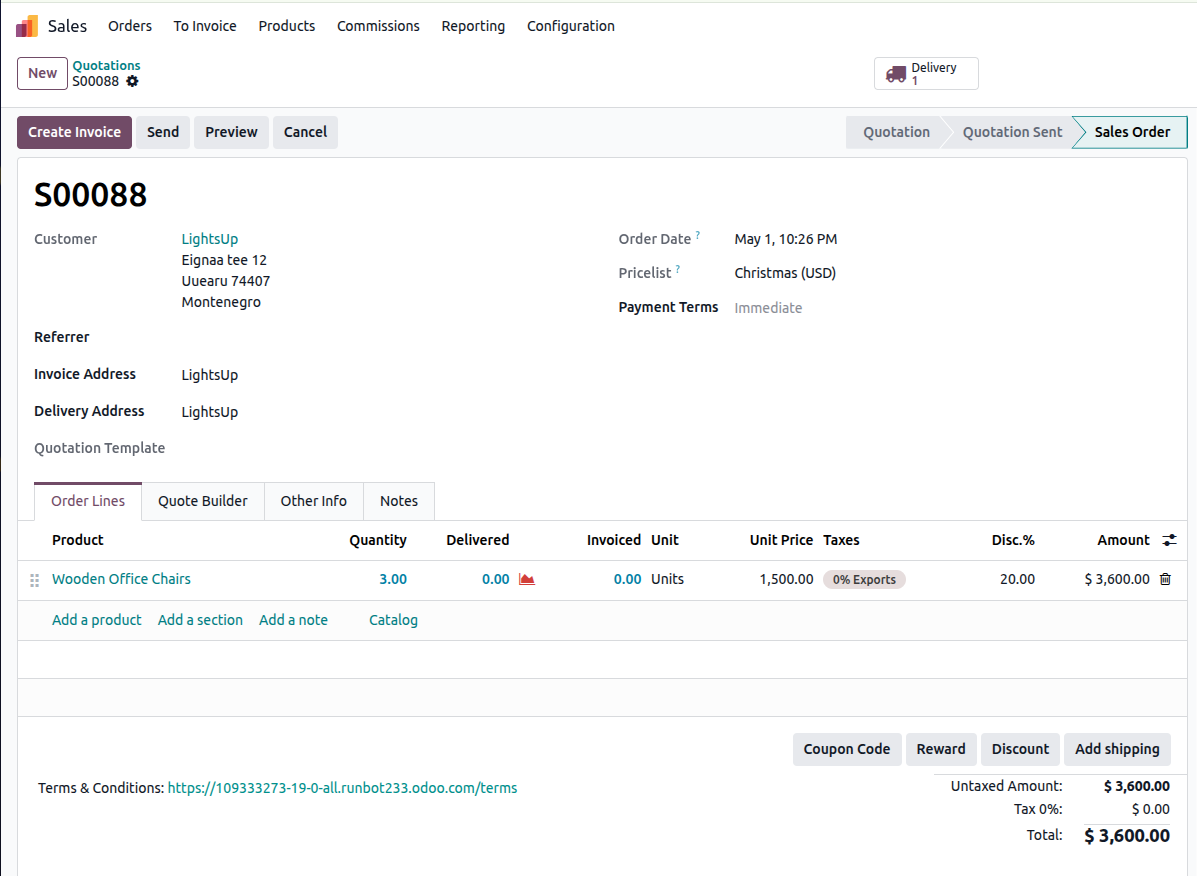
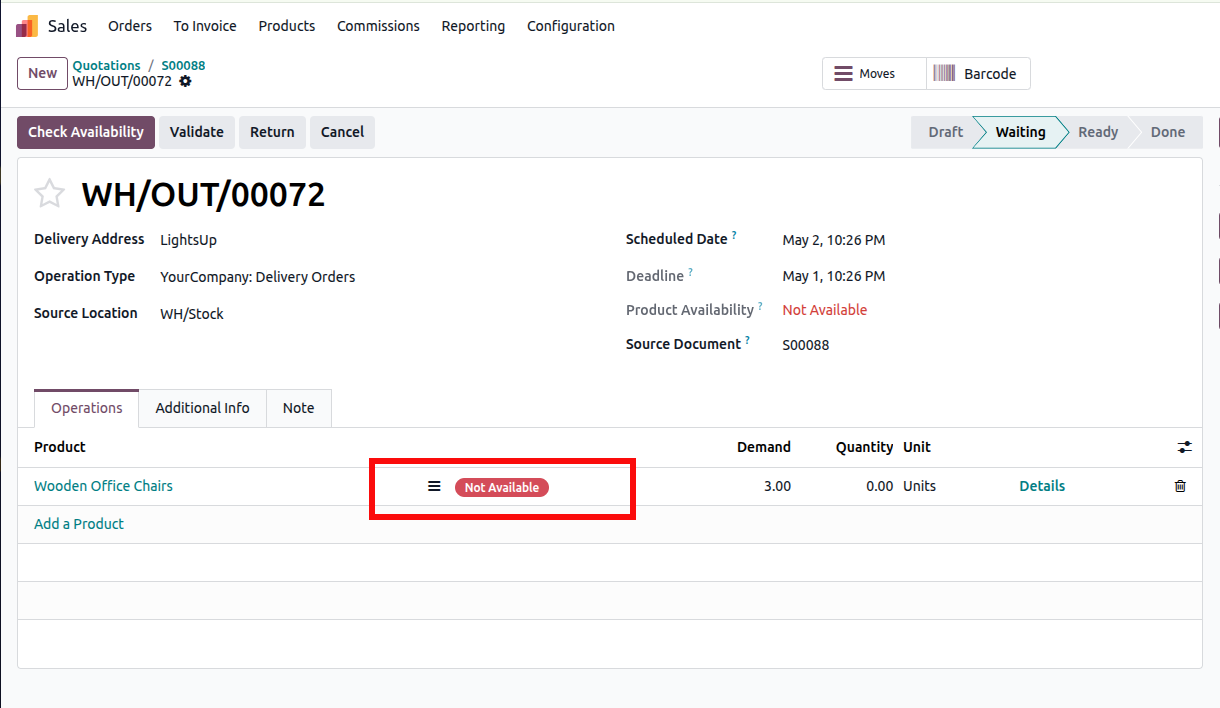
This is a common business scenario where demand already exists, raw materials are available, and manufacturing must be initiated to fulfill pending customer orders.
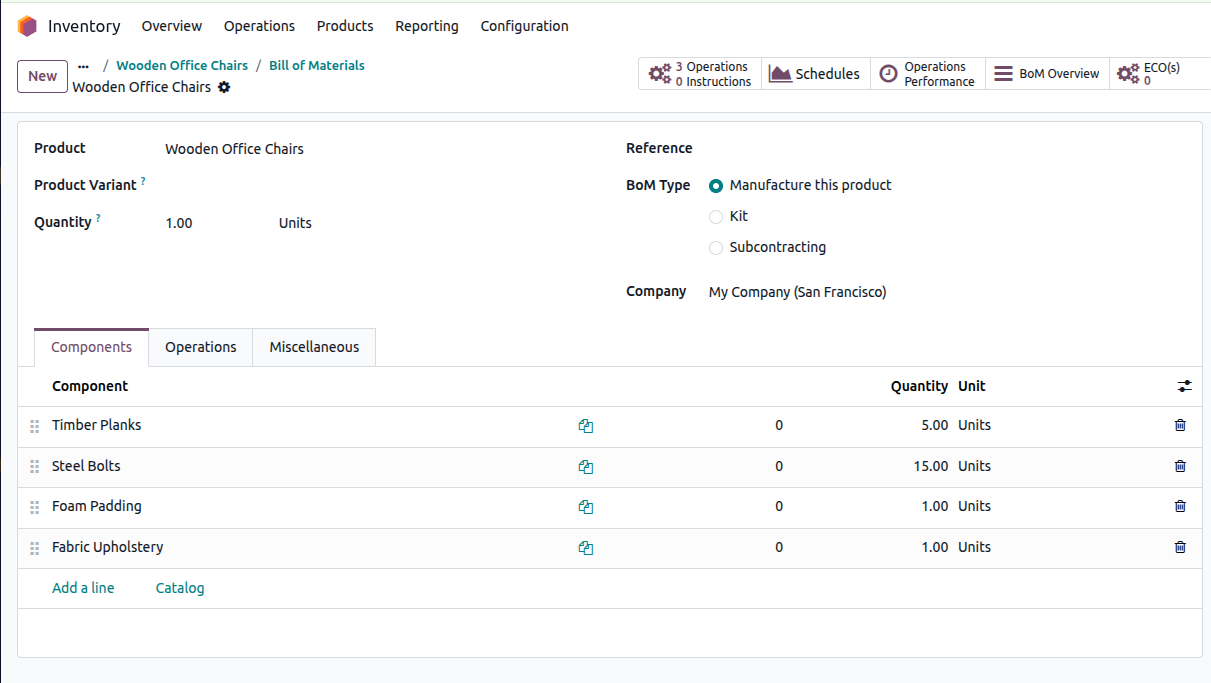
Before starting production, the Bill of Materials (BoM) should be reviewed to ensure that all required raw materials are available. Open the Bill of Materials option from the smart tab menu to view the product structure. The Components tab displays the materials needed for production, and the available quantity confirms that manufacturing can proceed without shortage.
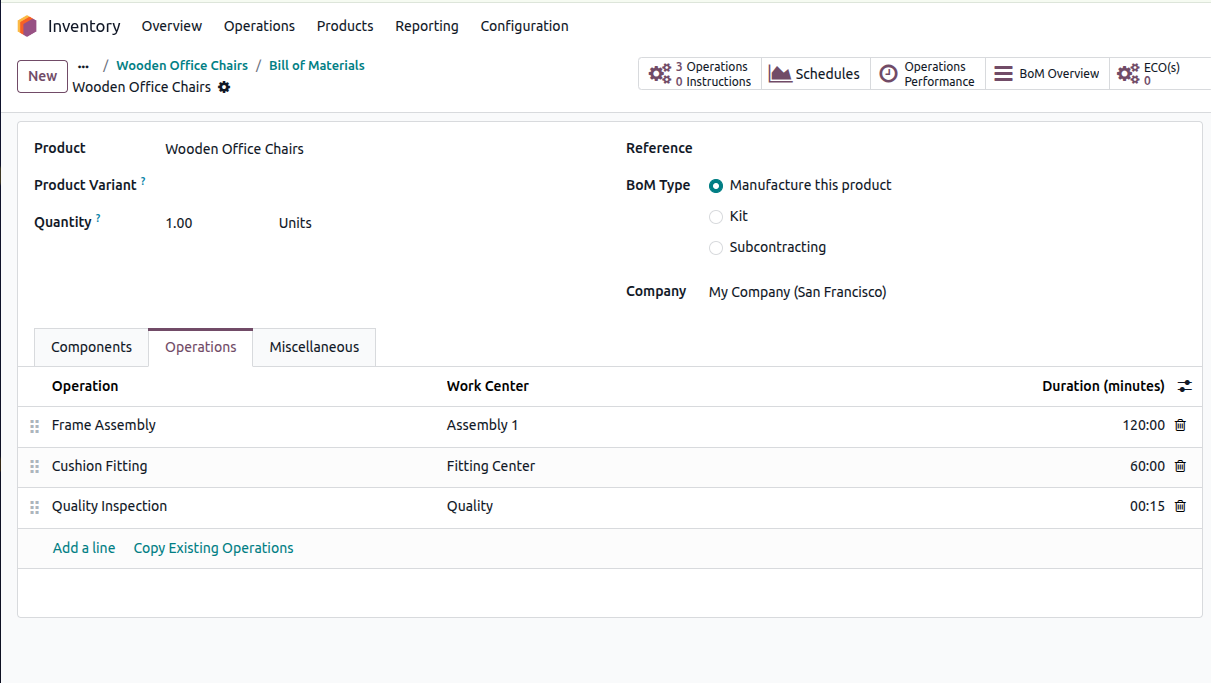
Under the Operations tab, the system displays the manufacturing steps involved, along with the work center where each operation is performed.
To proceed with production, all required raw material components and operational steps must be properly defined in the manufacturing order. Once these details are added, the order should be confirmed so production can begin.
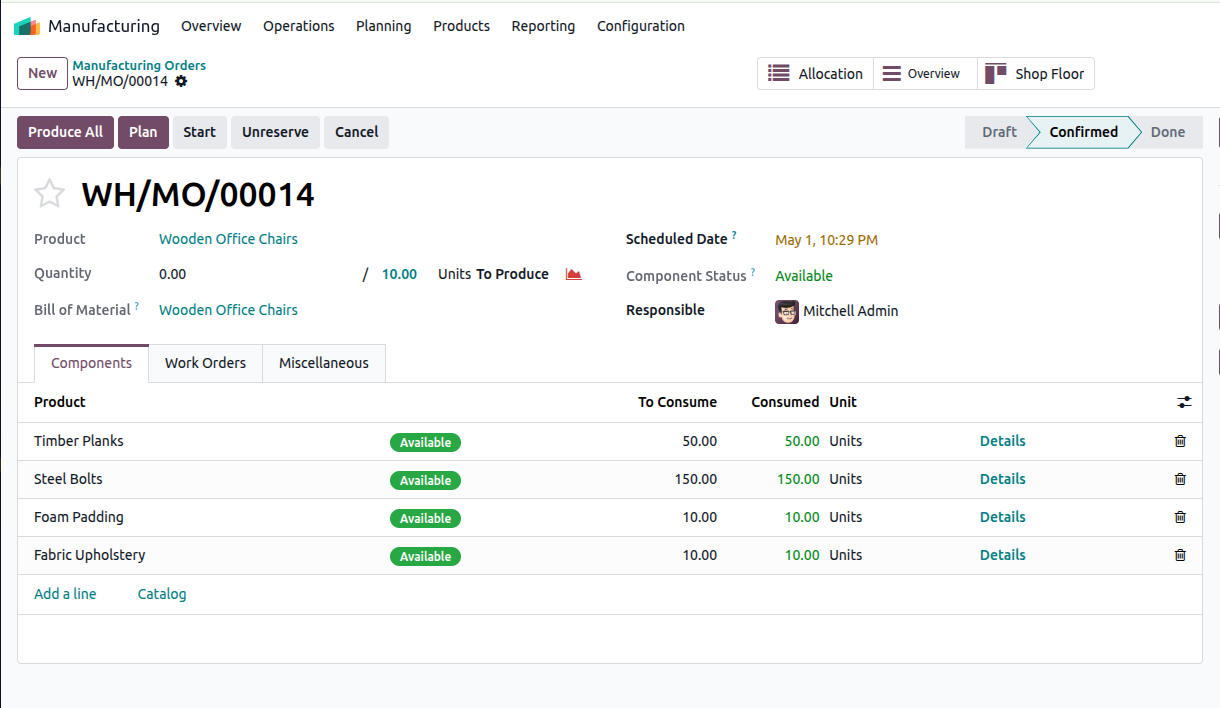
In this case, multiple delivery orders are already pending, creating a total demand that exceeds the available stock. To fulfill all customer requirements and maintain sufficient inventory, the system plans production for a higher quantity in a single batch.
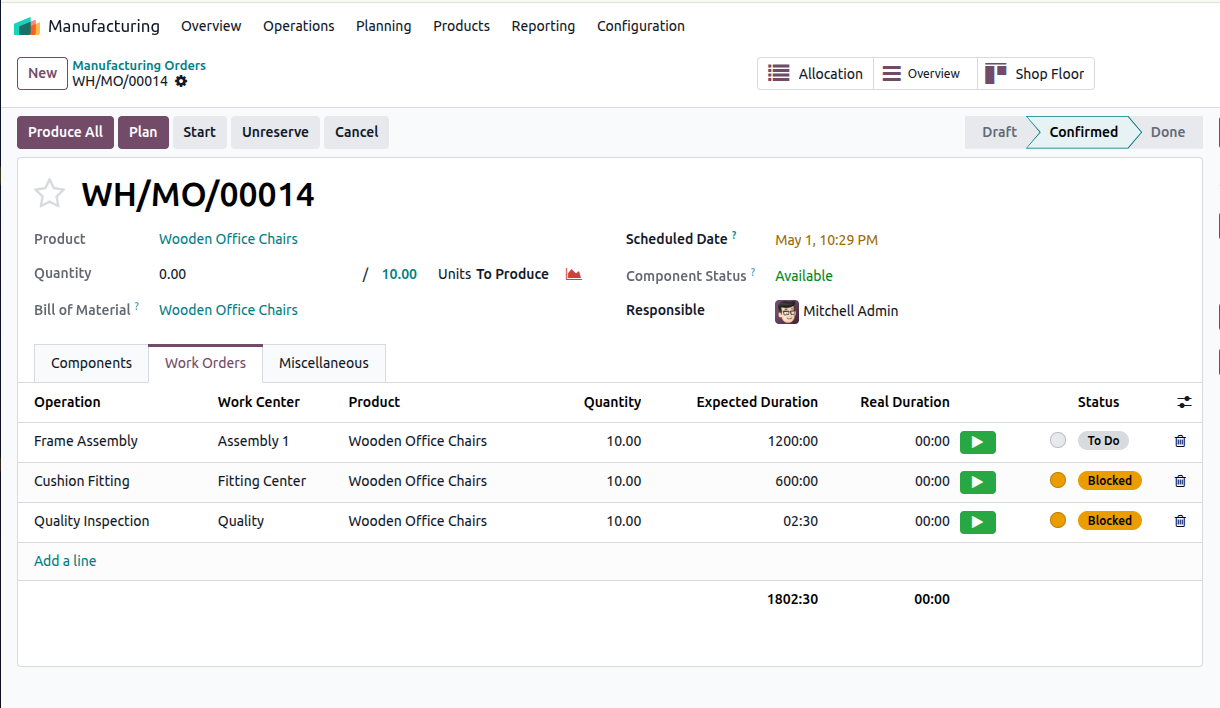
After confirmation, move to the Work Orders tab and start each operation based on the defined workflow. Once all work steps are completed, the production process can be finalized by clicking the Produce All button.
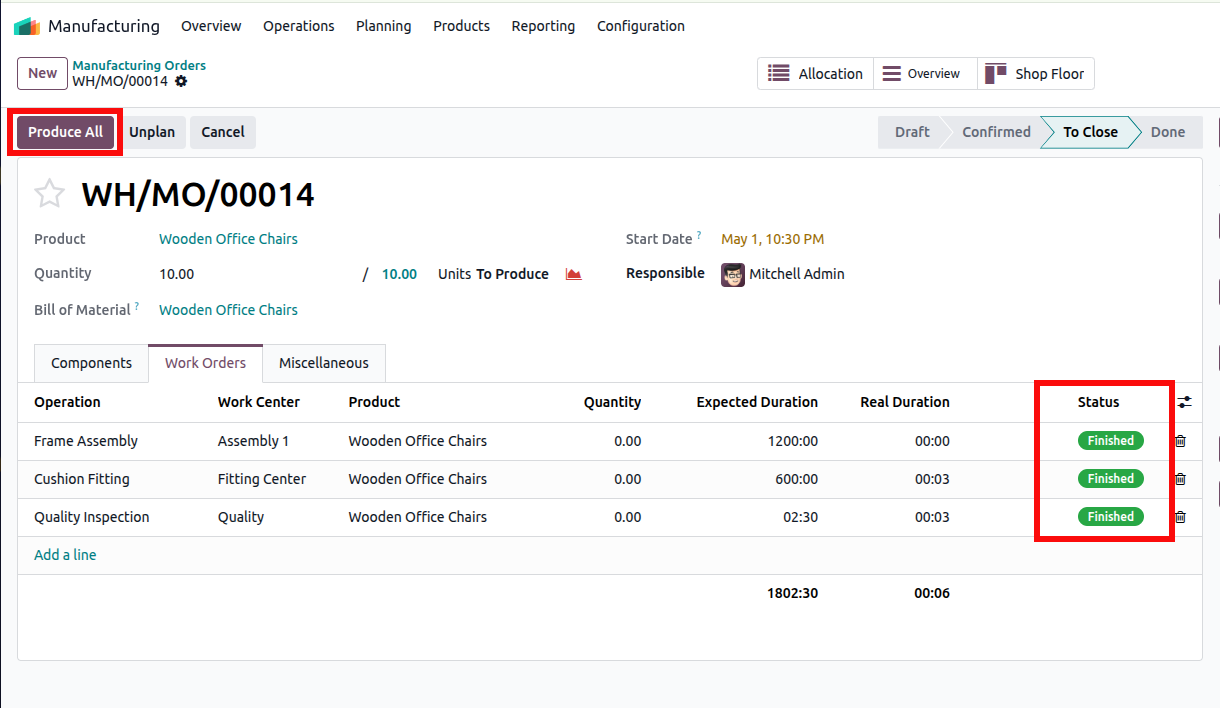
This action adds the finished goods to inventory and makes them available for delivery.
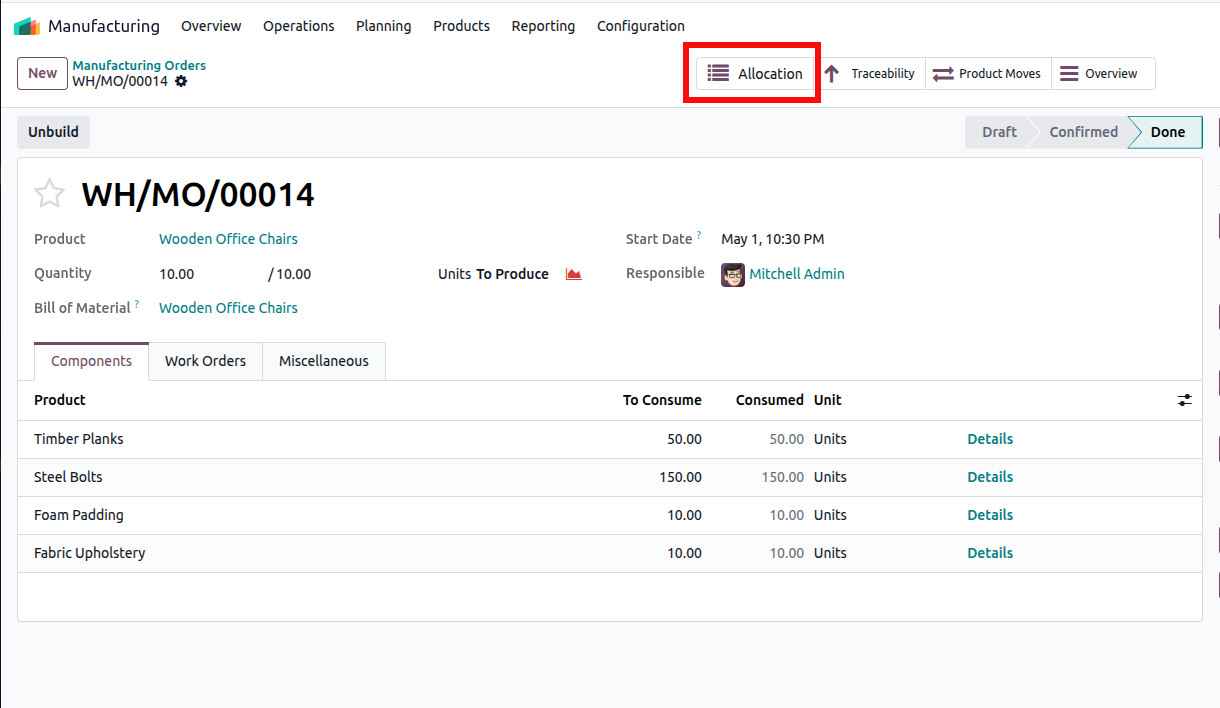
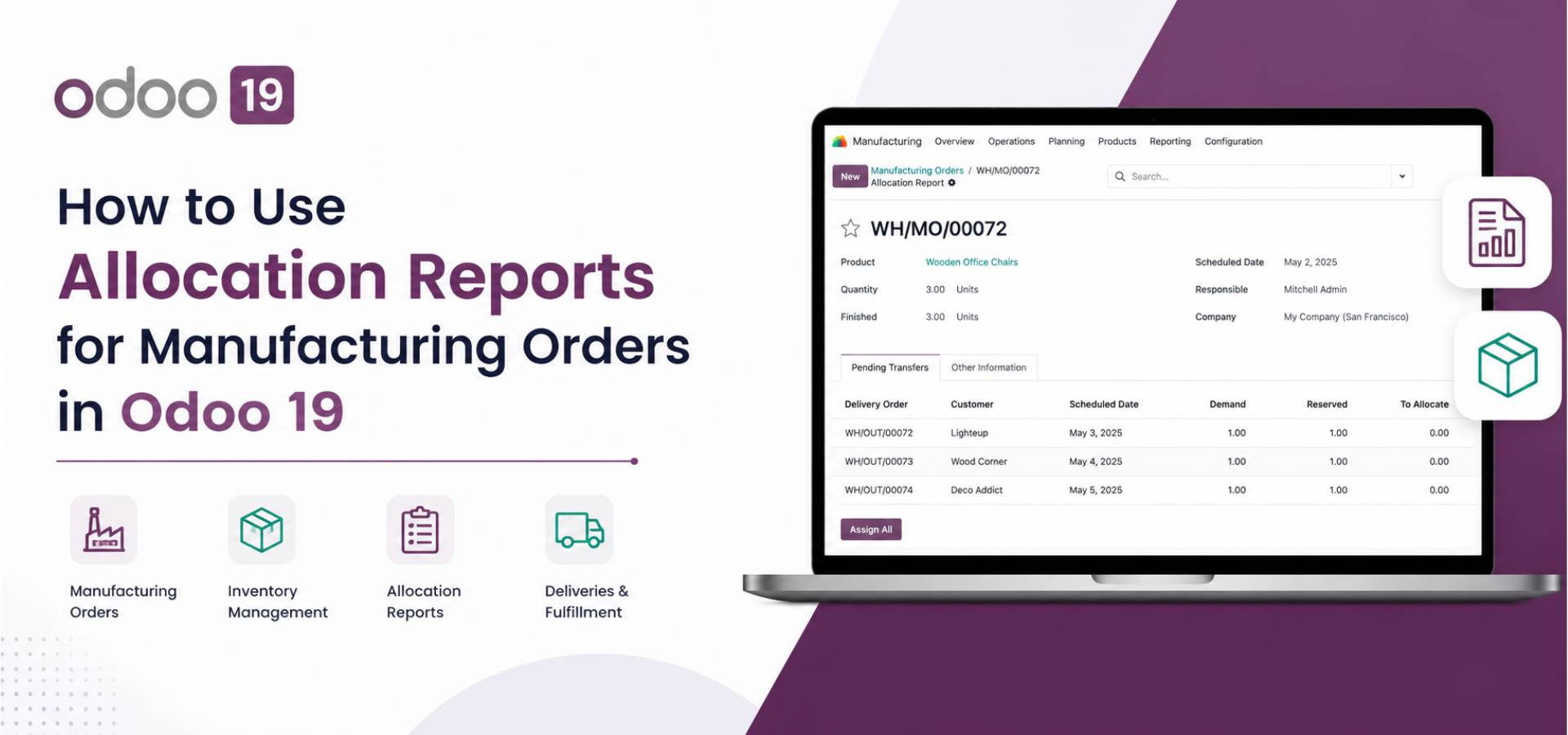
Once production is completed, the Allocation smart button can be used to open the allocation report.
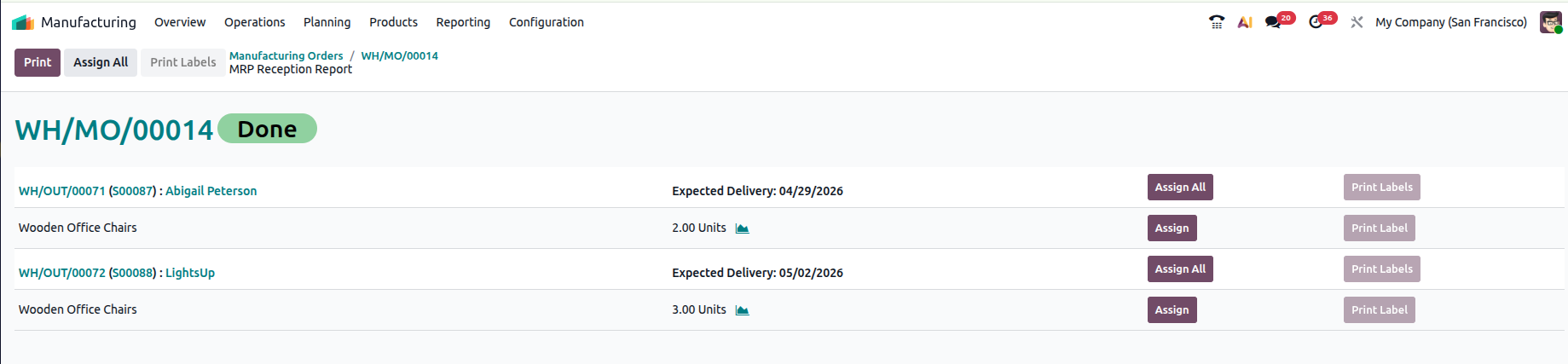
This report displays all pending delivery orders linked to the manufactured items, including delivery references, customer details, expected delivery dates, and requested quantities. Using the Assign All option, the available stock can be reserved for all pending deliveries at once.
After allocation, each delivery order moves to the Ready stage. The user can open each delivery record and click the Validate button to complete the delivery process.
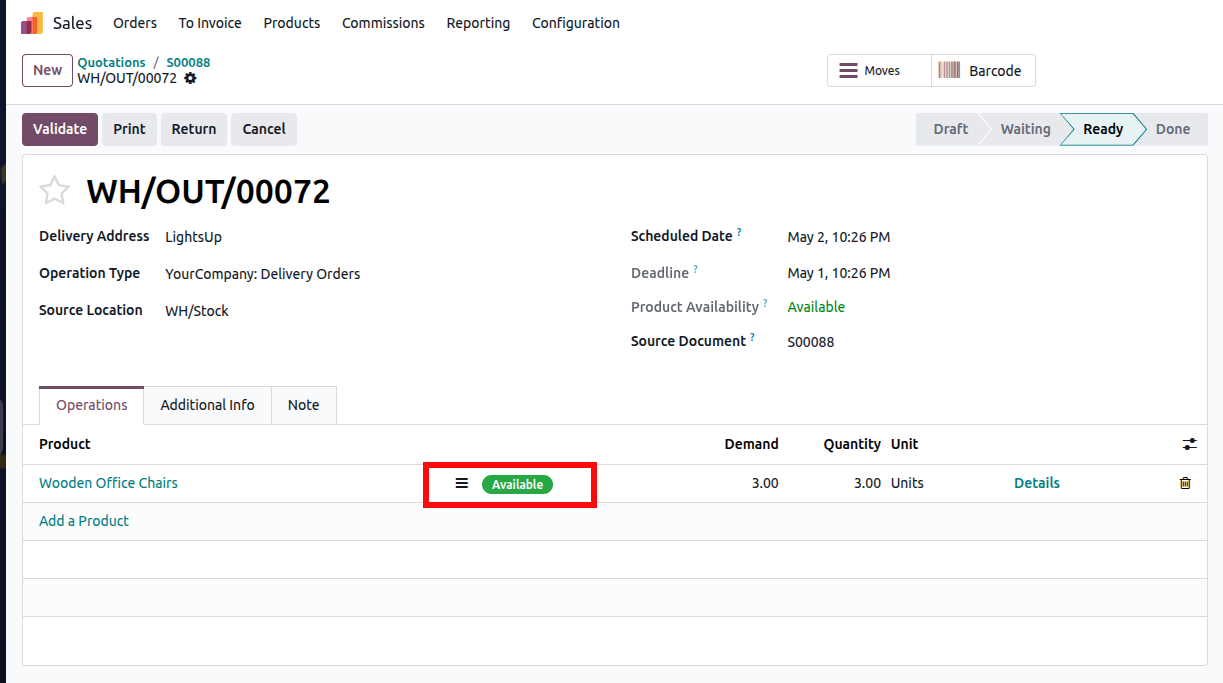
Once validated, the goods are transferred from warehouse stock to the customer.
The same delivery records can also be viewed from the Inventory module under the Deliveries menu, where all orders prepared for dispatch are listed clearly for tracking and management.

Allocation reports in Odoo 19 play an important role in improving manufacturing efficiency by providing complete visibility into how produced quantities are distributed across pending delivery orders.
They help businesses assign available stock correctly, prevent delays caused by inventory shortages, and support better planning throughout the production cycle. With seamless integration between manufacturing, inventory, and delivery operations, allocation reports make it easier to manage customer demand, maintain stock control, and achieve a more organized and reliable fulfillment process.





2