Ever wondered why some users in Odoo 19 can see or edit certain records while others cannot? Managing access rights and record rules is essential to keep your business data secure and organized. Without proper configuration, users might accidentally change important records, or worse, gain access to sensitive information.
Understanding Access Rights in Odoo 19
In Odoo, access rights control what actions a user can perform on a model (table) — like creating, reading, updating, or deleting records.
Key Fields in Access Rights
perm_read, perm_write, perm_create, perm_unlink – These define which operations a user can perform on a model.
groups – Determines which user groups the access rights apply to.
For example, if you assign perm_write = True for a Sales Manager group on the sale.order model, members of that group can edit sales orders.
What Are Record Rules?
While access rights control model-level permissions, record rules determine access at the record level. They define which specific records a user can view or edit.
Key Components of Record Rules
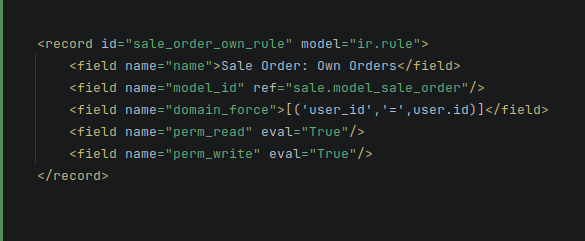
domain_force – This is a domain filter that limits which records a user can access.
groups – Specifies which user groups the rule applies to.
perm_read, perm_write, perm_create, perm_unlink – These are also used here to define allowed operations on filtered records.
This rule allows users to see and edit only the sales orders they created.
Deep Dive into res.groups.privilege
res.groups.privilege is a core Odoo model that links privileges to groups. Understanding this helps when configuring fine-grained access.
Important Fields
privilege_id – Refers to the specific privilege assigned.
implied_ids – Lists other privileges that are automatically granted when this privilege is assigned.
category_id – Helps organize privileges into categories (like Accounting, Sales, etc.).
user_ids – The users directly linked to this privilege.
How It Works
When a user is added to a group, they inherit all privileges of that group, including any implied_ids privileges. This is useful for hierarchical access where higher-level roles automatically include lower-level permissions.
Step-by-Step: Assigning Access Rights and Record Rules
Define Groups Navigate to Settings → Users & Companies → Groups. Create or edit a group.
Assign Access Rights Go to Technical → Security → Access Controls, select the model, and define perm_read, perm_write, perm_create, and perm_unlink.
Set Record Rules Create a rule under Technical → Security → Record Rules. Use domain_force to filter records.
Check Privileges Inspect res.groups.privilege to see what privileges are assigned and which are implied by other privileges.
Test With a User Assign a user to the group and test access to ensure everything works as expected.
Best Practices
Keep groups simple and role-based.
Use implied_ids for hierarchical roles instead of manually assigning multiple privileges.
Always test rules with different users to avoid accidental access issues.
Document your groups, access rights, and rules for future reference.
Conclusion
Access rights and record rules in Odoo 19 give you powerful control over who can do what and see what in your system. Understanding res.groups.privilege, privilege_id, implied_ids, category_id, and user_ids makes it easier to manage users efficiently while keeping your data secure.
Frequently Asked Questions (FAQs)
Q1: What’s the difference between access rights and record rules?
Access rights control operations at the model level (create, read, write, delete), while record rules filter access to specific records.
Q2: How do implied_ids work in Odoo 19?
If a privilege has implied_ids, any user with this privilege automatically inherits all privileges listed in implied_ids.
Q3: Can a user have multiple privileges?
Yes, users can belong to multiple groups, each with different privileges, which combine to define their overall access.
Q4: How do I limit access to only my records?
Create a record rule using domain_force with user_id = user.id to restrict access to records created by the user.
Q5: What is res.groups.privilege used for?
It links privileges to user groups, including hierarchical privileges via implied_ids, helping manage complex access control setups.





0