SagilMay 6, 2026
Managing scrap effectively is an essential part of modern manufacturing, and Odoo 19 offers a structured and efficient way to handle it. Scrap typically includes damaged, defective, or unusable materials generated during the production process. If not managed properly, it can lead to inaccurate inventory records and increased financial losses.
With the Manufacturing module in Odoo 19, businesses can easily track, record, and analyze scrap within their production workflows. The system enables users to create scrap orders, assign dedicated scrap locations, and link scrap directly to manufacturing orders for complete traceability.
By integrating scrap management into inventory and production operations, Odoo helps organizations minimize waste, maintain accurate stock levels, and improve overall cost control. This feature is especially valuable for manufacturers aiming to enhance operational efficiency while supporting sustainable production practices.
Understanding how to manage scrap effectively in Odoo 19 plays a key role in optimizing production processes and reducing unnecessary losses.
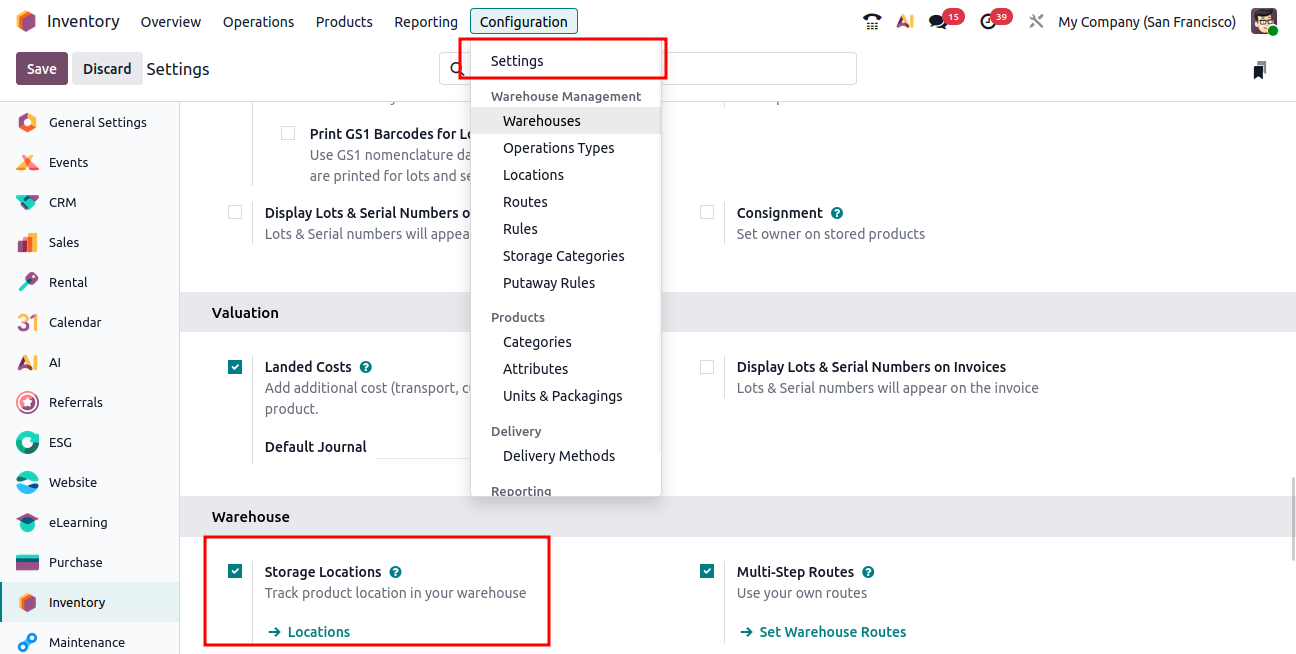
To begin managing scrap in Odoo 19, you first need to enable storage locations. Navigate to Inventory → Configuration → Settings, and under the Warehouse section, activate the Storage Locations option, as illustrated below.
Enabling storage locations allows you to create a dedicated scrap location where defective or waste materials can be stored separately from regular inventory. This separation ensures that such items are not accidentally used in ongoing production processes.
By organizing scrap in a designated location, businesses can maintain accurate stock levels, improve cost tracking, and gain better visibility into manufacturing waste. This step lays the foundation for effective scrap management within Odoo.
To manage scrap efficiently, the next step is to create a dedicated scrap location within your inventory system. This ensures that all defective or unusable materials are stored separately from usable stock.
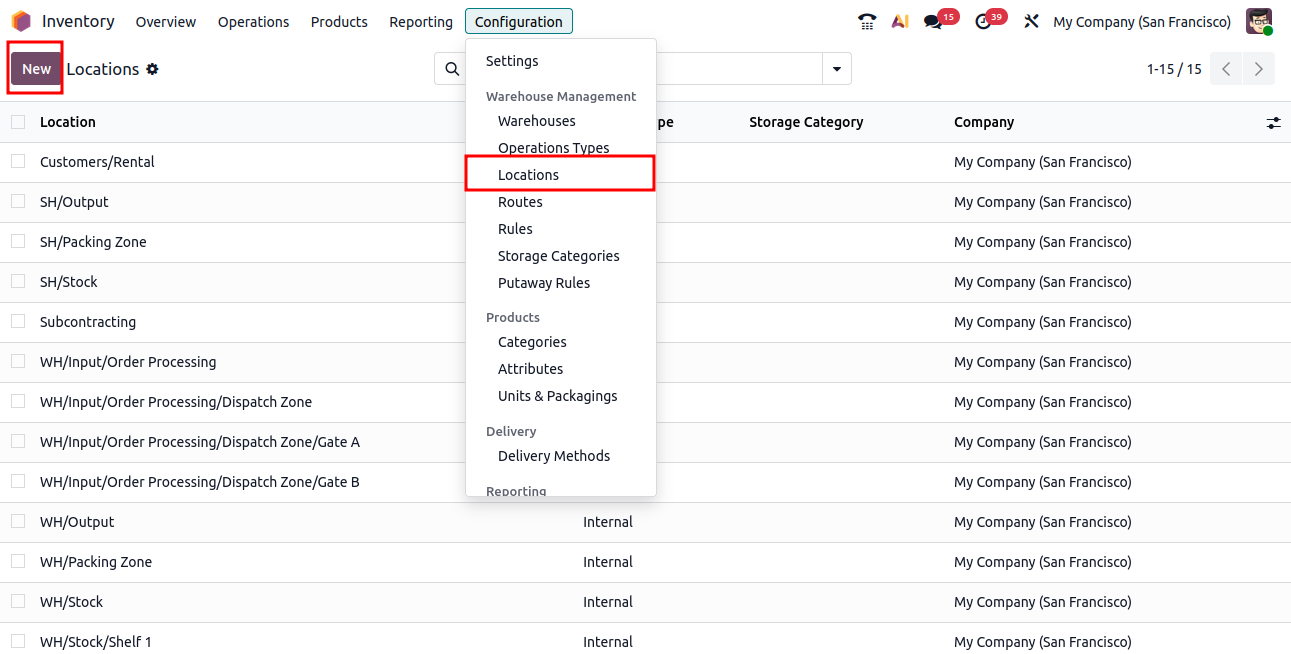
Navigate to Inventory → Configuration → Locations, as shown below. From there, click on the New button to create a new location.
While creating the location, you can designate it specifically for scrap purposes. This helps in clearly identifying and isolating waste materials, improving inventory organization and traceability.
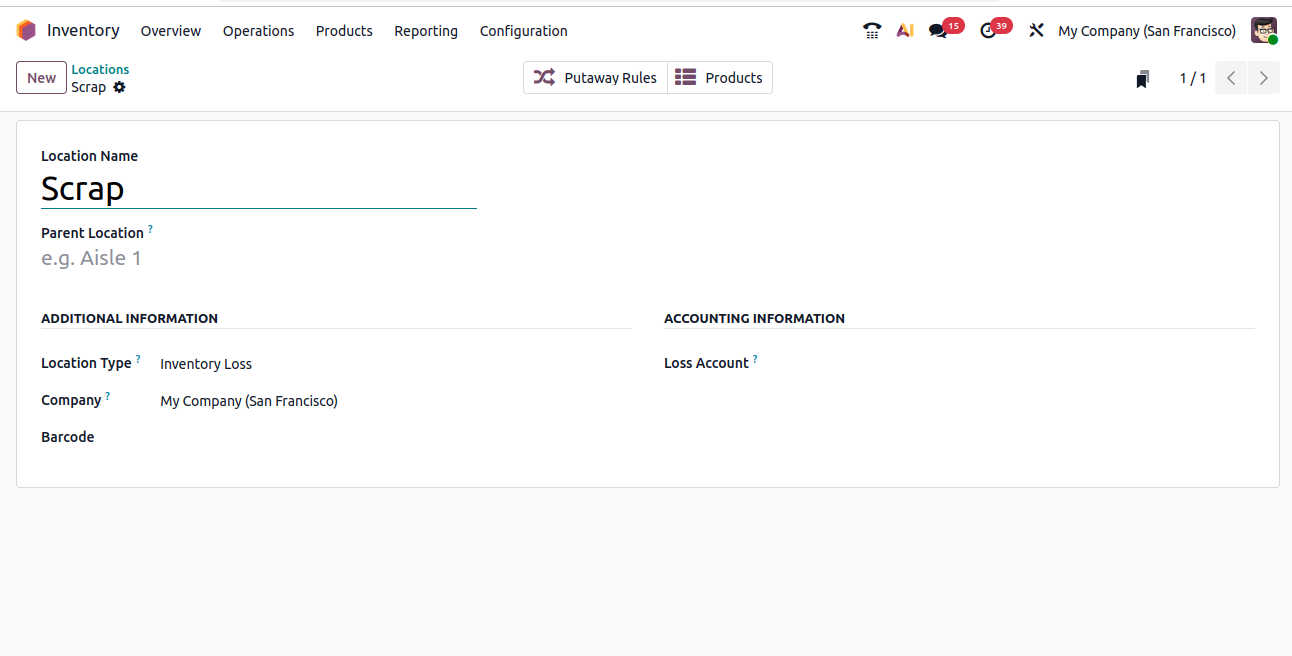
Set the Location Name to Scrap for easy identification. Choose Production as the Parent Location so that the scrap is logically linked to manufacturing operations. Then, set the Location Type to Inventory Loss, which ensures that any items moved to this location are treated as lost or unusable stock.
Once the scrap location is configured, you can proceed to create a scrap order. This allows you to record and track materials that are damaged or unusable during production.
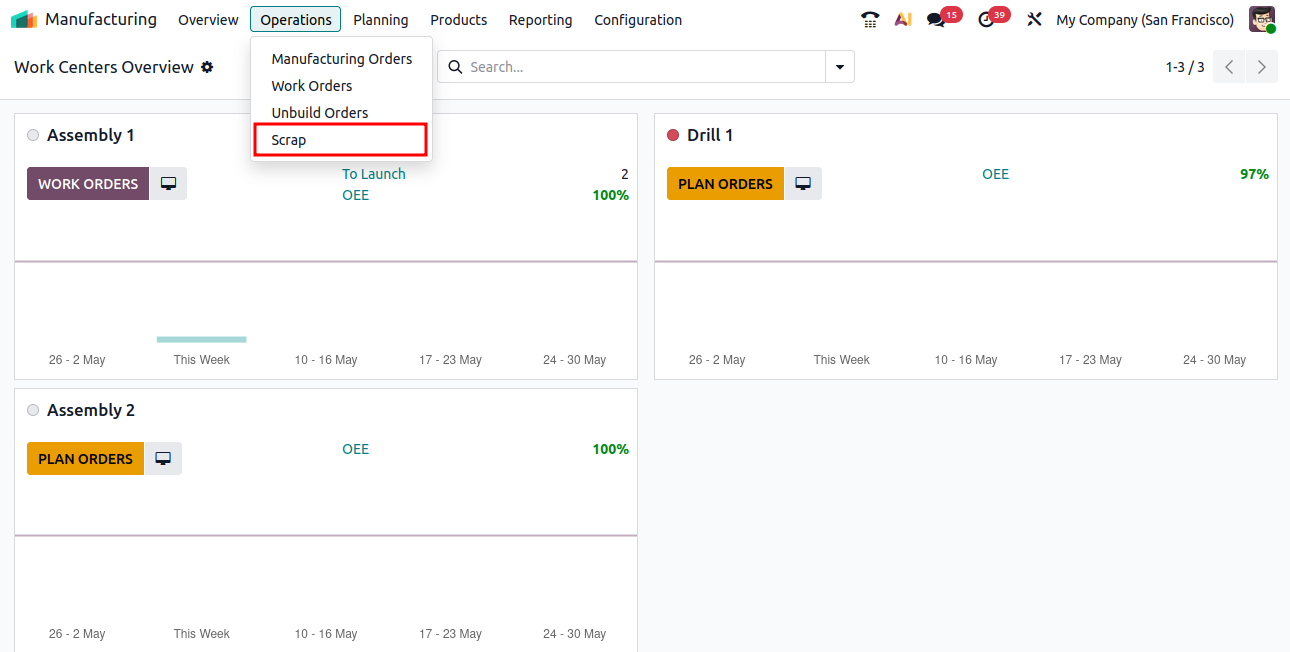
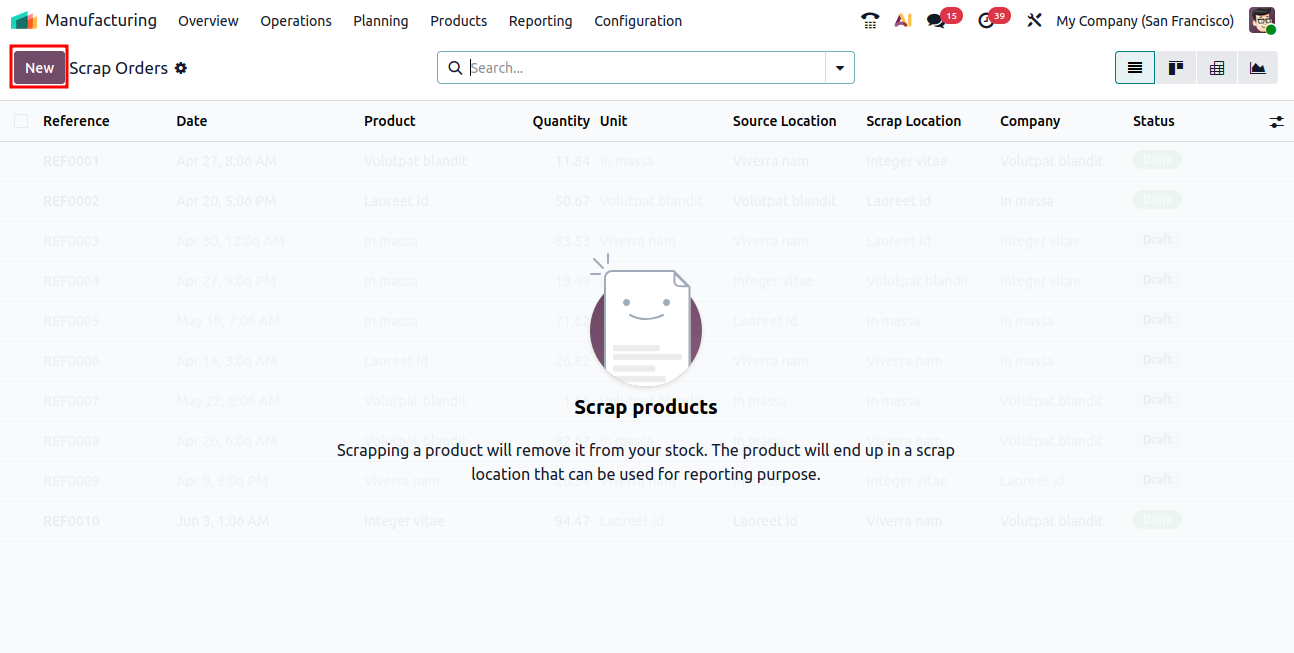
On the Scrap Orders page, click the New button to begin creating a new scrap order, as shown below.
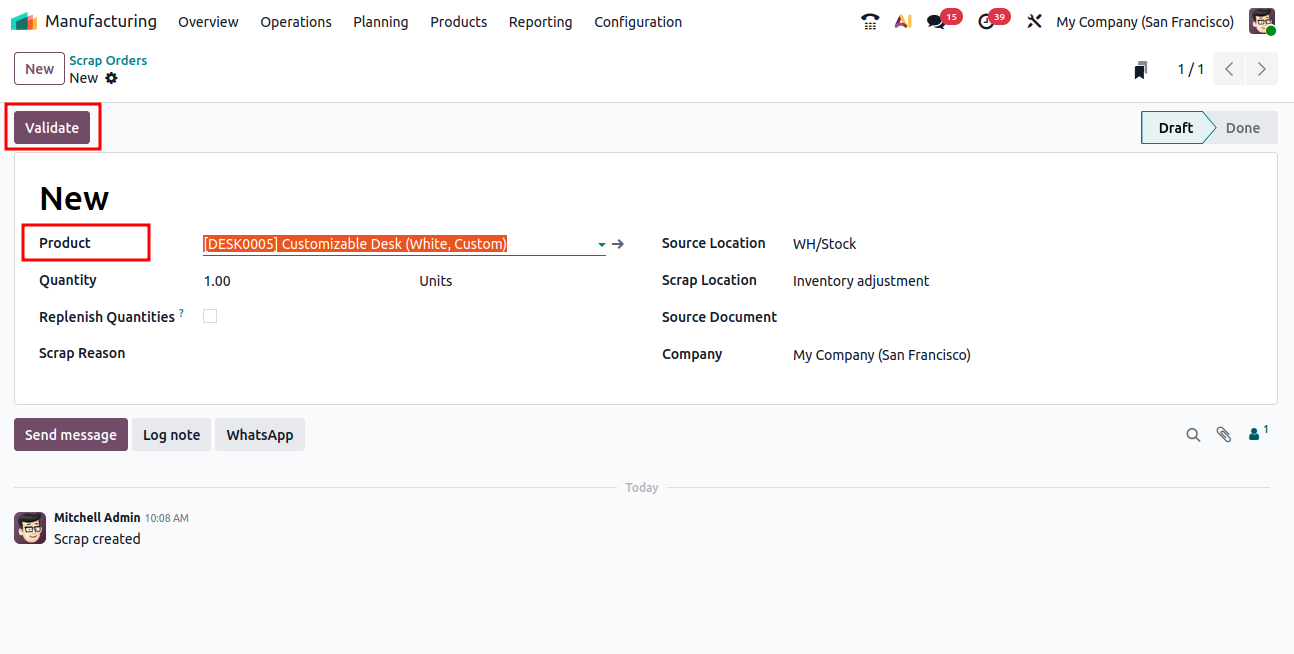
Next, select the product you want to scrap and fill in the required details. This includes the Source Location (where the product is currently stored), the Scrap Location (where the unusable items will be moved), and the Quantity to be scrapped.
After entering all the necessary information, click the Validate button, as shown below.
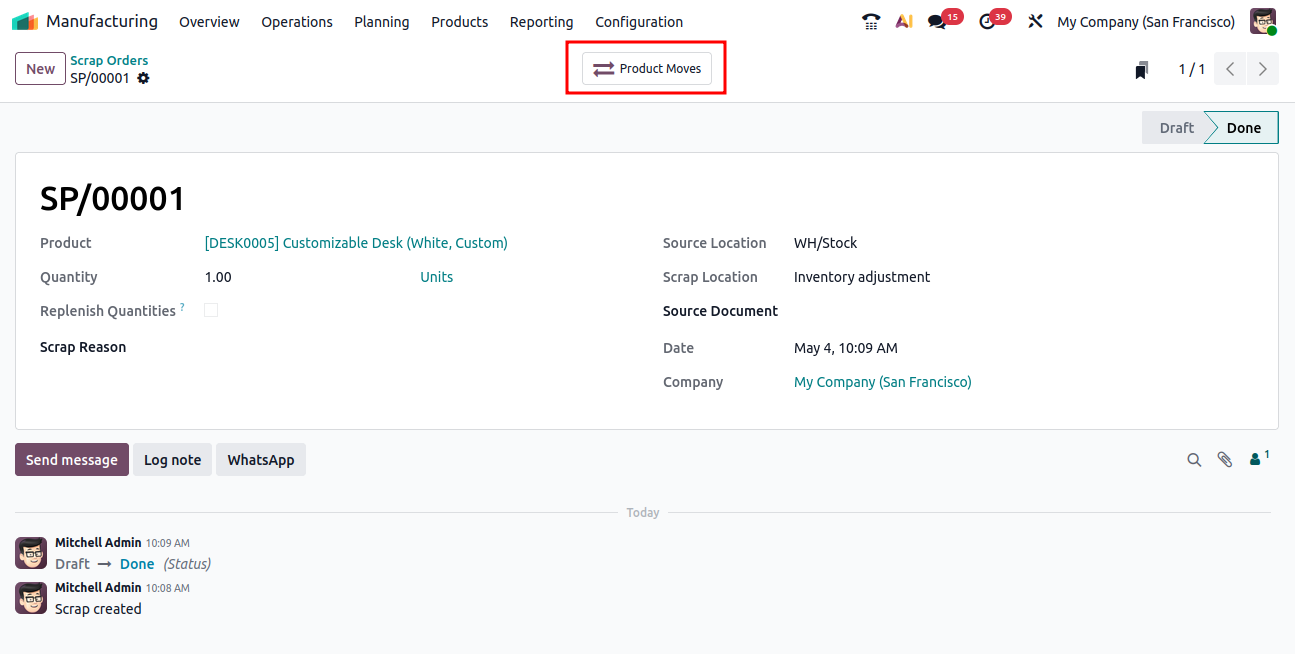
To review how the scrapped items have been processed, click on the Product Moves smart button.
During the production process, scrap orders can be created whenever a component is identified as defective or damaged. At that point, the item can be immediately moved to the designated scrap location, ensuring it is excluded from further use in manufacturing.
Additionally, if multiple defective items are identified, they can be recorded within the same scrap order, making it easier to manage and track waste efficiently. Let’s now look at how this process works in a production scenario.
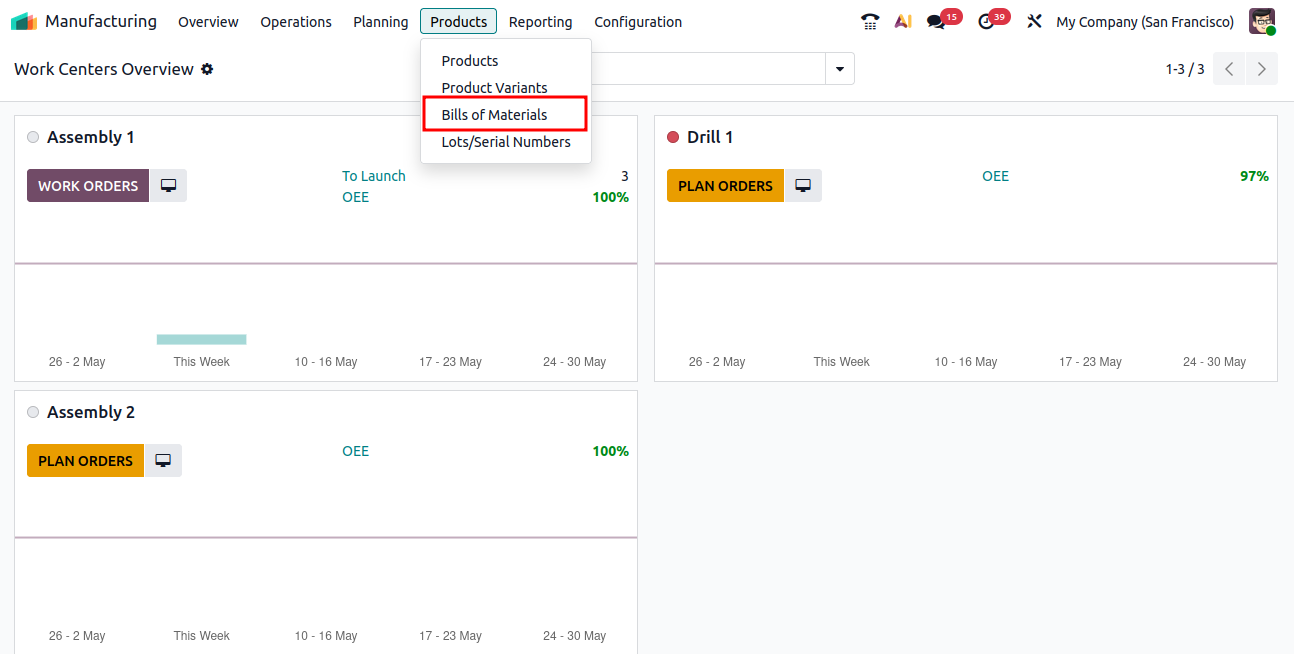
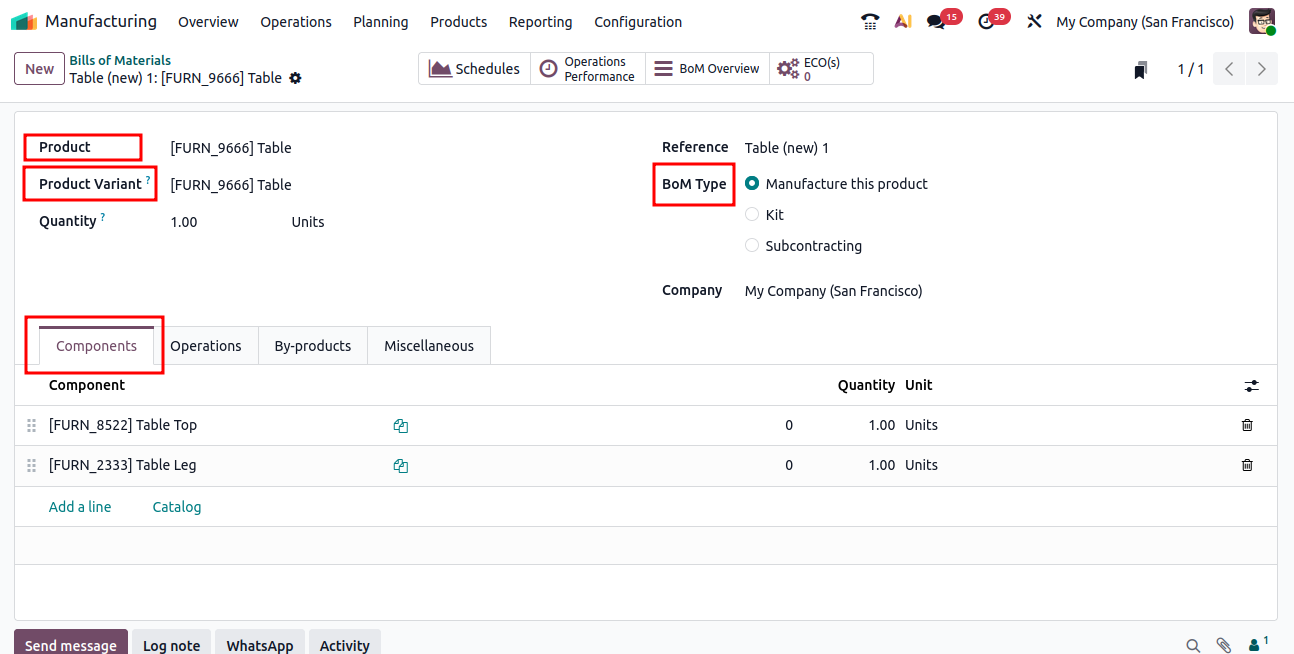
To begin, create a Bill of Materials (BoM). Navigate to Products → Bill of Materials and click the New button, as illustrated below.
In the Bill of Materials form, start by selecting the desired Product. Then, specify the appropriate Product Variant (if applicable) and define the Quantity to be produced.
Next, set the BoM Type to Manufacture this Product, indicating that the item will be created through a manufacturing process.
Under the Components tab, add the required materials needed for production. For example, you can include components such as Table Top and Table Leg, as shown below.
This setup defines the materials required for manufacturing and prepares the system for tracking consumption and potential scrap during production.
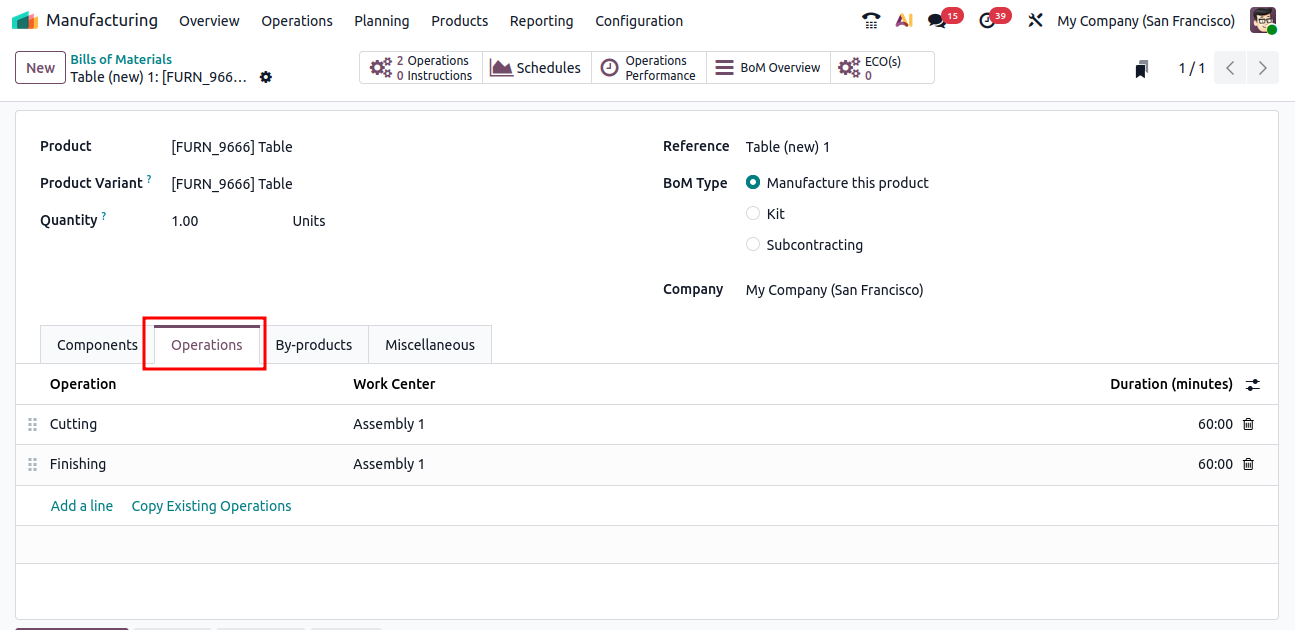
In the Operations tab, you can define the steps involved in the manufacturing process. In this example, two operations are configured: Cutting and Finishing.
Both operations are carried out in the Assembly 1 Work Center. The workflow is set up so that the Finishing operation begins only after the Cutting operation is completed, ensuring a proper sequence in the production process.
Once the Bill of Materials is configured, the next step is to create a manufacturing order using it.
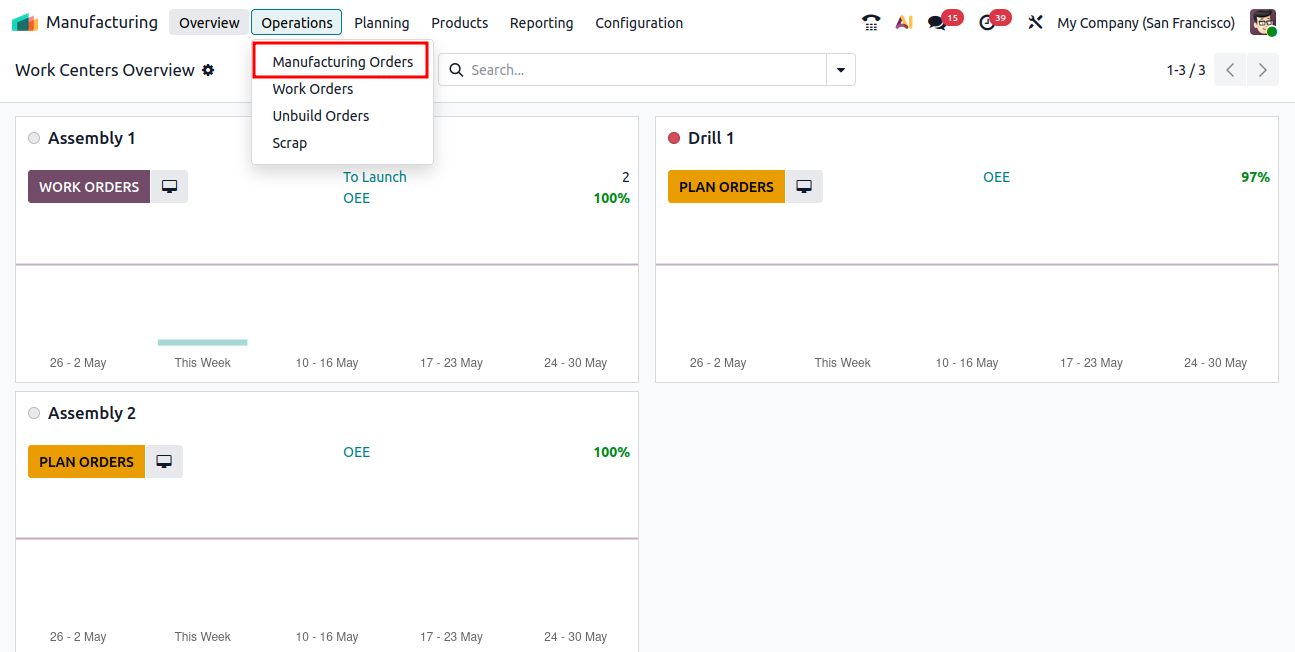
Navigate to Operations → Manufacturing Orders within the Manufacturing module, and click the New button, as shown below.
From there, select the product associated with the newly created BoM. Odoo will automatically apply the corresponding components and operations, allowing you to proceed with the production process efficiently.
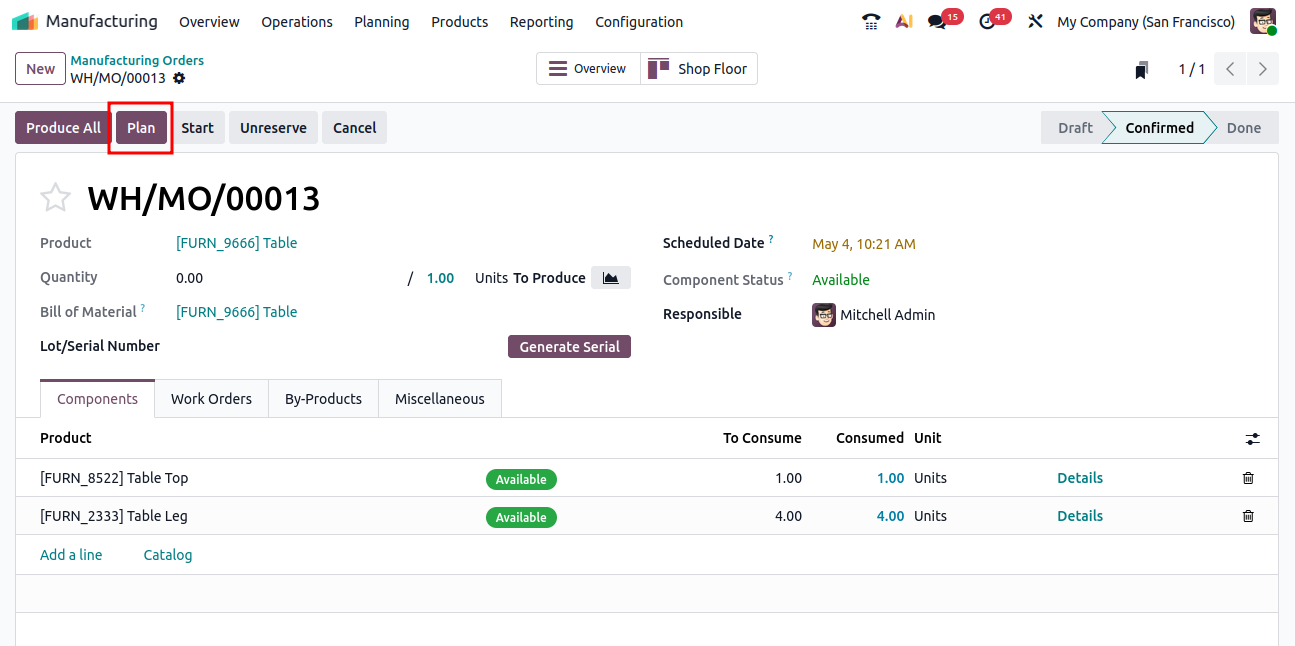
In the Manufacturing Order form, select the Bill of Materials you created earlier and set the Product to Table. Once selected, Odoo will automatically populate the related components and operations based on the chosen BoM.
Review the details to ensure everything is correct. Then, click the Confirm button to validate the order. After confirmation, click the Plan button, as illustrated below, to schedule the production operations.
Click the Start button to begin the first operation in the manufacturing process. Once the initial operation is completed, proceed to the next operation.
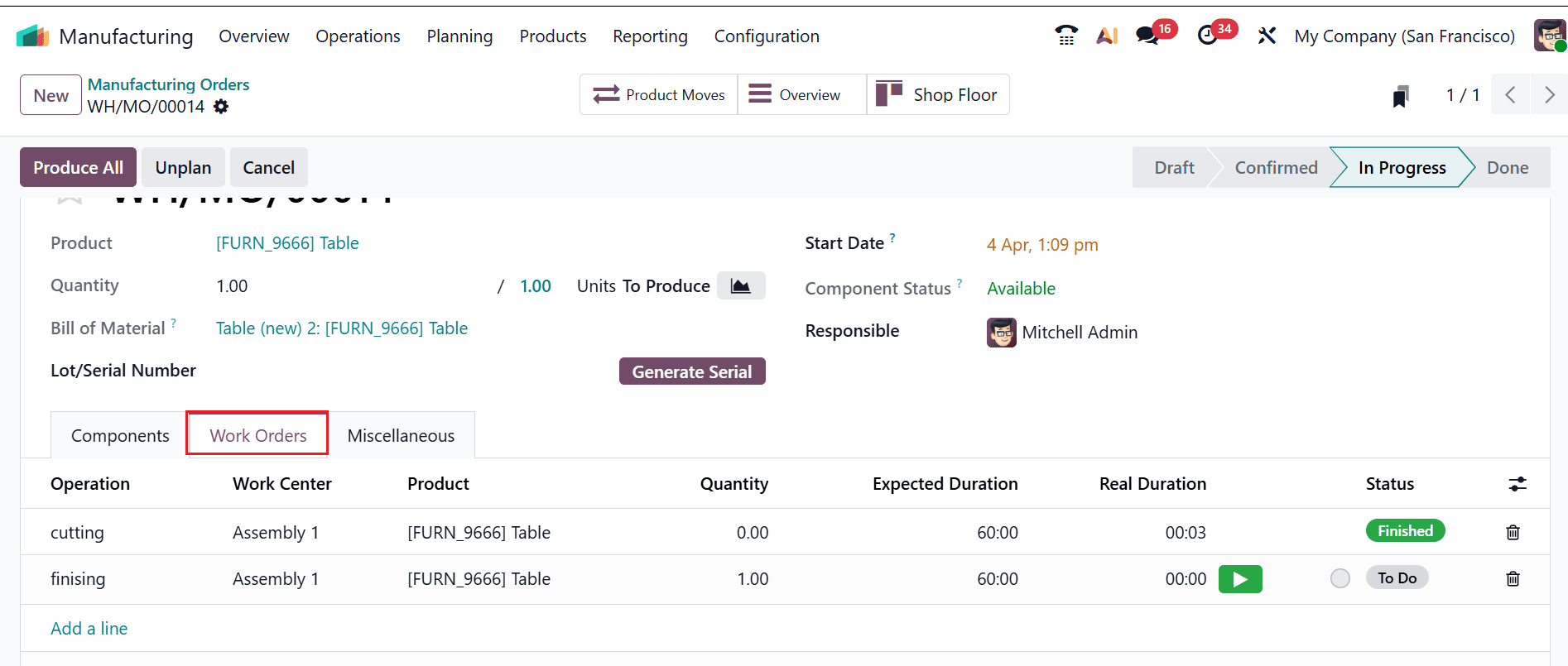
At this stage of the production process, you can also generate scrap orders if any components are found to be damaged or defective.
Click on the gear icon and select Scrap, as shown below. This allows you to immediately record and move the affected components to the scrap location without interrupting the workflow.

A pop-up window will appear, allowing you to enter the details of the scrap product. Here, specify the necessary information such as Product Name, Quantity, and Lot/Serial Number (if applicable).
Once all the details are filled in, click on Scrap Products, as shown below, to transfer the items from stock to the designated scrap location.
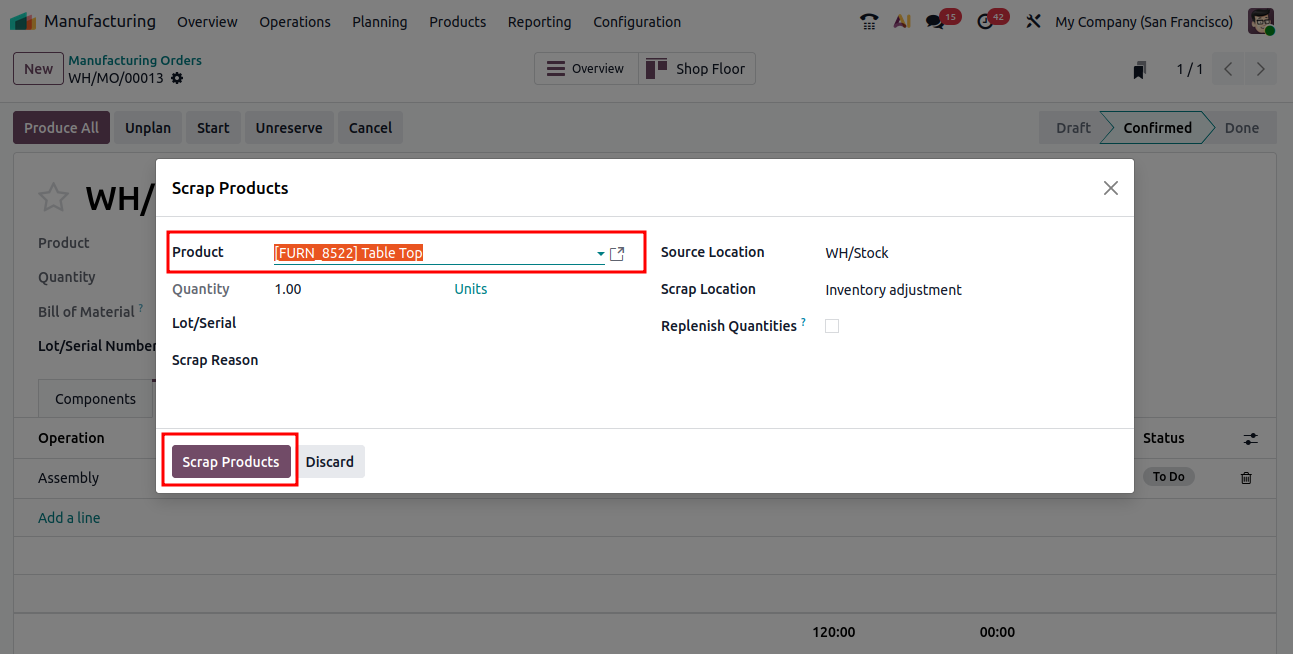
At this stage, you can review the details of the scrap orders generated during the production process to ensure accuracy and completeness.
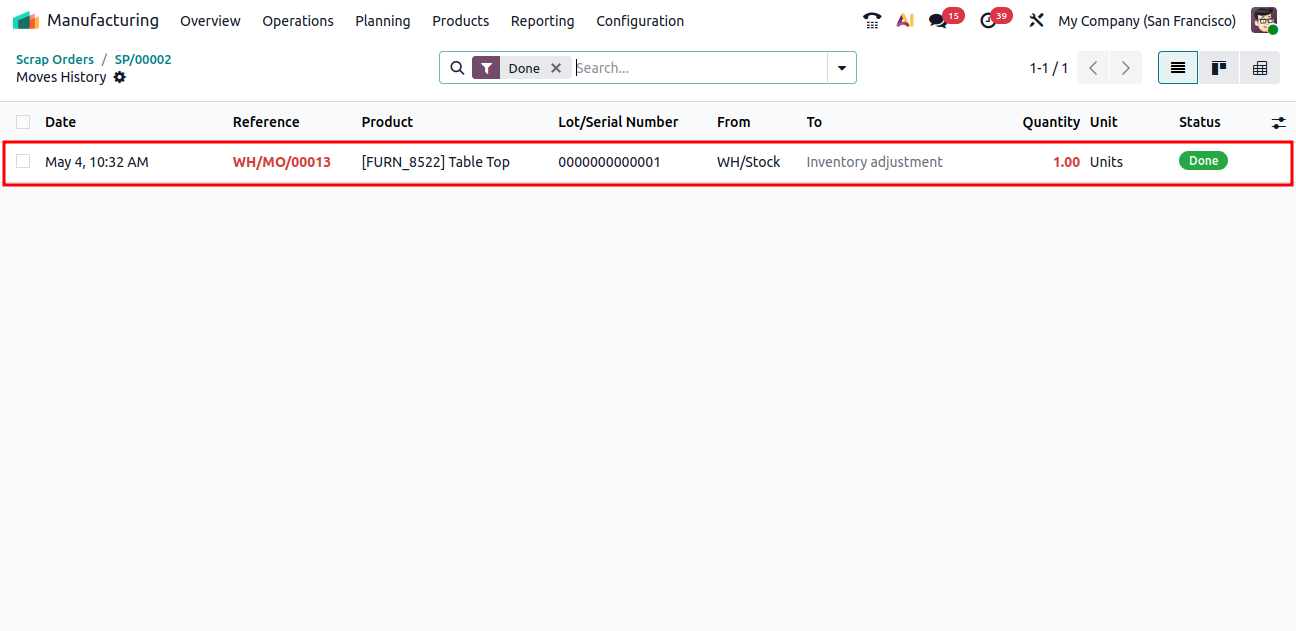
Within the scrap order, the Product Moves tab provides a comprehensive view of stock movements at each stage. It clearly illustrates how materials and products are transferred between locations, including the movement of items to the scrap location.
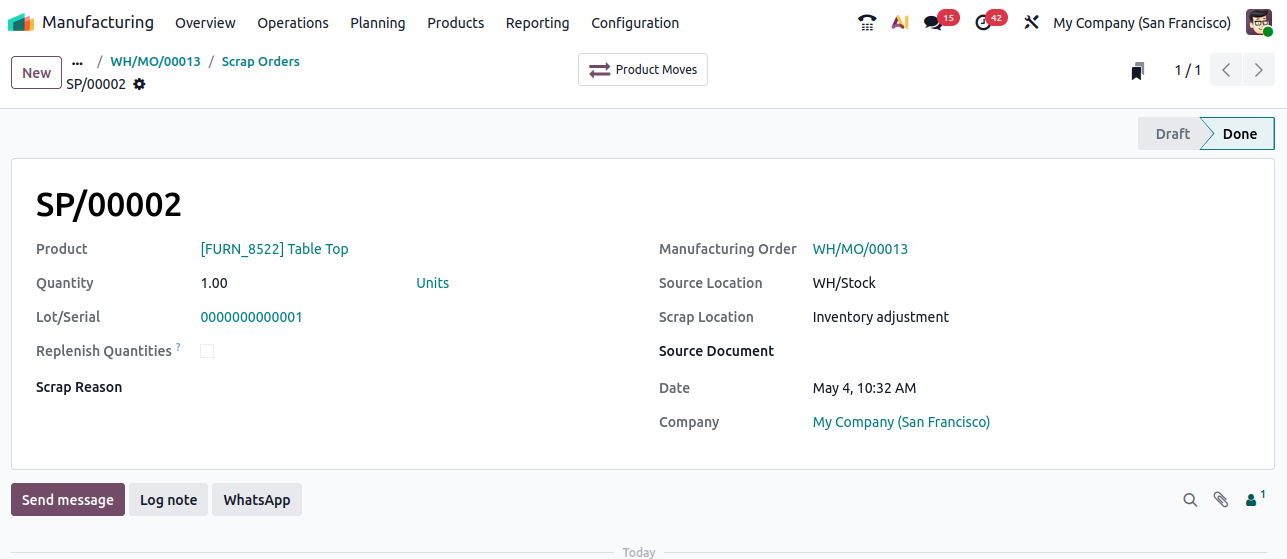
Here, you can see that the Table Top component was identified as damaged and has been successfully moved from the stock location to the designated scrap location.
Scrap management in Odoo 19 Manufacturing is a powerful feature that helps businesses maintain greater control over production waste. By consistently tracking and recording scrap, organizations can identify inefficiencies and highlight areas that require improvement.
Odoo’s integrated approach ensures that scrap is not merely discarded but properly accounted for within both inventory and financial records, improving accuracy and transparency. The ability to link scrap directly to manufacturing orders provides deeper insights into production issues, enabling businesses to take corrective actions and optimize processes.
Effective scrap management also plays a key role in reducing costs and supporting sustainable manufacturing practices. In an increasingly competitive industry, leveraging features like those in Odoo 19 is essential for maintaining efficiency and profitability. By adopting these capabilities, businesses can turn waste management into a strategic advantage and enhance overall operational performance.






0