SreeragJuly 4, 2026
Most data migrations into a new ERP fall into one of two buckets: you're loading information for the first time (a fresh list of customers, a product catalog inherited from another system), or you're updating records you already have in bulk (correcting prices across a hundred products, adding a missing tax ID to every vendor). Odoo 19 handles both through the same browser-based Import tool, with no scripting or developer involvement needed.
This guide covers both scenarios, plus the details that usually trip people up the first time: where the import option actually lives, how to avoid recreating duplicate records, and what to do when the importer flags a row as broken.
This distinction shapes how you prepare your file, so it's worth settling before you open the importer.
If you're not sure which situation you're in, a safe default is to export a sample of your current data first and look at whether it already has an ID column — if it does, you're in update territory.
Rather than guessing at Odoo's internal field names, it's much faster to generate a template by exporting a handful of records you already have (or even just one):
1. Open the module's list view and select a few rows.
2. Use the actions menu or gear icon in the toolbar and choose Export.
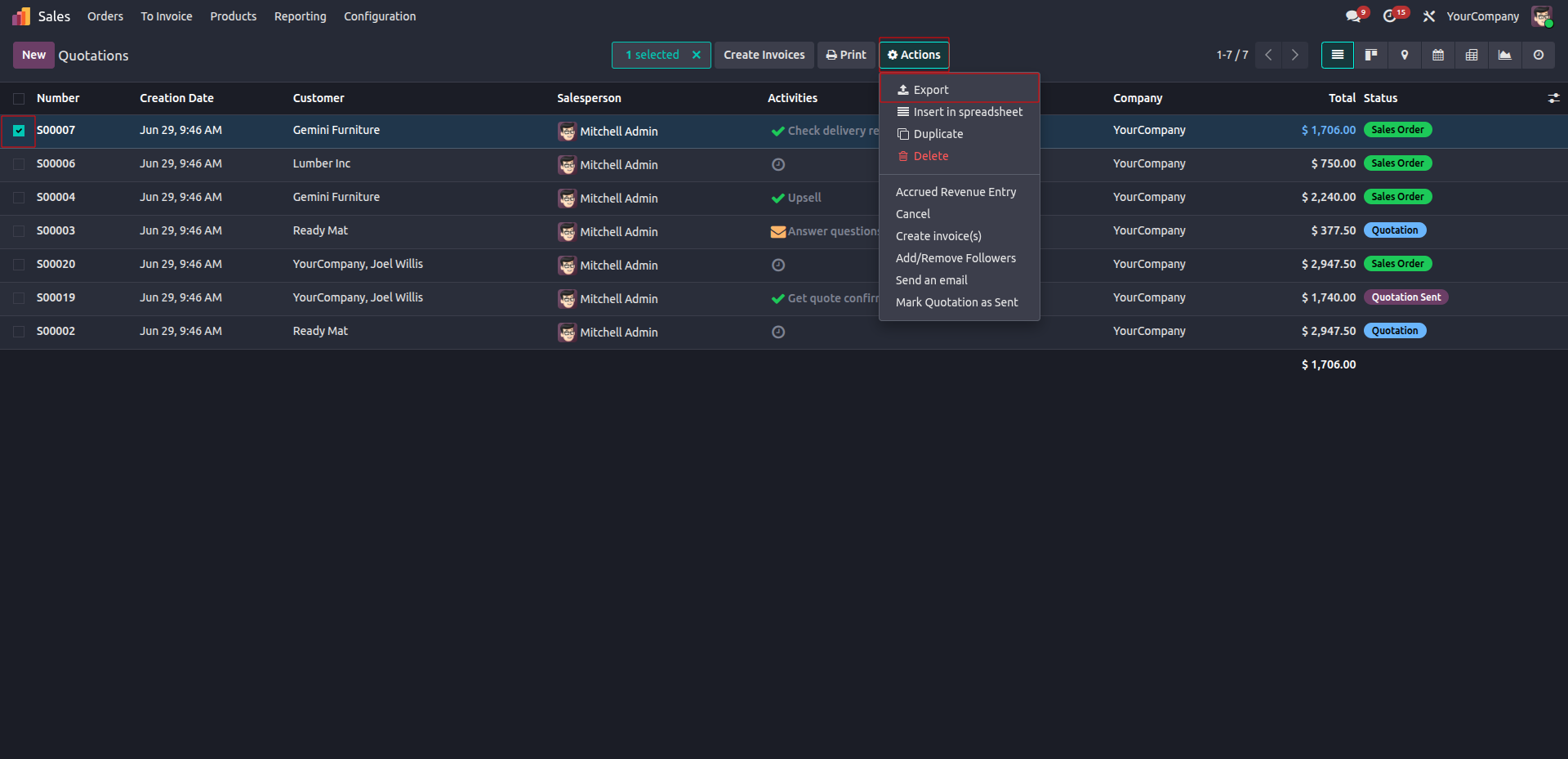
3. In the export screen, search for and add the fields you need from the Available Fields list on the left — there's a search bar, and a "show sub-fields" toggle for digging into related records (a product's category, a contact's parent company, and so on).
4. If your goal is to update records later rather than just create them, check "I want to update data (import-compatible export)". This filters the field list down to ones that round-trip safely and bundles in the identifiers needed for a future re-import.
5. Pick CSV or XLSX as the output format and export.
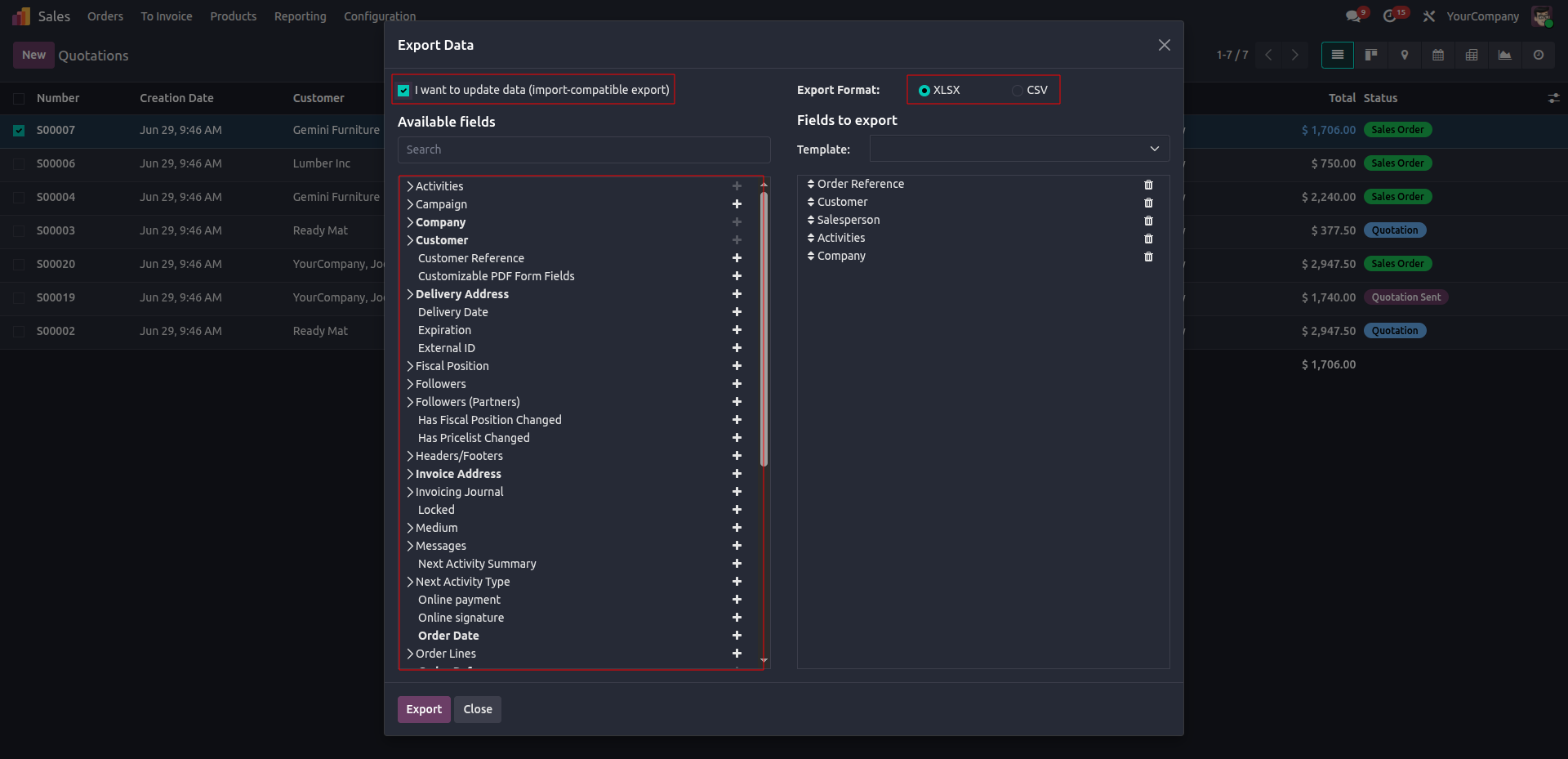
Field selections can be saved under the Template dropdown, so a recurring monthly export — say, all open sales orders — doesn't need to be rebuilt from scratch each time.
Whatever you export becomes your working file: trim columns you don't need, add the new rows or corrected values, and leave the header row alone.
Once your file is ready, the actual import takes only a few clicks:
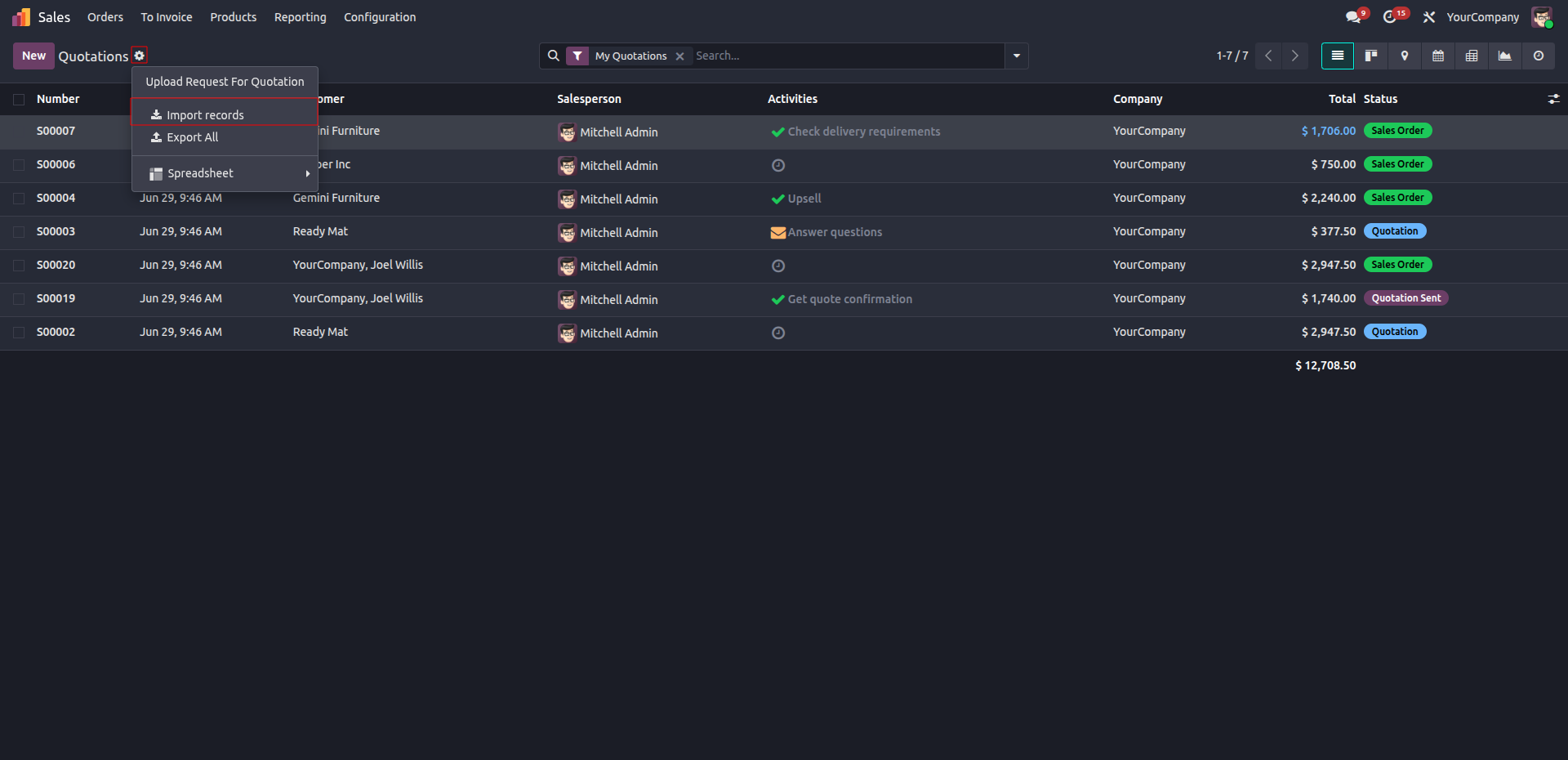
1. Open the importer - From the list view, open the gear icon and choose Import records.
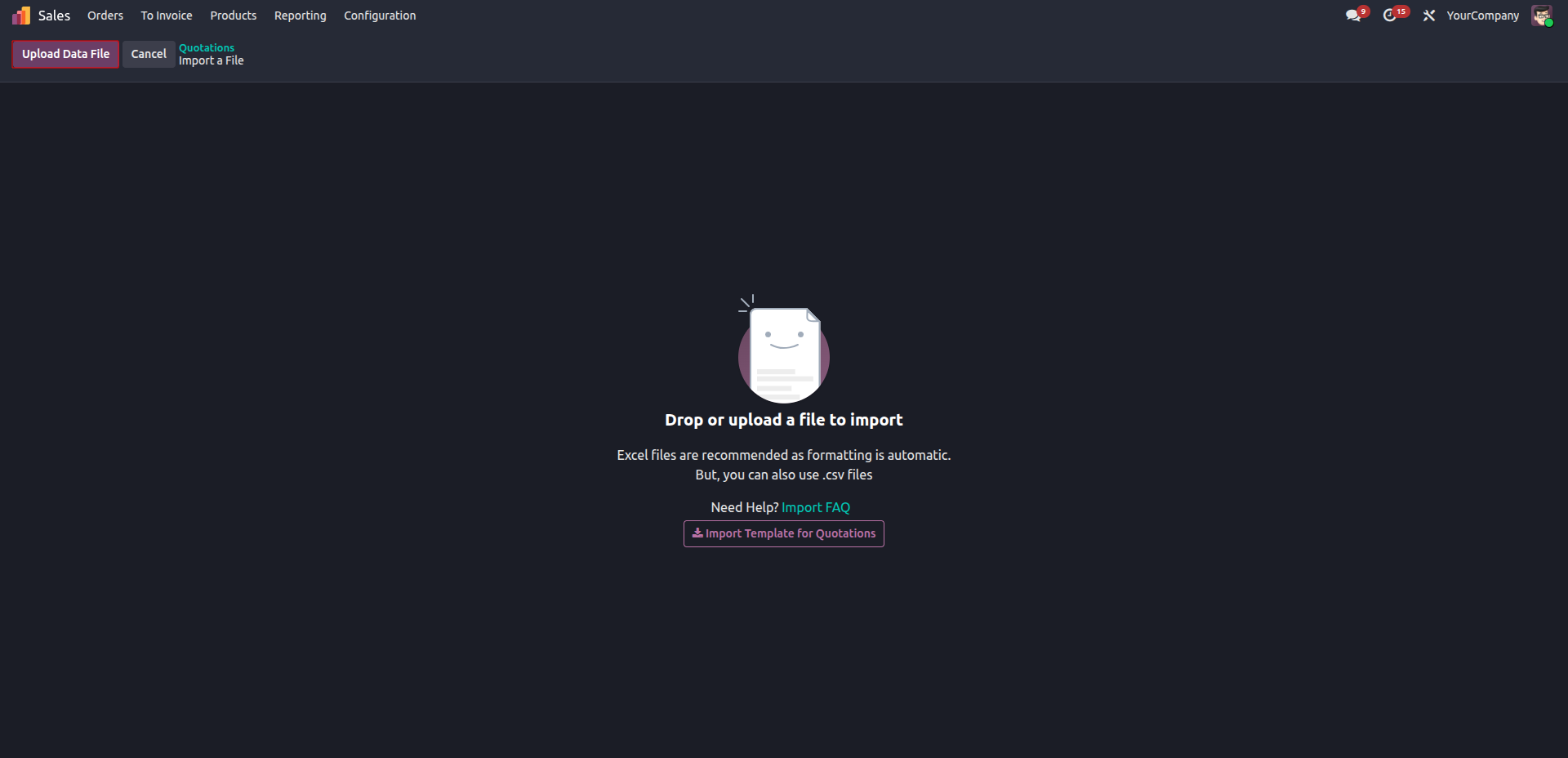
2. Upload - Select your CSV or XLSX file from your device.
3. Map fields - Odoo auto-matches column headers to fields where it can; anything ambiguous gets a dropdown so you can map it by hand.
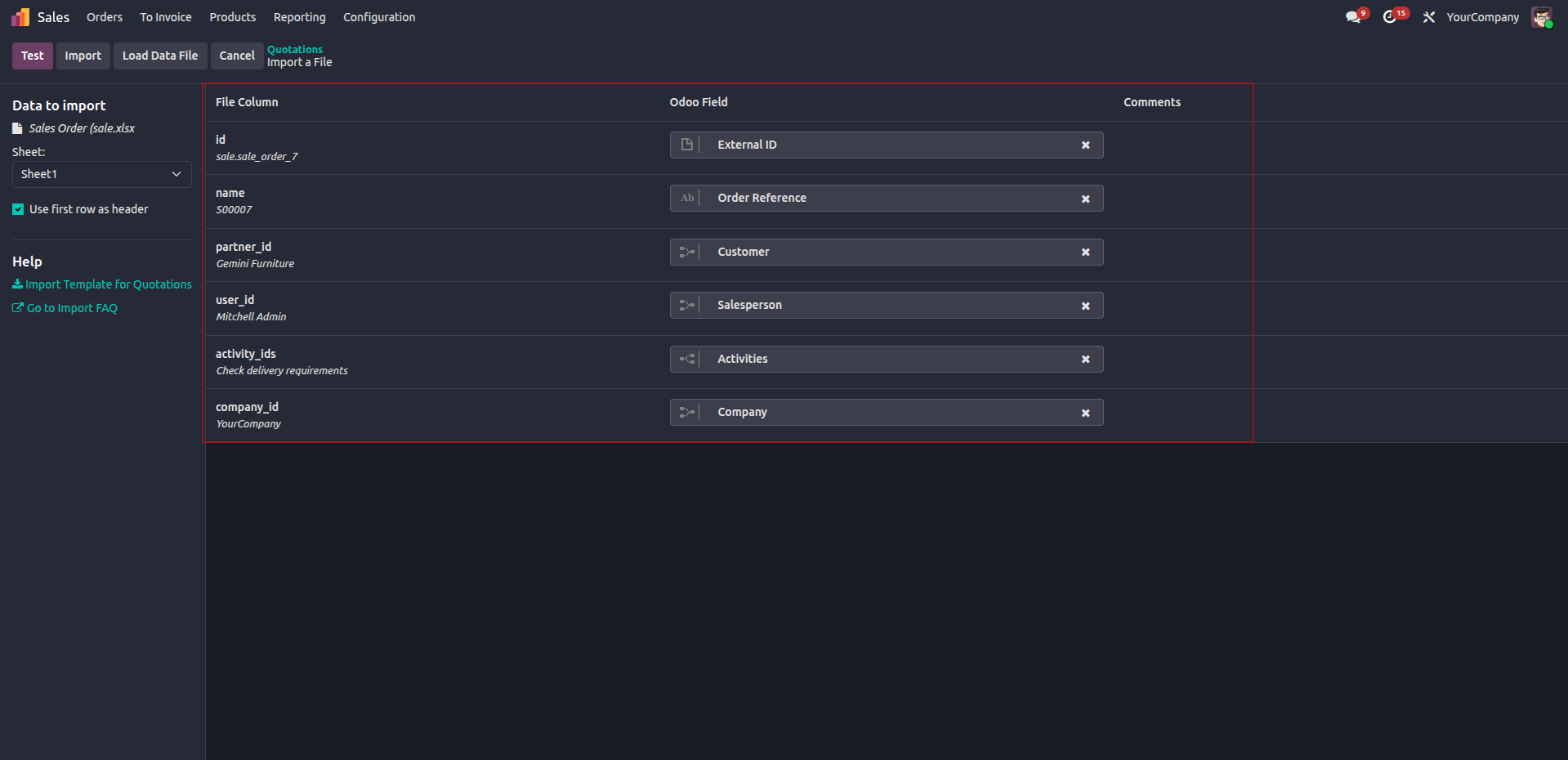
4. Test - Click Test to run every row through validation without saving anything — this is where bad data gets caught.
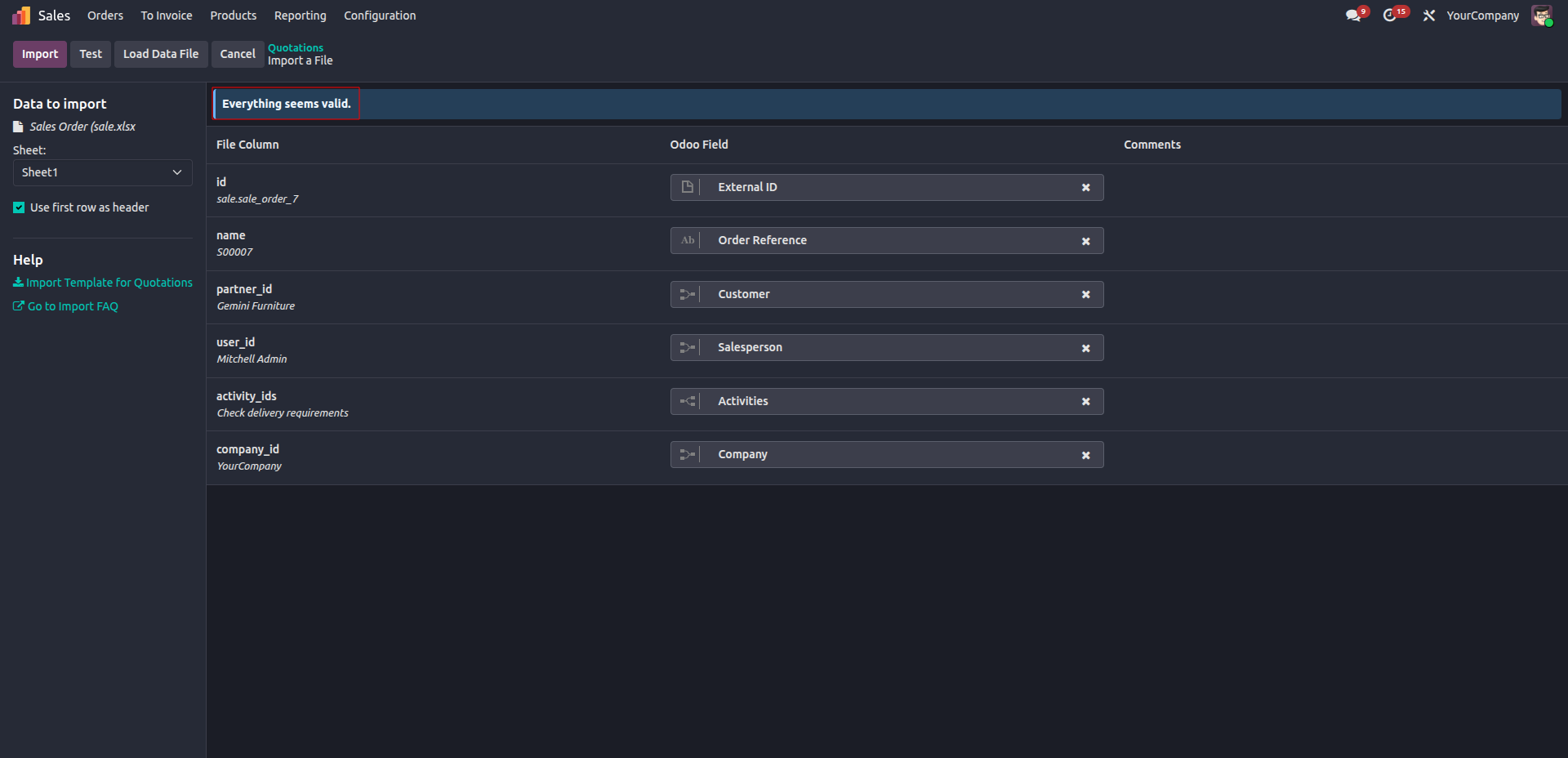
5. Resolve - Fix flagged rows directly in the preview, in your source file, or by creating whatever missing related record is causing the failure.
6. Import - Once the Test comes back clean, click Import. A summary confirms how many records were created or updated.
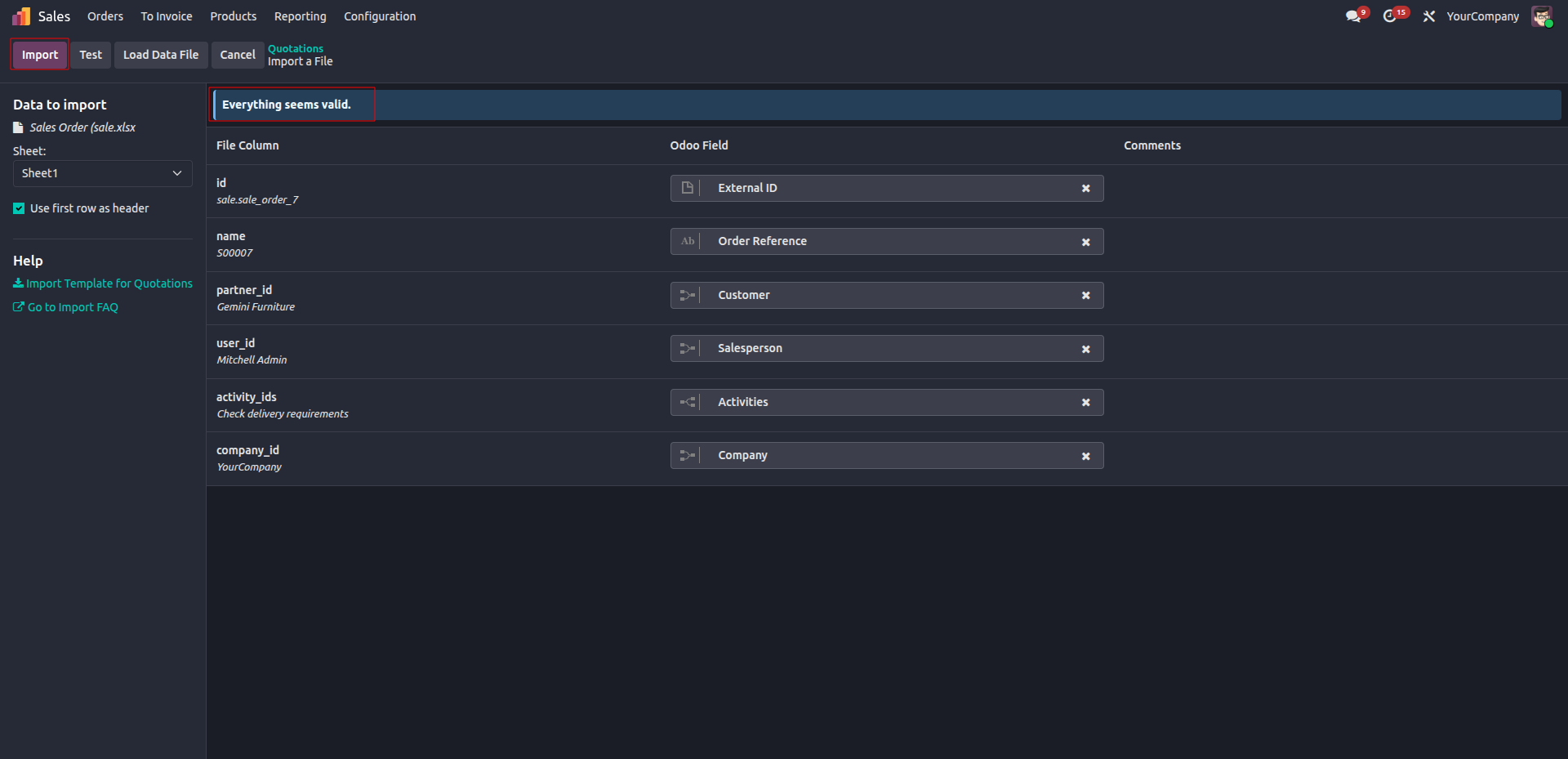
The Test step is the part worth not skipping, even on a file you're confident about — it's the difference between catching a bad row in seconds versus discovering it later as a wrong invoice total or a missing customer link.
|
Format |
File extension |
Choose it when |
|
CSV |
.csv |
data is flat and simple, and you want a format any spreadsheet tool opens cleanly. |
|
Excel Workbook |
.xlsx |
You're working with larger datasets, multiple sheets, or specific formatting you want to keep. |
|
Legacy Excel |
.xls |
You're stuck with files from older (97–2003) versions of Excel. |
There's no real performance difference for typical migrations — pick whichever your source system or team already works in.
External IDs: Why They're Worth the Extra Column
An External ID (also called an XML ID) is a unique text reference attached to a record, independent of Odoo's own internal database number. It matters for one main reason: re-importability.
Say you import 500 contacts on Monday, then on Friday you get a corrected spreadsheet with updated phone numbers for 30 of them. Without External IDs, re-importing that corrected file creates 30 brand-new contacts instead of updating the originals — now you have duplicates to clean up. With External IDs in both files, Odoo matches each row to the contact it already created and updates it in place.
External IDs are also how you safely link records across an import — for example, having an invoice file reference a customer by ID rather than by name, which avoids problems when two customers happen to share a name.
If you're doing a true one-time data load and never expect to touch the same records via import again, you can skip them. For anything ongoing, include them from day one.
|
What you'll see |
What's actually wrong |
How to fix it |
|
Duplicate external ID |
Two rows in the same file share an ID |
Make every ID in the file unique |
|
Required field is empty |
A mandatory column has blank cells |
Fill in the missing values |
|
Invalid date format |
The date string doesn't match what Odoo expects |
Reformat the column, or adjust the date format option in the importer |
|
No matching record found |
A related record (a country, a tag, a category) doesn't exist yet |
Fix the spelling, or create the missing record first |
|
Value is not a number |
A numeric column contains text, symbols, or stray characters |
Strip out anything that isn't a digit (currency symbols, thousands separators) |
Because the Test step reports problems row by row rather than failing the whole file silently, the normal rhythm is:
Test -> Fix what's flagged -> Test again -> Import
Get a clean, consistently formatted file, run it through Test before committing, and use External IDs whenever there's a chance you'll touch this data again — that covers the overwhelming majority of import scenarios in Odoo 19, regardless of which module you're loading data into.





0