AkshayaMay 4, 2026
In real-world business operations, the purchasing process doesn’t always end with receiving goods and settling vendor bills. There are situations where products must be returned—such as when items arrive damaged, incorrect quantities are delivered, or the quality does not meet expectations. Handling these returns properly is critical to ensure accurate financial records and maintain transparent vendor relationships.
The Odoo 19 Accounting module offers a streamlined and integrated approach to managing vendor refunds. By linking the Purchase, Inventory, and Accounting modules, Odoo ensures that every step—from product return to financial adjustment—is automatically synchronized. This eliminates manual errors and keeps all records consistent across the system.
A vendor refund (also known as a vendor credit note) is issued when a business returns goods to a supplier and expects reimbursement or adjustment in future payments. In Odoo, this process is tightly connected with stock operations and accounting entries, ensuring both inventory and financial data remain aligned.
The workflow begins with creating a Request for Quotation (RFQ) in the Purchase module. Navigate to the RFQ menu and create a new record by selecting the vendor. Add the required product lines along with quantities, unit prices, and applicable taxes.
After reviewing the details, confirm the RFQ to convert it into a Purchase Order.
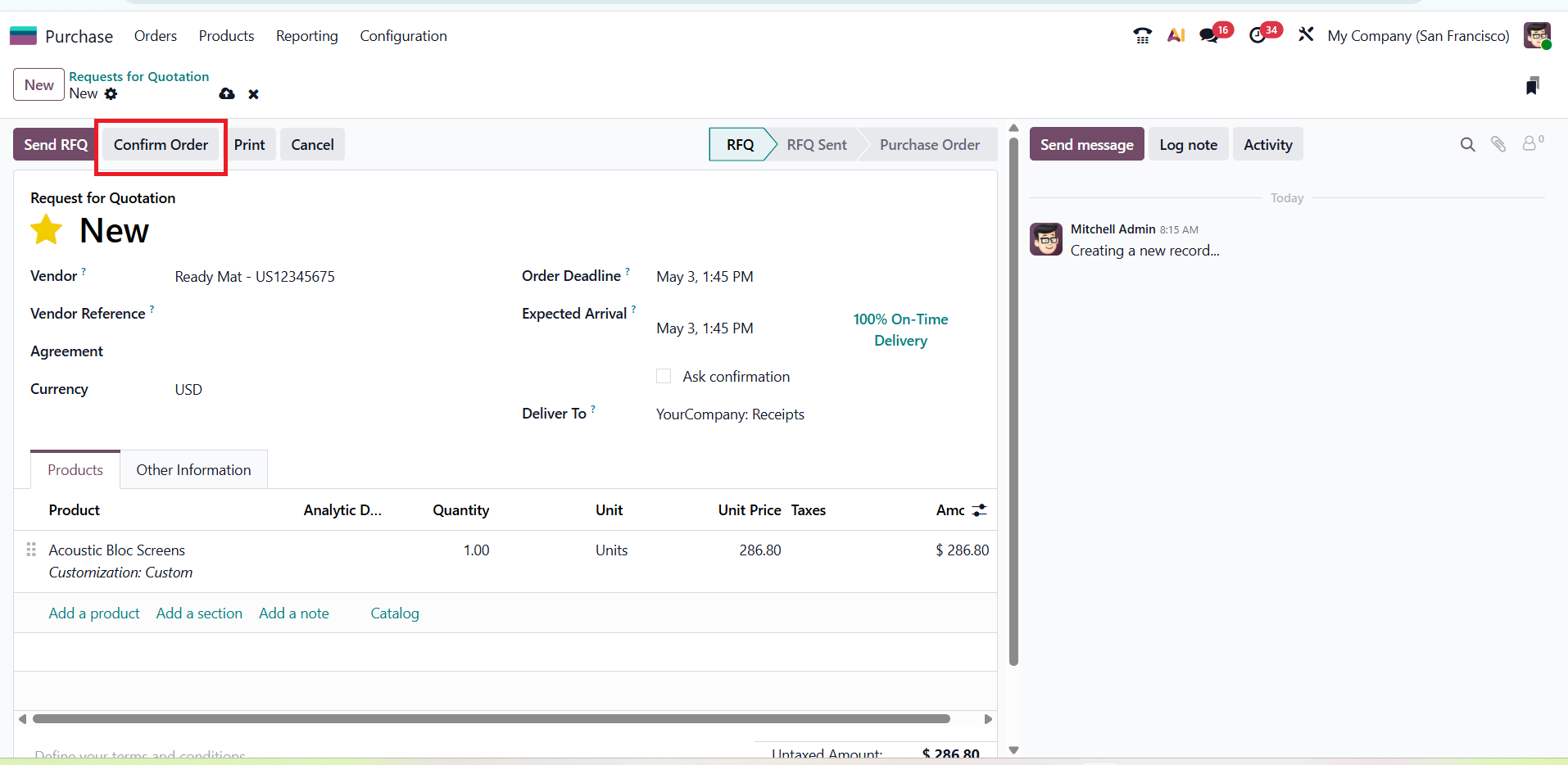
This confirmation finalizes the procurement process and automatically generates an incoming shipment in the Inventory module.
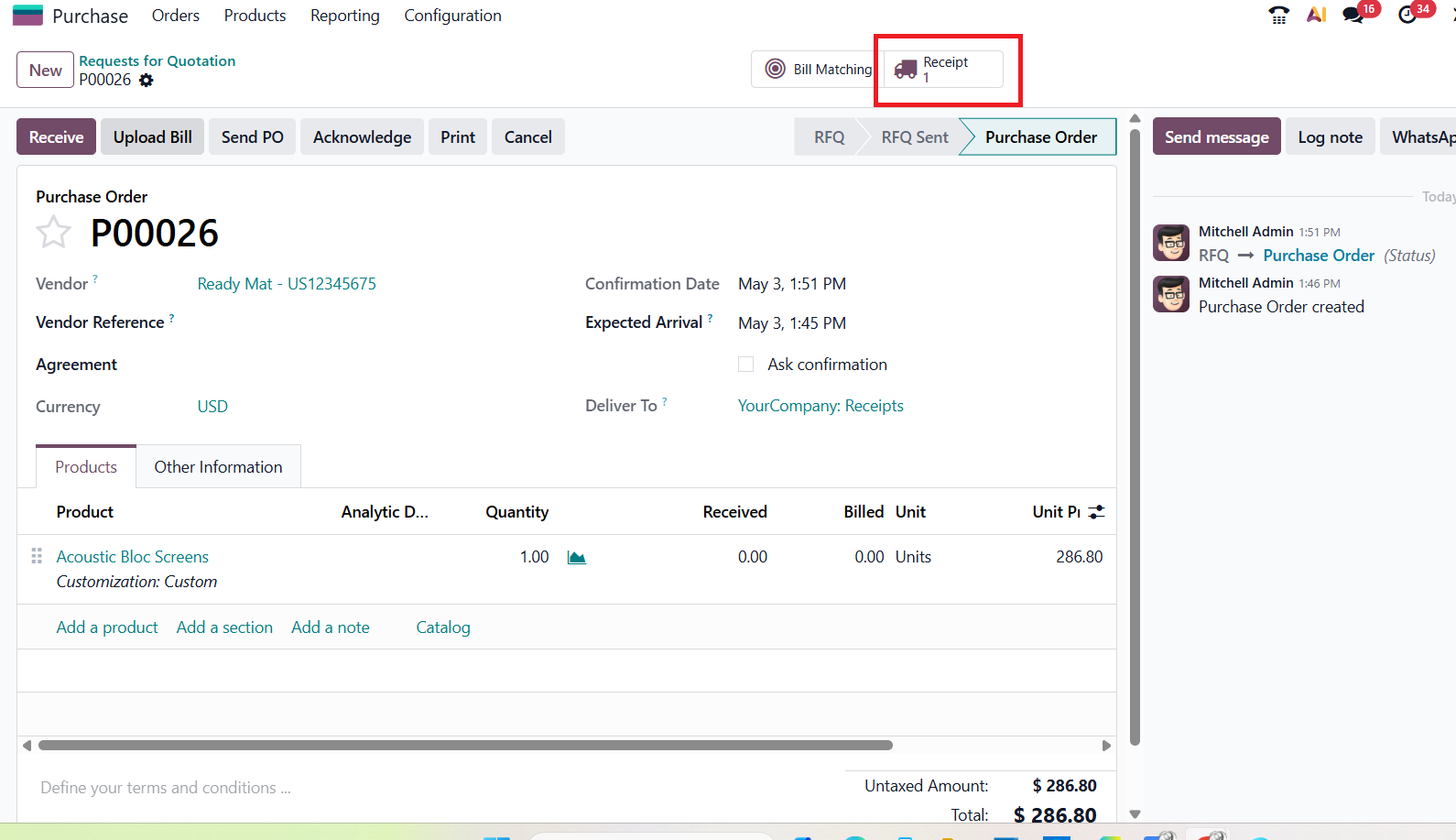
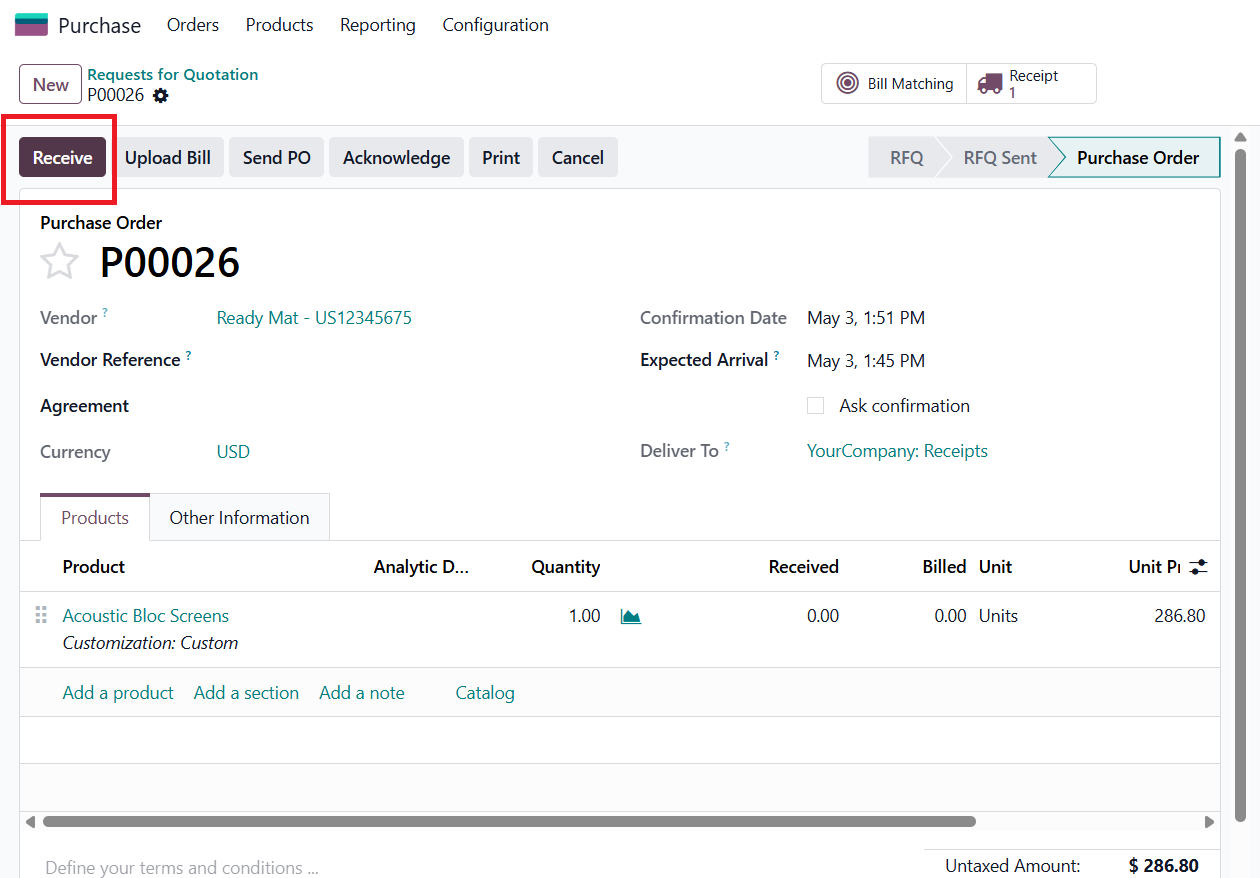
When the vendor delivers the products, users must validate the receipt to confirm that the goods have been received.
This step updates the stock levels in real time and ensures that inventory records reflect the actual quantities received.
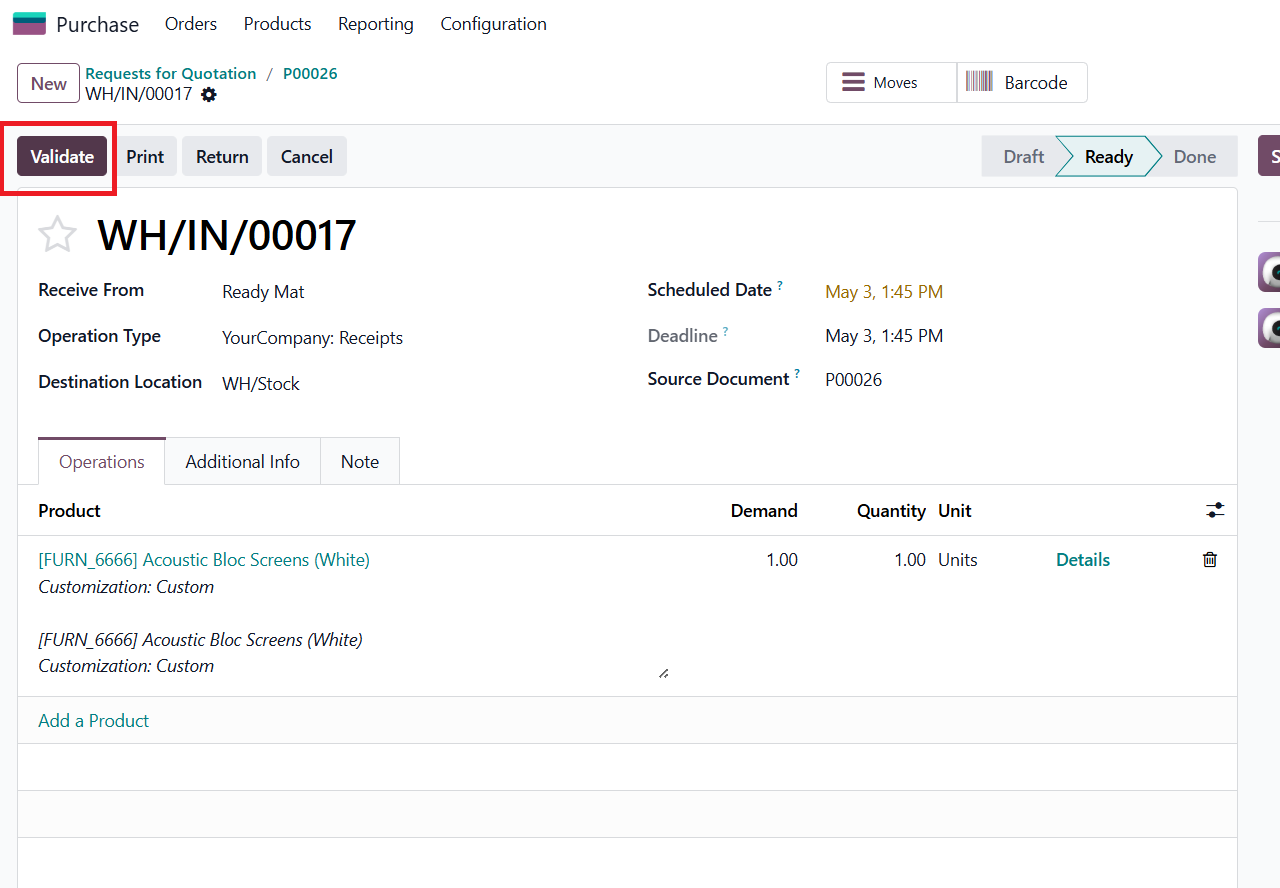
After receiving the product, click the Validate button
After validating the receipt, the vendor bill can be created either from the Accounting module or directly from the Purchase module. By selecting the related purchase order, Odoo automatically fills in the product details, quantities, and pricing based on the original order or the received items.From the purchase order, we can also create the bill directly using the Bill Matching option.
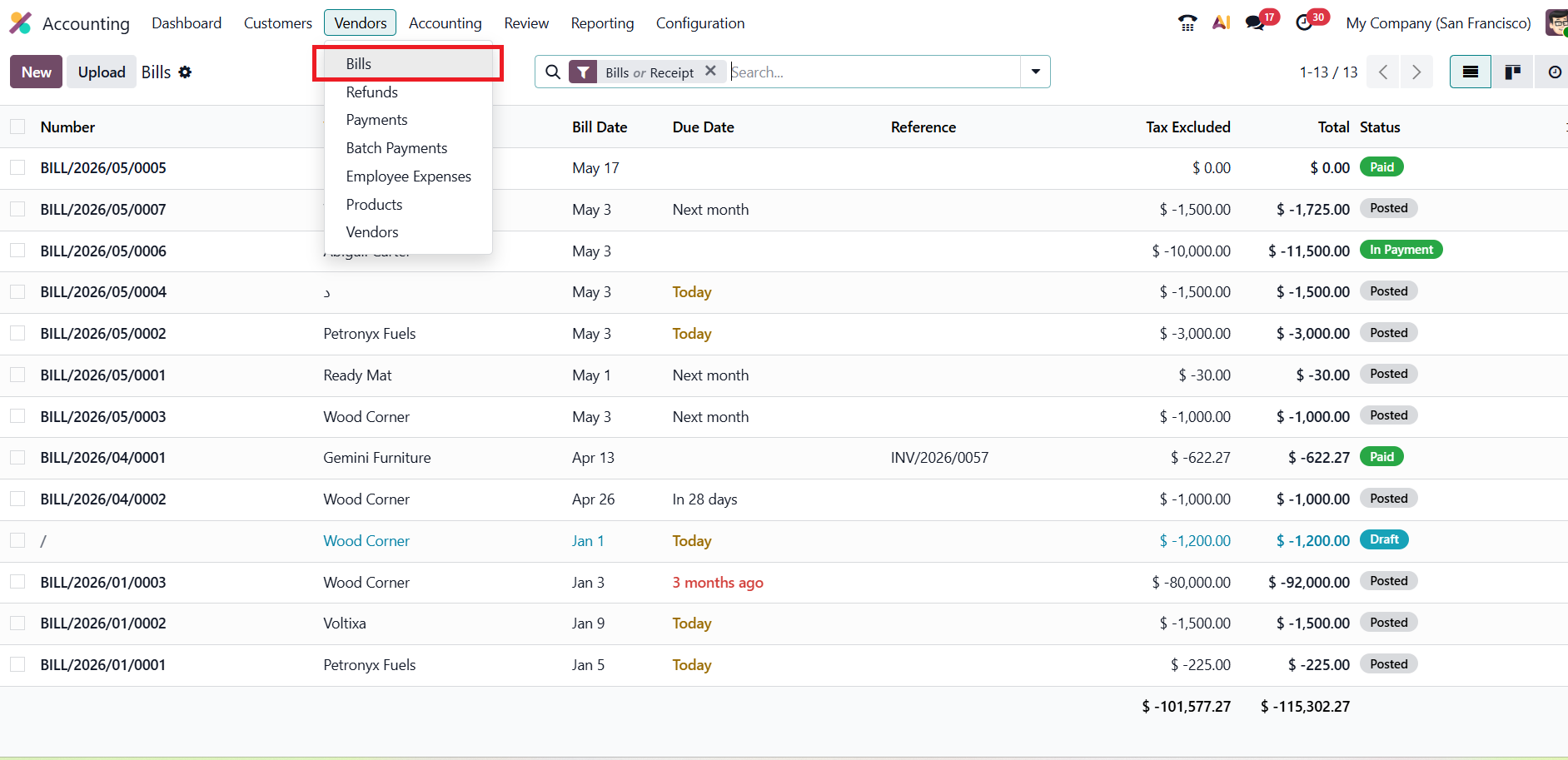
In the bill form, users can select the related purchase document using the Auto-Complete field. Once the purchase order is selected, Odoo automatically populates the invoice lines with the corresponding product details, quantities, prices, and taxes. This feature simplifies bill creation and ensures that the bill accurately reflects the purchase order and received items, reducing manual data entry and improving accuracy.
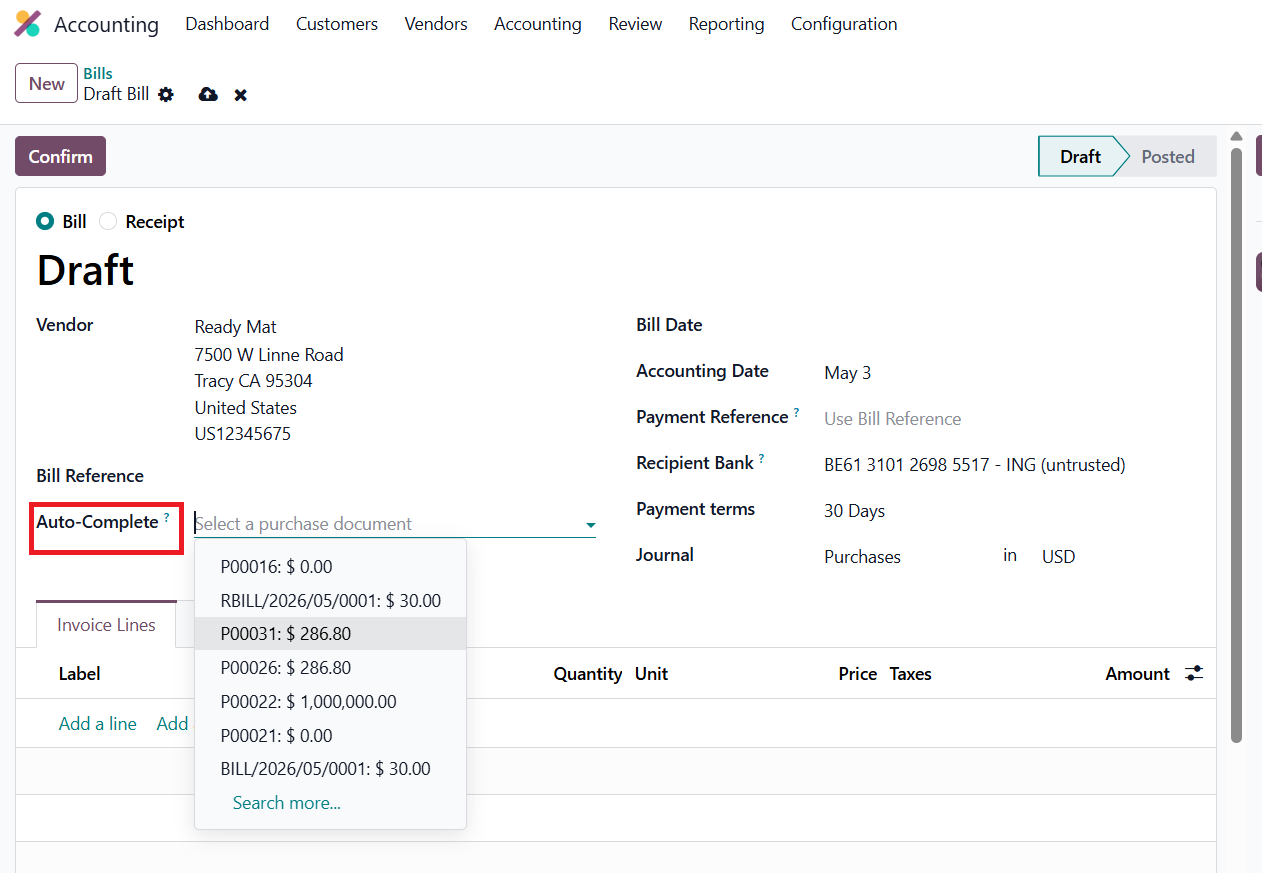
Once the purchase order details are auto-filled in the vendor bill, review the information carefully, including product quantities, pricing, taxes, and payment terms. Make any necessary adjustments if required.
After verification, click on the Confirm button to post the bill. This action records the transaction in the Accounting module and updates the payable amount for the vendor.
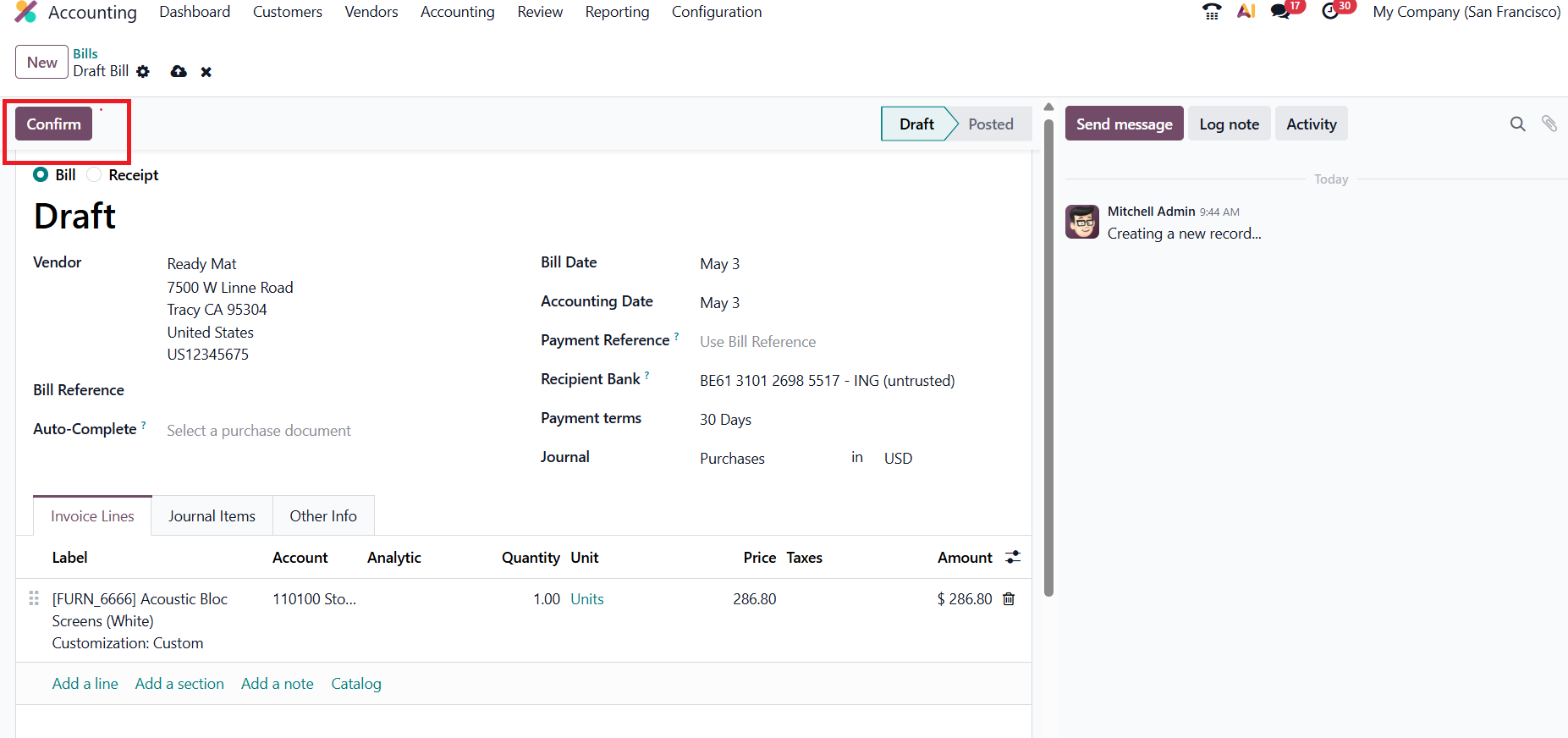
Once the vendor bill is confirmed, the payment can be recorded using the Pay option. Users can choose the relevant payment journal, specify the payment method, and provide the required transaction details to complete the process.
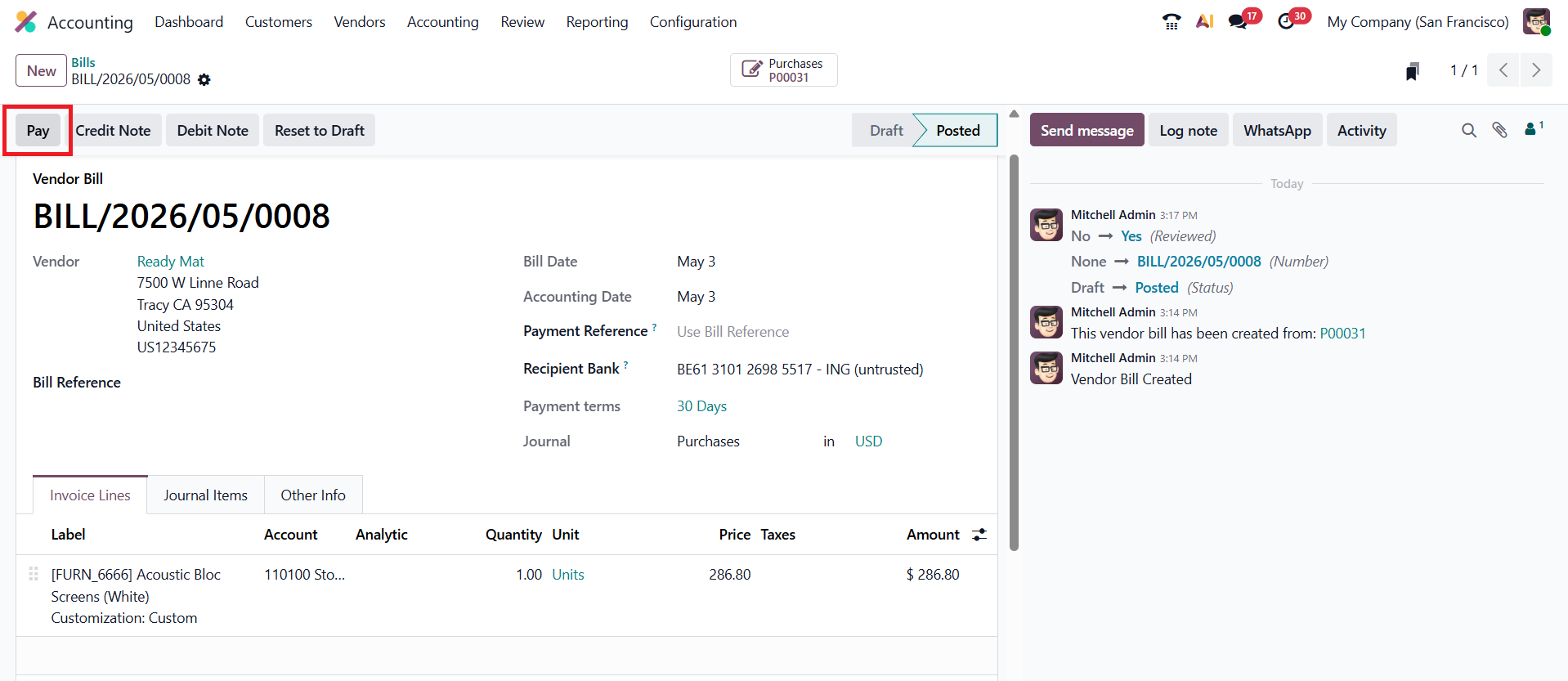
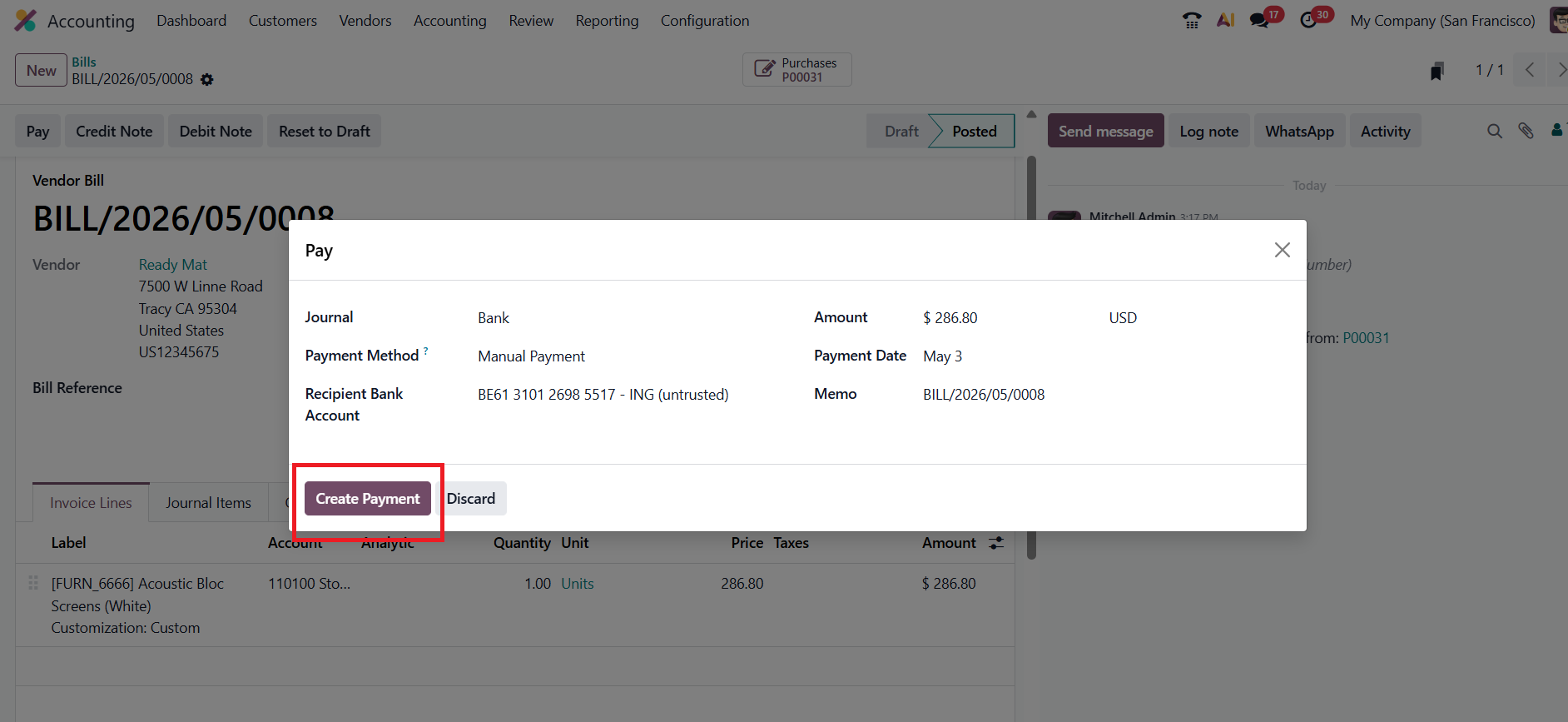
If there are issues such as damaged goods, incorrect items, or quality problems, a return process can be initiated.
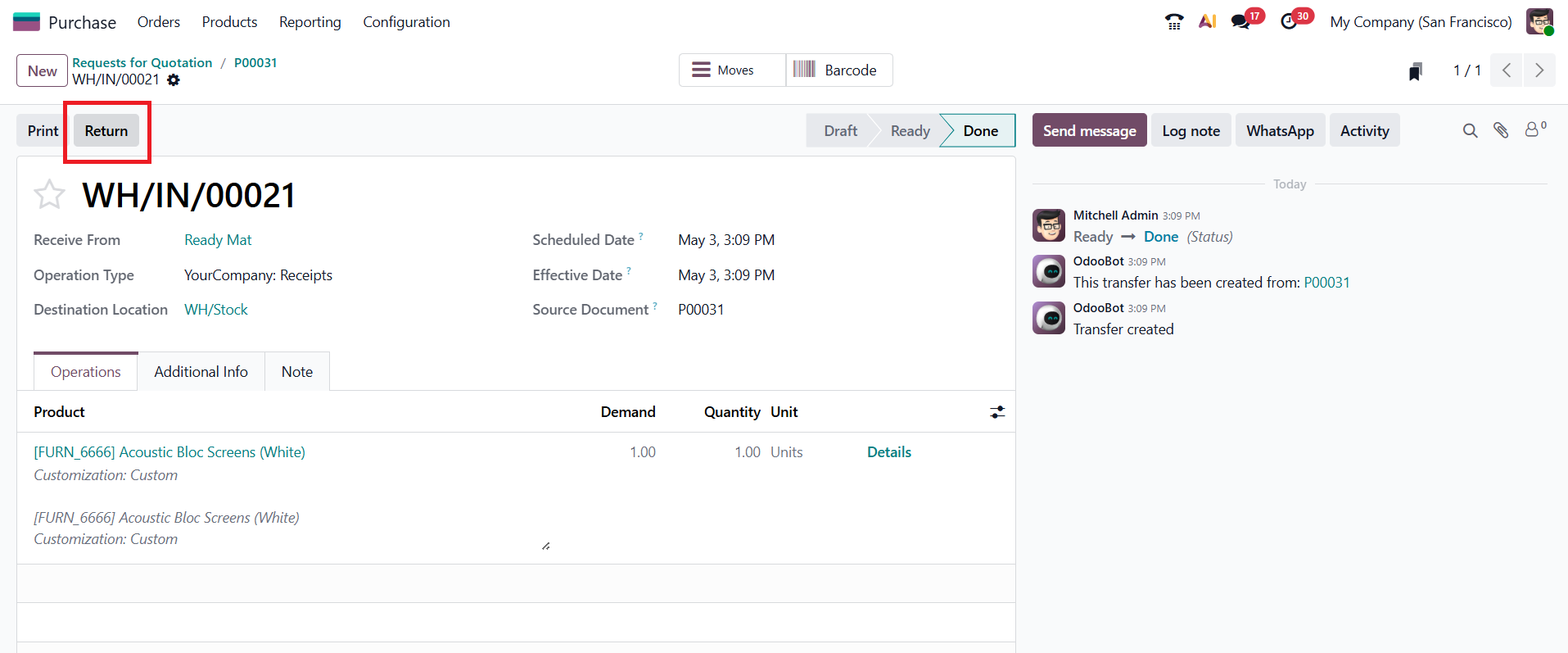
Navigate to the validated receipt and click on the “Return” option. Enter the quantity of items to be returned and confirm the reverse transfer.This action prepares the system to send the products back to the vendor.
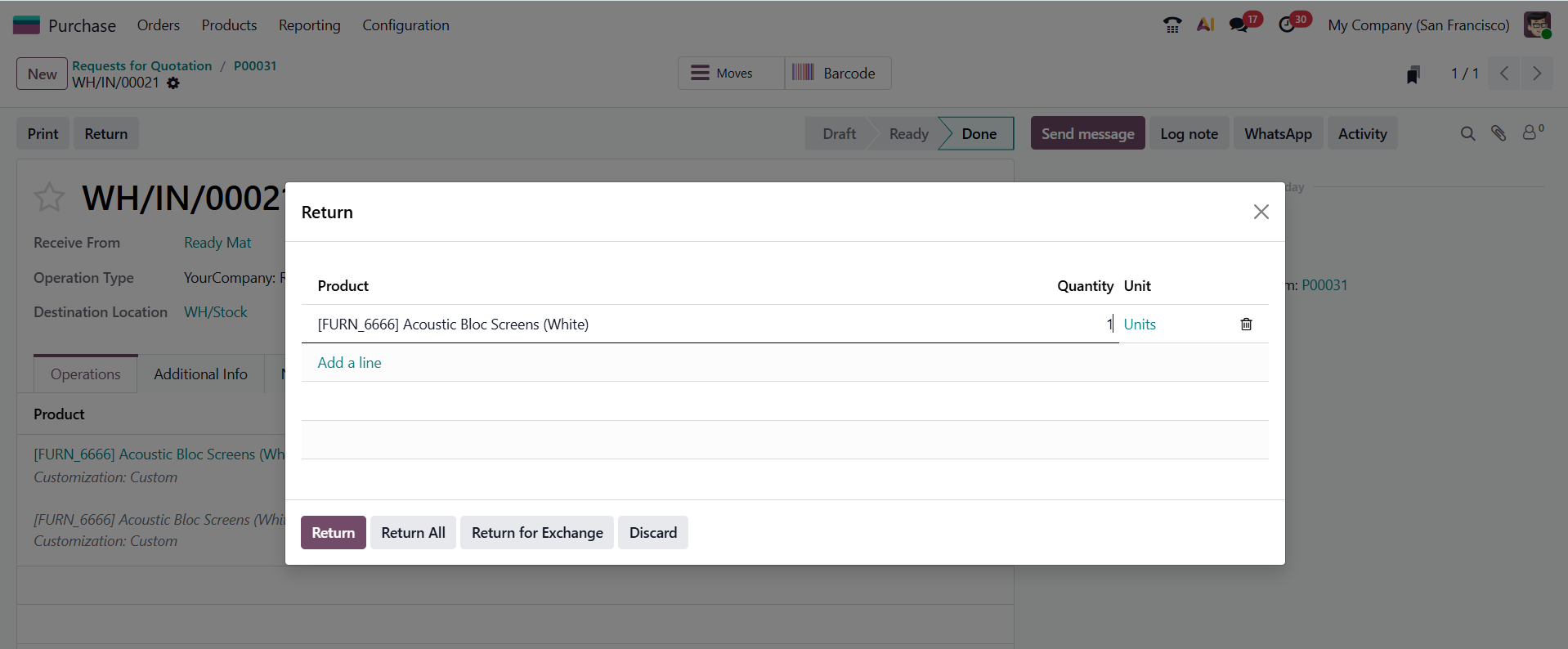
After clicking the Return button, a wizard appears where users can define the quantity of products to be returned. Enter the required return quantity and click Return, or use the Return All option if the entire quantity needs to be sent back to the vendor.
Once the return is created, validate the reverse transfer to complete the return process. After validation, the system reverses the stock movement, transferring the products from the internal location back to the vendor location. This updates the on-hand quantity and ensures accurate inventory records.
Once the return is completed, the financial adjustment must be recorded by creating a vendor credit note from the original vendor bill using the Credit Note option.
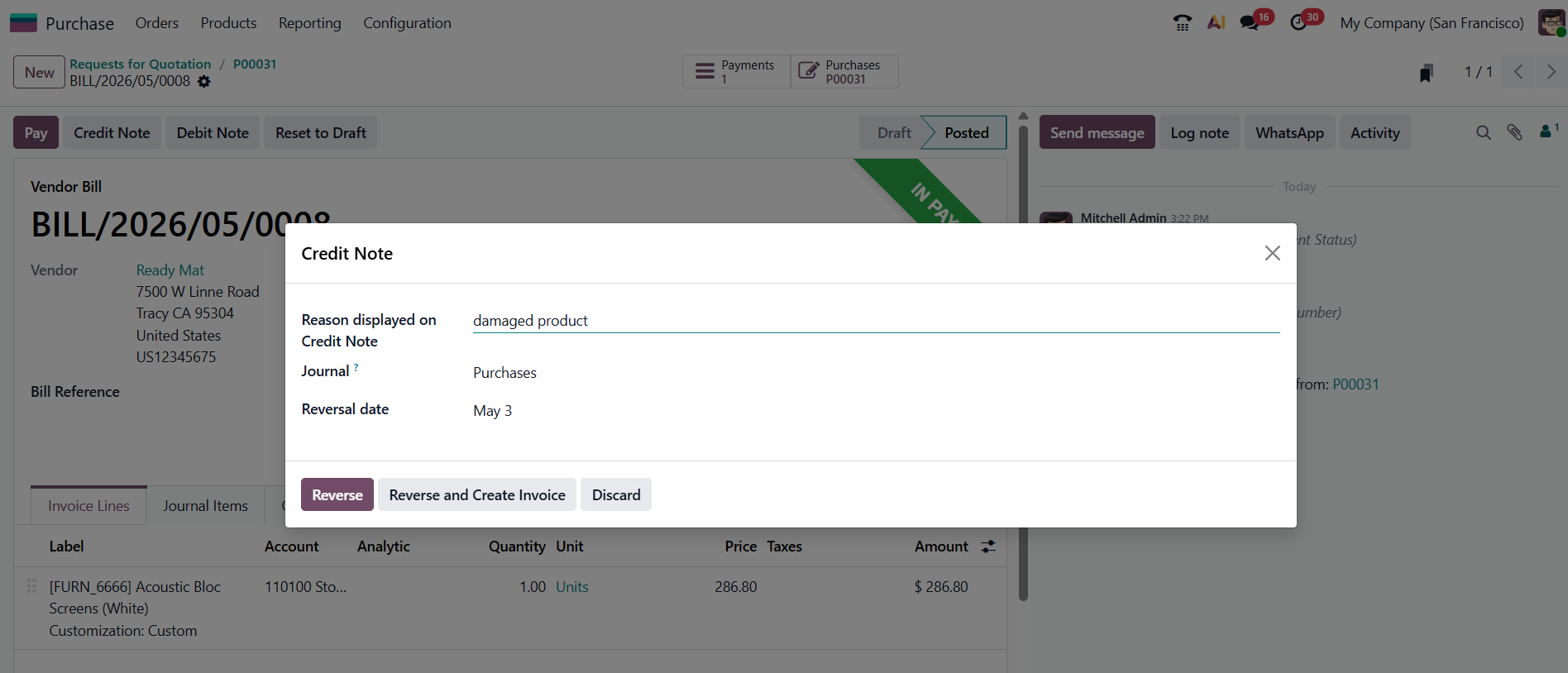
When the Credit Note option is selected from the vendor bill, a reverse entry wizard appears. In this window, users need to specify the Reversal Date, Journal, and the reason for the credit note. Odoo then provides options such as Reverse to generate the credit note and Reverse and Create Invoice to create a draft replacement bill. Upon clicking the Reverse button, the vendor credit note is automatically created.
The generated vendor credit note appears in draft state, displaying the linked original bill reference along with the reversal reason, allowing users to review the details before confirmation.
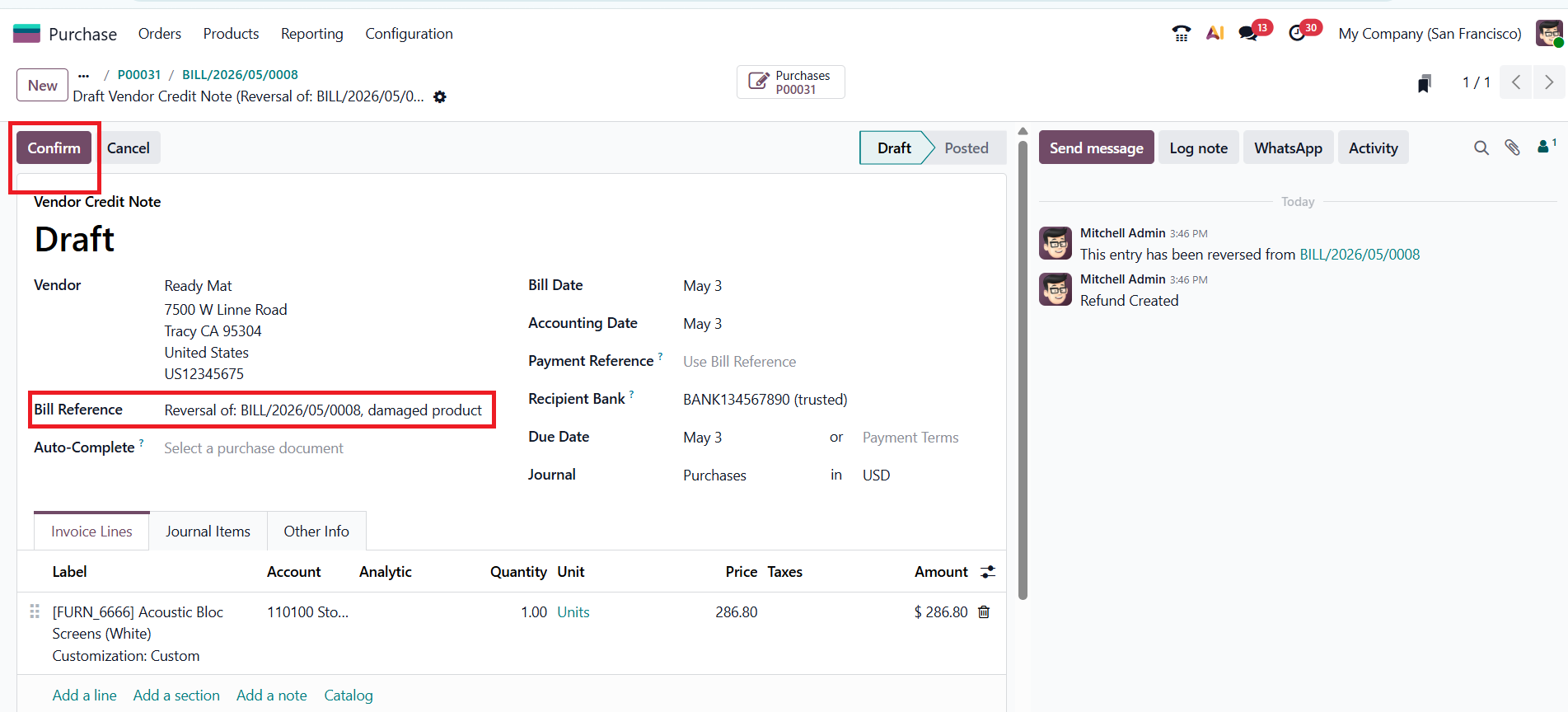
Confirm the bill and pay the bill to complete the process.
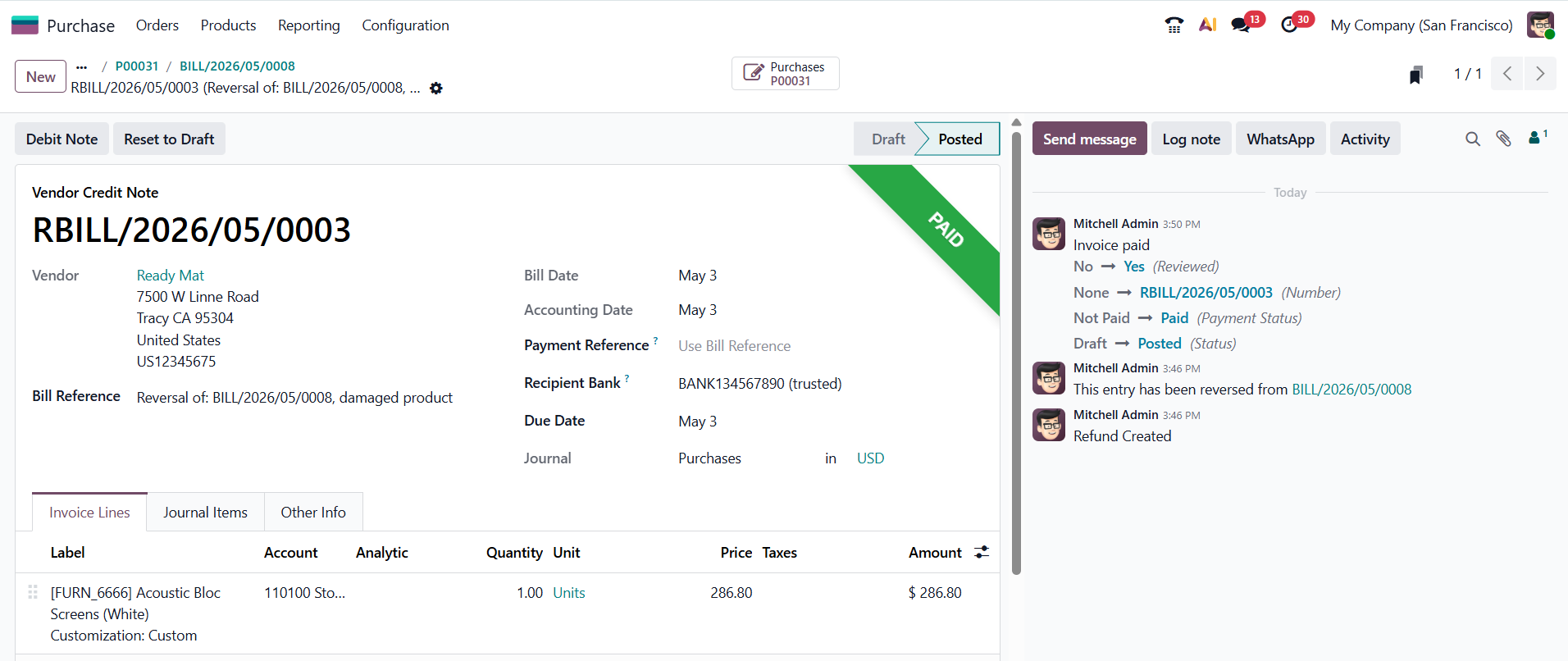
Then the bill will be in the In payment state, and then we can reconcile the bank statement with the corresponding payment to mark it as paid .
The vendor refund workflow in Odoo 19 provides a structured and efficient approach to handling product returns and financial adjustments. By seamlessly integrating the Purchase, Inventory, and Accounting modules, the system ensures that both stock movements and accounting entries remain accurate and synchronized.
From purchase confirmation to receipt validation, bill creation, product return, and credit note processing, each step is interconnected, reducing manual effort and minimizing errors. This streamlined process helps businesses maintain clear financial records, improve operational efficiency, and ensure better vendor management.





0